KVM Switch Black Screen? Fix It in the Right Order
A KVM black screen is usually a signal-path, bandwidth, wake, or EDID problem. Use this order to isolate the fault without replacing everything.
Editorial evidence review
Recommendations are checked against product documentation, availability, comparative evidence, and clearly disclosed hands-on work where it exists.
On this page
- Quick diagnosis
- 1. Name the exact failure
- 2. Run the direct-connection test
- 3. Rebuild the shortest possible KVM path
- 4. Lower bandwidth before blaming EDID
- 5. Check cables and adapters as a system
- 6. Understand what EDID can and cannot fix
- 7. Stop Windows from treating every switch as a new desk
- 8. Check Mac display limits and wake behaviour
- 9. When USB works but video does not
- 10. Update firmware only for the exact problem
- When should you replace the KVM?
- Who this guide is for
- Common mistakes
- FAQ
- Sources and methodology
A brief black screen while a KVM changes computers can be normal. A screen that stays black, loses one monitor, falls back to 60Hz, or recovers only after you unplug a cable is not.
Start with one question: does the same computer, cable, and display mode work when the KVM is removed from the path? If the answer is no, the KVM is not yet the problem. If the direct connection works, rebuild the chain one part at a time until the failure returns.
This guide is based on current Microsoft, Apple, StarTech, and TESmart support documentation plus KVM connection requirements. We have not tested every switch, dock, graphics driver, monitor, cable, or sleep state. Model-specific reset and EDID procedures should come from the manual for the exact hardware revision.
If the picture is stable but the faster display modes are missing, use our 144Hz monitor stuck at 60Hz checklist. It separates refresh-rate selection from a connection that loses video.
Quick diagnosis
| Symptom | Start here | Likely part of the chain |
|---|---|---|
| Black screen, but keyboard and mouse still work | Test a lower resolution and refresh rate | Video bandwidth, cable, adapter, display input, or EDID |
| Video works, but USB devices do not | Move the device to a normal USB port and test the host cable | USB path, power, hub, or dedicated keyboard/mouse port |
| One of two monitors is missing | Verify that each computer supplies two independent video feeds | Host topology, dock limitation, cable mapping, or display limit |
| Windows move after every switch | Check EDID handling and Windows display-memory settings | Display identity is being disconnected or changed |
| Screen returns only after sleep or a cable reconnect | Test wake state, hot-plug behavior, and firmware | Link retraining, dock, driver, or KVM firmware |
| Direct connection also fails | Fix that path before reconnecting the KVM | Computer output, cable, adapter, monitor input, or unsupported mode |
Do not buy a new KVM until the direct-connection test passes. A replacement switch cannot make an unsupported cable, adapter, dock, refresh rate, or external-display count work.
1. Name the exact failure
“Black screen” is too broad to troubleshoot efficiently. Record what still works:
- Does the monitor report no signal, or is the backlight on with a blank image?
- Do the keyboard and mouse control the selected computer?
- Does one monitor work while the other stays dark?
- Does the picture return at 60Hz but fail at 144Hz or 240Hz?
- Does the problem happen only after sleep, only after switching away, or from a cold start?
- Does HDR, adaptive sync, audio, or USB fail while ordinary desktop video works?
This separates a video problem from a complete KVM failure. If USB input continues while the screen is black, keep the first round of testing on the video chain.
2. Run the direct-connection test
Disconnect the KVM. Connect computer A directly to monitor 1 using the cable and display input you intend to use. Select the target resolution and refresh rate, then repeat for every computer and monitor.
If you have not established a working two-display laptop connection yet, start with the laptop KVM wiring checklist. It separates dock compatibility and cable count from faults that appear after switching.
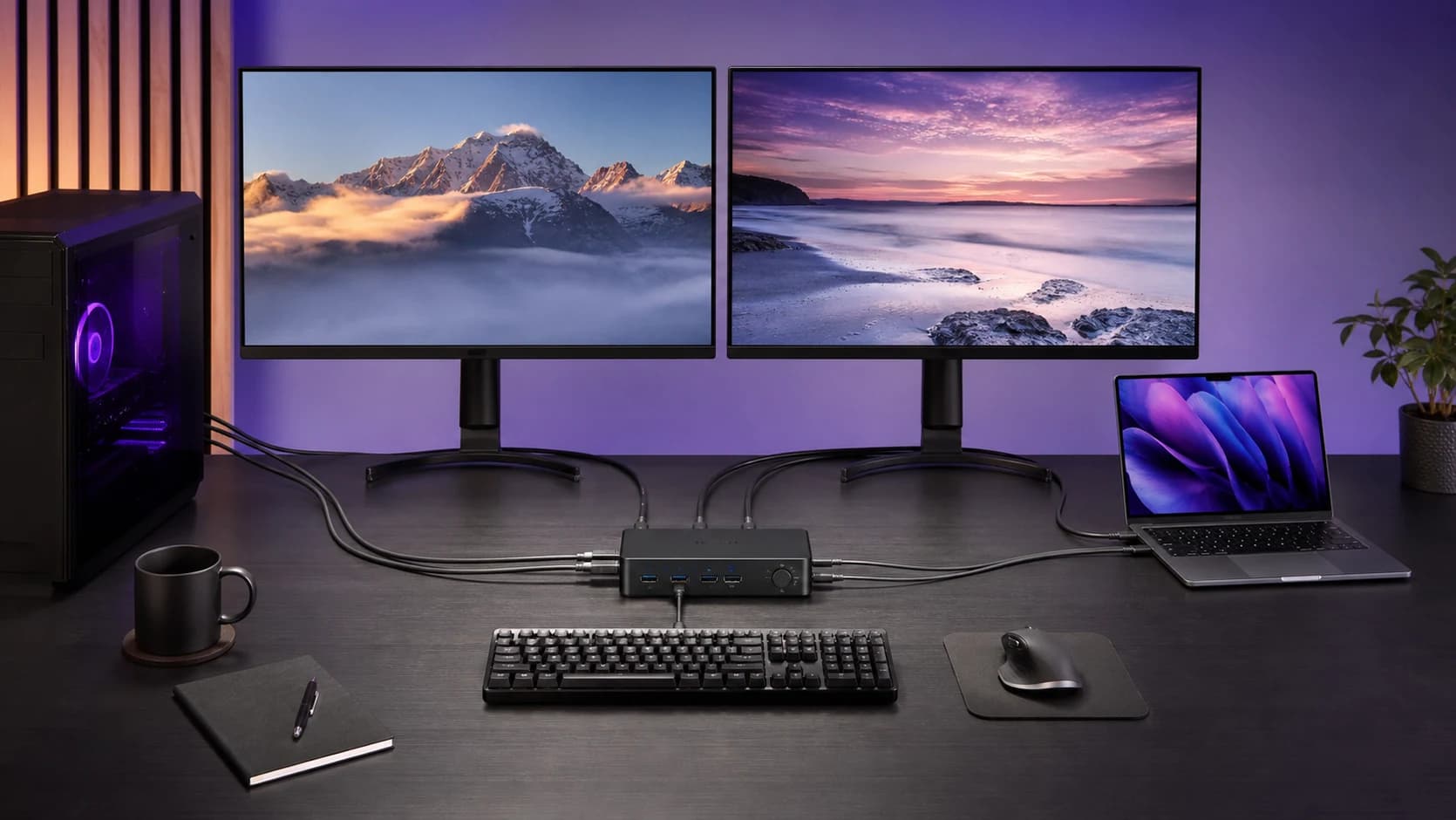
For a dual-monitor setup, confirm that each computer can drive both displays at the same time. A two-monitor KVM does not create a second display output. The graphics card, laptop, or dock must provide two independent display signals before the switch can route them.
If a direct connection fails:
- Select the correct monitor input manually.
- Reseat both ends of the video cable.
- Remove adapters, extenders, capture devices, and docks where possible.
- Try the monitor's native resolution at 60Hz with HDR and variable refresh rate off.
- Check the computer's documented external-display limit.
- Test a known-good cable rated for the required mode.
Reconnect the KVM only when the direct path is stable. Our dual-monitor KVM buying guide explains why each host usually needs a separate feed for each monitor. If you are trying to make one USB-C laptop port drive two displays, read Can a Thunderbolt dock run two monitors on a Mac? before adding another box.
3. Rebuild the shortest possible KVM path
Use one computer, one monitor, the KVM, and the shortest verified cables. Disconnect the second screen and every nonessential USB device.
Power the chain in a controlled order:
- Shut down or fully wake the computer.
- Turn off the monitor and KVM.
- Connect one host video cable, the matching USB host cable, and one KVM output cable.
- Power the monitor and KVM.
- Start or wake the selected computer.
- Confirm a stable picture before adding the second monitor.
- Add shared USB devices one at a time.
This is slower than swapping random cables, but it identifies the first component that breaks the working path. Label dual-monitor input pairs; crossed input groups can look like a dead port or an unsupported display.
4. Lower bandwidth before blaming EDID
A KVM can pass 1080p60 and still fail at 4K144. Resolution, refresh rate, color depth, HDR, chroma format, and variable refresh rate all consume or depend on the available signal path.
Temporarily set the monitor to its native resolution at 60Hz. Turn off HDR and adaptive sync. If that works, raise one setting at a time.
The weakest compatible part sets the ceiling:
computer output → source cable → adapter or dock → KVM → output cable → monitor input
A high-bandwidth cable does not add Display Stream Compression, VRR, HDR, or HDCP support to a KVM that lacks it. An adapter can also be directional or support a lower mode than its connector shape suggests.
If the picture fails only above 60Hz, check the exact KVM specification rather than the headline “8K” or “4K” label. Those labels rarely describe every combination of dual displays, HDR, color depth, adaptive sync, or compression.
5. Check cables and adapters as a system
High-resolution KVM setups use more cables than buyers expect. A two-computer, two-monitor KVM often needs four host-side video cables and two display-side cables, plus USB host connections.
Check each run for:
- the correct input group and output port;
- a connector and standard supported at both ends;
- directionality on USB-C, DisplayPort-to-HDMI, or active adapters;
- sufficient bandwidth for the chosen mode;
- damage, loose fit, or an excessively long run;
- a dock or converter that changes the available display features.
Avoid replacing all six cables at once. Swap one known-good cable into each position. If the fault follows a cable, you have a useful answer. If it stays on one KVM port, monitor input, or computer output, test that component next.
6. Understand what EDID can and cannot fix
EDID is the display information a computer reads to learn which monitor is connected and which modes it supports. When a KVM removes or changes that information during switching, the inactive computer can behave as though the monitor was unplugged.
EDID trouble often looks like:
- windows moving to another monitor;
- resolution or refresh rate changing after a switch;
- a long display re-detection delay;
- one monitor returning before the other;
- full-screen apps changing display mode;
- the inactive computer forgetting its screen layout.
EDID emulation can keep a consistent display identity available to each computer. It cannot increase link bandwidth, add an unsupported resolution, create another display engine, repair a bad cable, or guarantee wake behavior through every dock and driver.
Use the KVM's documented EDID mode only. Some switches learn the connected monitor at power-up; others copy EDID with a button sequence or use fixed profiles. Do not copy a reset sequence from a different model. A wrong fixed EDID can advertise a mode that the physical chain still cannot carry.
If a switch already has configurable EDID and the picture remains unstable, test both the recommended emulation mode and the documented pass-through or disabled state. Keep whichever mode matches the real monitor and complete signal path.
7. Stop Windows from treating every switch as a new desk
In Windows 11, open Settings → System → Display → Multiple displays. Turn on Remember window locations based on monitor connection. Microsoft also provides a separate option to minimise windows when a monitor disconnects.
This setting can reduce the mess after a display reconnects, but it is not a substitute for stable EDID. If Windows sees a different monitor identity after every switch, fix the KVM or EDID path first. If video is otherwise working, follow the window-layout recovery and display-detection checklist to distinguish software recovery from keeping displays connected to an inactive host.
Also check:
- that the desktop is set to Extend rather than an unintended duplicate mode;
- that each display uses the expected resolution and refresh rate;
- current graphics drivers and Windows updates;
- whether the problem began after a driver, dock, firmware, or cable change.
If keyboard and mouse input works while video is black, use a direct monitor connection to restore a safe display mode before putting the KVM back into the chain.
8. Check Mac display limits and wake behaviour
Mac external-display support varies by model, chip, lid state, resolution, and refresh rate. Check the technical specifications for the exact Mac. A KVM cannot bypass the number of displays the computer supports.
If macOS does not see a connected display, Apple documents this path:
- Open System Settings → Displays.
- Hold Option to reveal Detect Displays.
- Click Detect Displays.
- If the screen remains dark, disconnect and reconnect it, verify the cable and adapter, then test after sleep/wake or a restart.
Apple also warns that a display can remain dark when the selected resolution or refresh rate exceeds what the Mac, cable, adapter, or monitor supports. For Apple-silicon laptops, confirm that macOS has allowed the attached accessory to connect.
When a dock sits between the Mac and KVM, test the display directly from the Mac and then through the dock without the KVM. That tells you which added layer changes the result.
9. When USB works but video does not
Working keyboard and mouse input proves only that part of the USB path is alive. It does not prove that the video path, EDID, or monitor wake state is healthy.
Likewise, working video does not guarantee that a webcam, audio interface, storage device, or wireless receiver will behave through a dedicated keyboard port. KVM keyboard and mouse ports may use emulation and accept fewer device types than a normal shared USB port.
If the picture is stable but input is not, follow the KVM keyboard and mouse troubleshooting guide for host-cable checks, dedicated USB ports, wireless receivers and Mac accessory approval.
For USB trouble:
- confirm the USB host cable is connected to the selected computer;
- move the device from a keyboard/mouse port to a normal shared USB port;
- remove an unpowered hub;
- test a lower-power peripheral;
- check whether USB focus can switch separately from video;
- reconnect devices one at a time after video is stable.
If the monitors already have suitable direct inputs and only peripherals need to move, a USB switch may be simpler. Our USB switch vs KVM guide explains the trade-off.
10. Update firmware only for the exact problem
Check the manufacturer's support page for the exact model and hardware revision. Read the release notes before updating.
Do not install firmware for a similar-looking KVM. Do not assume firmware exists. A failed or incorrect update can turn an intermittent display problem into a dead device.
Update when the vendor documents a fix relevant to your symptoms or instructs you to do so. Otherwise, finish the isolation tests first. Cables, unsupported modes, dock limitations, and incorrect topology are more common than a missing firmware cure.
When should you replace the KVM?
Replace or return the switch when:
- every source and monitor works directly at the required mode;
- known-good cables fail only through the KVM;
- the KVM cannot support the required bandwidth, display count, DSC, HDR, VRR, or HDCP path;
- window rearrangement is unacceptable and the switch has no workable EDID handling;
- the required laptop topology needs a dock/KVM combination rather than separate video feeds;
- one KVM port fails while the same cable and device work through another port.
Do not replace it merely because one complex dock-and-adapter chain failed. Simplify the path first.
For two HDMI computers and two 4K60-class office monitors, the TESmart HKS202-P23 V2 is the current HDMI-first pick in our dual-monitor KVM guide. For two DisplayPort desktops where high-refresh modes matter, the DKS202-M24 is the better documented fit. Both advertise EDID emulation, but neither can guarantee compatibility with every monitor, dock, driver, or sleep state.
For one Thunderbolt 4 laptop and one desktop, use a topology designed for that asymmetry rather than forcing adapters into a symmetric desktop KVM. Our TESmart HDC202-X24 review covers that route and its 60W charging limit.
TESmart HKS202-P23 V2
Consider this only when two HDMI hosts, dual 4K60-class monitors, and documented EDID handling match the desk.
Why it works
- Dual-HDMI topology
- Documented EDID emulation
- Shared USB and several switching controls
Main trade-off
- Each computer needs two HDMI feeds
- No laptop charging
- Not a high-refresh 4K solution
TESmart DKS202-M24
Consider this for two DP desktops when EDID and documented high-refresh modes solve a real requirement.
Why it works
- DisplayPort 1.4 topology
- Documented EDID emulation
- Higher published refresh-rate headroom
Main trade-off
- Six DisplayPort runs
- No one-cable laptop input
- Exact high-bandwidth modes depend on the full chain
Read our TESmart HKS202-P23 review or TESmart DKS202-M24 review for the exact cable maps and model-specific limitations. The UGREEN 55851 is a cheaper DisplayPort option, but our UGREEN 55851 review explains why its lack of EDID emulation matters for window retention.
Who this guide is for
Use this guide if a working computer-and-monitor setup becomes unstable only after a KVM is added, or if a previously stable switch now loses a display after sleep, a driver update, or a cable change.
Skip the replacement recommendations if the direct-connection test fails. Fix the source, display, cable, adapter, dock, or unsupported mode first.
Common mistakes
Changing several things at once. You lose the ability to identify what fixed or caused the problem.
Assuming a dual-monitor KVM creates two outputs. Each computer must provide the required independent signals.
Treating EDID as extra bandwidth. EDID describes display modes. It does not make an unsupported mode transmissible.
Buying by connector name alone. HDMI and DisplayPort versions, bandwidth, DSC, VRR, HDR, and display-count limits all vary.
Using a product-family firmware file. Match the exact model and hardware revision.
Testing only after sleep. Establish a stable cold-start path first, then add sleep and wake behaviour to the test.
FAQ
Why does my KVM switch show a black screen after switching?
The new computer and display may be retraining the video link, or part of the chain may fail to carry the selected mode. Persistent black screens usually point to cables, adapters, bandwidth, wake state, topology, or EDID handling.
Why does the KVM work at 60Hz but not 144Hz?
The complete signal path may not support the higher bandwidth or required compression and display features. Check the computer output, every cable, any dock or adapter, the exact KVM specification, and the selected monitor input.
Can EDID emulation fix a KVM black screen?
It can help when the computer loses or changes the monitor's identity during switching. It cannot fix a bad cable, insufficient bandwidth, an unsupported display count, or a mode the KVM cannot transmit.
Why does only one monitor work through a dual-monitor KVM?
The computer may provide only one independent video signal, one host cable may be in the wrong input group, or the dock may mirror rather than extend the second output. Test both displays directly from each computer before reconnecting the switch.
Why do my windows move when I change computers?
The inactive computer may think its monitor was disconnected. Stable EDID handling can reduce this, and Windows 11 can remember window locations based on monitor connection.
Should I replace all the cables?
No. Test one known-good cable in each position. Replacing everything together costs more and hides the actual fault.
Sources and methodology
- Microsoft: use multiple monitors in Windows for display detection, layout, refresh-rate, and window-location settings.
- Apple: if an external display is dark or low resolution for direct connection, cable, adapter, display-limit, resolution, refresh-rate, and detection checks.
- Apple: connect one or more external displays for model limits, cable requirements, and Detect Displays.
- StarTech: why windows resize or rearrange with a KVM for DDC/EDID interruption and DisplayPort KVM behaviour.
- TESmart's official HKS202-P23 manual and DKS202-M24 product documentation for model-specific topology and EDID claims.
- Amazon US exact-product checks for TESmart HKS202-P23 V2 (
B0CQQYHQLL) and DKS202-M24 (B0F5M8MMBM) using SolderMag's configured Associate tag.
We weighted reversible isolation steps, native connection fit, signal-path limits, and official operating-system guidance. We did not use fixed prices, discounts, ratings, review counts, stock promises, or unsupported hands-on results.
As an Amazon Associate I earn from qualifying purchases.