TESmart HKS202-P23 Review: A Sensible Dual-HDMI KVM?
The HKS202-P23 handles two HDMI computers and dual 4K60 monitors well, but its six video cables make setup fit more important than extra features.
Research-based review
Recommendations are checked against product documentation, availability, comparative evidence, and clearly disclosed hands-on work where it exists.
Quick picks
The short answer, with the trade-off
On this page
- Short verdict
- Who this is for
- Who should skip it
- Key specifications
- Setup: count the cables before buying
- EDID and window retention
- Display modes and switching
- 4K60 is the right ceiling for office work
- USB and peripheral sharing
- MacBook and laptop compatibility
- Value
- Alternatives
- Frequently asked questions
- Final recommendation
- Sources and methodology
The TESmart HKS202-P23 is a sensible dual-monitor KVM for two computers that can each provide two HDMI outputs. It switches both displays, a keyboard, a mouse, one shared USB 3.0 device, and headset audio. Its EDID emulation is also useful on a work desk because it can reduce the window reshuffling that happens when an inactive computer thinks its monitors have vanished.
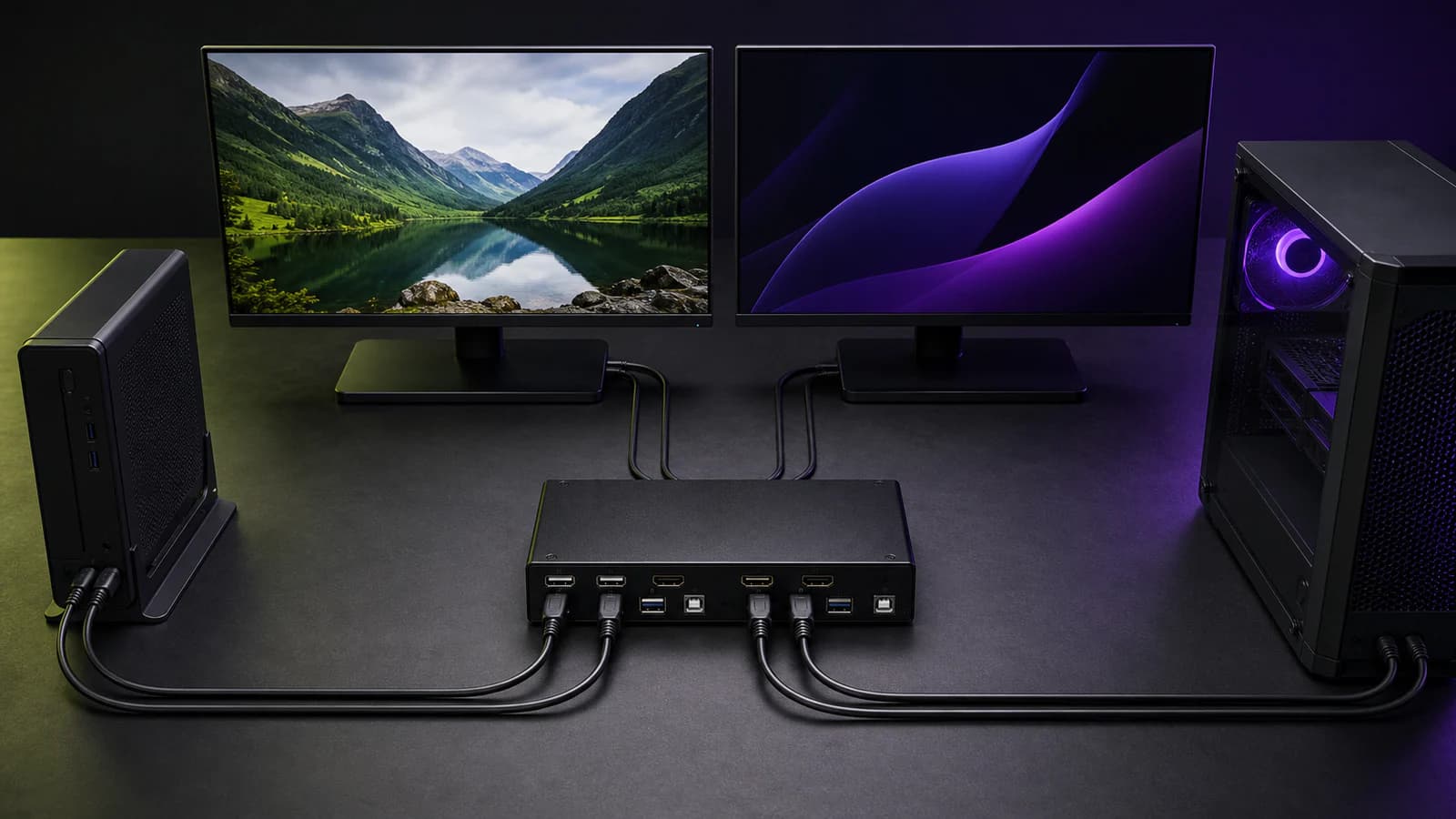
The catch is cabling. This is not a one-cable laptop dock. Each computer needs two HDMI video feeds plus one USB data connection, and the KVM then needs two more HDMI cables to the monitors. Buy it for a mapped, HDMI-only desk. Skip it if you need DisplayPort, dual 4K above 60Hz, 5120×1440, or a single USB-C cable for video, charging, and peripherals.
This is a research-based review. We have not completed hands-on switching, latency, display-retention, USB-compatibility, thermal, or long-term reliability tests. The verdict is based on TESmart's current product page, manual, support documentation, connection topology, and exact US Amazon product validation.
Short verdict
Buy the HKS202-P23 if both computers already expose two suitable HDMI outputs and the target is a dual-4K60 productivity desk. The combination of persistent display information, USB sharing, hotkeys, front controls, remote control, and per-screen switching is unusually practical for that exact layout.
Do not buy it because the product page calls it a docking station. It does not turn one laptop port into two displays, charge a laptop, or bypass the computer's native external-display limit. A laptop often needs a separate dock or adapters before it can feed this KVM, which makes the final setup more expensive and harder to troubleshoot.
TESmart HKS202-P23 V2 Dual-Monitor HDMI KVM
Why it works
- Switches two computers across two HDMI monitors
- EDID emulation helps preserve display identity in normal dual-screen mode
- USB 3.0 sharing plus buttons, remote, and hotkeys
Main trade-off
- Each host needs two HDMI feeds plus USB
- 4K60-class ceiling; no 5120×1440 support
- Not a one-cable USB-C or Thunderbolt dock
Who this is for
The HKS202-P23 fits a desk with:
- two computers that can each output to two HDMI displays
- two HDMI monitors running at 4K60 or a documented lower-resolution, higher-refresh mode
- one shared keyboard and mouse
- one shared USB 3.0 peripheral such as a webcam, storage device, or printer
- a reason to keep both monitors visible to the inactive computer
- enough space to route and label at least six HDMI cable runs
It is particularly easy to justify for two desktops, a desktop plus a docked work laptop, or an office where both machines stay connected every day. Our HKS202-P23 vs DKS202-M24 comparison explains when HDMI is enough and when DisplayPort's high-refresh headroom is worth paying for. The dual-monitor KVM buying guide covers the broader category and one-cable laptop alternatives.
Who should skip it
Skip the HKS202-P23 if:
- either computer cannot natively drive two external displays
- one main display needs 4K above 60Hz
- the monitor uses 5120×1440 dual-QHD resolution
- DisplayPort is the only sensible connection for the computers or monitors
- you want USB-C or Thunderbolt to carry video, peripherals, and laptop power through one cable
- two monitor input buttons plus a simple USB switch would solve the problem for less
- a capture device, fast external SSD, audio interface, and other high-bandwidth peripherals all need to switch together
If you are building a laptop-first desk, start with our laptop docking station guide. The HKS202-P23 can sit after a compatible dock, but every dock, adapter, and extra cable adds another possible failure point.
Key specifications
| Feature | TESmart HKS202-P23 V2 | What it means for the buyer |
|---|---|---|
| Computers | 2 | It is a two-host switch, not a four-computer model |
| Monitor outputs | 2× HDMI | Both shared monitors need HDMI inputs or suitable conversion |
| Host video feeds | 2× HDMI per computer | Four host video connections are required for dual-display use |
| Published display ceiling | 3840×2160 at 60Hz, 4:4:4 | Appropriate for productivity; not a 4K high-refresh gaming KVM |
| Other documented modes | 3440×1440 at 100Hz; 2560×1440 at 120Hz; 1080p at 240Hz | Useful only when the full source, cable, KVM, and monitor chain supports the mode |
| 5120×1440 | Not supported | Super-ultrawide buyers need another model |
| HDMI / content protection | HDMI 2.0; HDCP 2.2 | Matches the product's 4K60 positioning |
| EDID emulation | Per input, in display mode 1 | Helps keep two displays visible while both screens follow one computer |
| Shared USB | Dedicated keyboard/mouse ports plus 1× USB 3.0 device port | Enough for common peripherals, but not a large shared USB workstation |
| Front USB | Data transfer and BC 1.2 device charging | Convenient for a phone or temporary USB device; not laptop charging |
| Audio | Integrated headset/microphone connection | Audio can follow or be switched separately through documented hotkeys |
| Switching | Front buttons, IR remote, keyboard hotkeys, per-screen mode | More flexible than a button-only budget KVM |
These are manufacturer specifications, not measured results. Display modes depend on every component in the signal path, including the computer output, adapters, cables, and monitor input.
Setup: count the cables before buying
The HKS202-P23 solves a messy job, so the cable count is not subtle.
For each computer, TESmart's manual calls for one bundled KVM cable—an HDMI lead paired with a USB-A-to-USB-B data connection—plus one additional HDMI cable. That creates two video feeds and one USB host connection per computer.
The box then connects to both monitors over two more HDMI cables. TESmart lists two KVM cables and two standalone HDMI cables in the package; those cover the host-side connections. The manual tells the user to provide the two HDMI output cables from the KVM to the displays.
In practical terms, plan for:
- four HDMI feeds from the two computers to the KVM
- two HDMI outputs from the KVM to the monitors
- two USB host connections, integrated into the supplied KVM cables
- the 12V power adapter
- keyboard, mouse, optional USB 3.0 device, and optional headset connections
Label the four host video cables before pushing the desk back against the wall. TESmart's own manual recommends laying out and marking cables because a fully connected 2×2 KVM uses a lot of them.
EDID and window retention
EDID is the display information a computer reads to learn which monitor is connected and which modes it supports. A basic switch can make the inactive computer behave as if both displays were unplugged. Windows may collapse onto one screen, apps can move, and returning to that computer becomes a small repair job.
TESmart documents an EDID emulator on each input. That is one of the strongest reasons to choose this model over a cheaper switch. It should keep the expected display information available in the normal mode where both monitors show the same active computer.
There is an important limitation: TESmart says EDID emulation applies only in display mode 1. Do not assume the same persistence behavior when using matrix-style mode 2, where one monitor can show computer A and the other can show computer B. We have not independently verified how consistently window layouts survive sleep, graphics-driver updates, or unusual mixed-monitor combinations.
If a display is already staying black, dropping its refresh rate, or moving windows after a changeover, follow the KVM black-screen troubleshooting order before replacing the switch.
Display modes and switching
Most buyers will use display mode 1: both screens show one computer, and a single command moves the complete desk to the other computer. The operating system still decides whether those screens are extended or mirrored.
Display mode 2 is the more unusual option. It can show one computer on each monitor, then move keyboard and mouse focus between them. TESmart documents a double press of Right Alt for that focus change. USB 3.0 and audio focus can also be switched separately with hotkeys.
The KVM supports front-panel buttons, an infrared remote, and keyboard commands. The default hotkey trigger is Right Ctrl, with Scroll Lock and Left Ctrl available as alternatives. That flexibility matters if a keyboard lacks one of those keys, but compact and programmable keyboards remain a compatibility risk. TESmart's support notes specifically call out proprietary keyboard protocols, power use, and special software as possible causes of lag or repeated keys.
4K60 is the right ceiling for office work
The published 4K60, 4:4:4 mode is the useful headline. It suits text, spreadsheets, code, web work, and ordinary media on two 4K monitors. Full 4:4:4 chroma is relevant for sharp desktop text when the entire chain preserves it.
The HKS202-P23 also lists 3440×1440 at 100Hz, 2560×1440 at 120Hz, and 1080p at 240Hz. Treat these as supported ceilings, not proof that every monitor feature will survive the switch. The documentation does not turn a quoted refresh rate into a guarantee for HDR, variable refresh rate, unusual color depth, or a particular adapter chain.
For a competitive gaming monitor, a direct video connection plus a separate USB switch is safer unless TESmart documents the exact resolution, refresh rate, HDR, and adaptive-sync combination you intend to use. The HKS202-P23 is primarily an office and general-purpose HDMI KVM.
USB and peripheral sharing
The dedicated keyboard and mouse ports enable hotkeys and pass-through behavior. A separate USB 3.0 port can move one higher-bandwidth device with the selected computer. The front USB-A port supports data plus BC 1.2 charging for small devices.
That is enough for a keyboard, mouse, and one commonly shared peripheral. It is not enough to treat the KVM as a broad USB dock for several storage devices, a webcam, an audio interface, and a capture card at once.
If a keyboard repeats keys or hotkeys fail, TESmart advises testing the dedicated keyboard/mouse ports, checking the configured trigger key, and trying the standard USB port to isolate pass-through compatibility. That is useful support guidance, but it also confirms that complex keyboards can be less predictable than plain wired models.
MacBook and laptop compatibility
The HKS202-P23 can work in a Mac or laptop setup only after the computer provides two independent HDMI signals and USB data. It cannot create a second external-display engine.
Apple's external-display support varies by Mac model, lid state, resolution, and refresh rate. Check the exact Mac before buying. Our guide to running two monitors from a Thunderbolt dock on a Mac explains why a dock and two visible connectors do not guarantee two extended displays.
Windows laptops vary too. One USB-C port might support Thunderbolt, DisplayPort Alt Mode, charging, all three, or none. A compatible dock may expose two HDMI outputs, but that dock remains part of the video chain and must support both the laptop and the requested display modes.
Value
The HKS202-P23 makes sense when its topology matches the desk exactly. EDID emulation, per-screen routing, USB 3.0 sharing, audio control, three switching methods, and included host cables are real advantages over a bare video switch.
It is poor value when adapters are doing most of the work. If each laptop needs a dock plus two video converters before reaching the KVM, a USB-C-oriented KVM, monitor with a built-in KVM, or direct monitor inputs may be cleaner.
Do not use a fixed price threshold. Compare the current checkout price with the cost of a simple USB switch and the price of replacing one monitor with a model that has a built-in KVM. Pay more only if moving both screens and preserving display identity will save regular friction.
Alternatives
Direct monitor inputs plus a USB switch: the cheapest sensible alternative when both monitors already have two usable inputs. Video stays direct, while one USB button moves the keyboard and mouse. Our USB switch vs KVM switch guide explains the cable map and high-refresh trade-off.
DisplayPort KVM: the better route for two desktop PCs using high-refresh DP monitors. Our best dual-monitor KVM guide includes a DisplayPort-first TESmart option and a cheaper UGREEN pick.
USB-C or Thunderbolt KVM/dock: the cleaner option when a laptop must connect with one cable and receive power. Check native dual-display support and charging wattage before assuming it replaces the laptop's normal dock.
Monitor with a built-in KVM: worth considering if a display replacement is already planned. Our best work monitors guide covers models designed around multi-computer desks.
Frequently asked questions
Is the TESmart HKS202-P23 a docking station?
Not in the normal one-cable laptop sense. It switches existing HDMI video and USB signals. Each computer still needs two video outputs and one USB data connection.
Does the HKS202-P23 support two extended monitors?
Yes, when the selected computer natively provides two independent video outputs and its operating system is set to extend the desktop. The KVM does not add display support the computer lacks.
Does it keep windows in place when switching?
TESmart documents EDID emulation to keep display information visible in display mode 1. That should reduce window rearrangement, but we have not independently verified every operating system, sleep state, graphics driver, or monitor combination.
Does the HKS202-P23 support 4K at 120Hz?
No. TESmart lists 4K at up to 60Hz. Its documented higher-refresh modes are at lower resolutions, including 2560×1440 at 120Hz and 1080p at 240Hz.
Will it work with a 5120×1440 monitor?
TESmart explicitly says the HKS202-P23 does not support 5120×1440. Choose a model whose documentation names that exact mode.
Are all required cables included?
The package lists two combined KVM cables and two standalone HDMI cables for the host side. You still need two HDMI cables from the KVM outputs to the monitors.
Can it show a different computer on each monitor?
Yes. Display mode 2 supports one computer per display, with separate keyboard/mouse, USB, and audio focus controls. EDID emulation is documented only for display mode 1.
Final recommendation
Buy the TESmart HKS202-P23 V2 for a stable, cable-heavy dual-HDMI desk: two computers, two monitors, 4K60-class output, and a real need for EDID-based display retention. Its strength is not novelty. It is a well-documented match for a specific office topology.
Skip it if the desk is laptop-first, DisplayPort-first, or built around a 4K high-refresh or 5120×1440 monitor. In those cases, the adapters and compromises erase the reason to buy this model.
Sources and methodology
- TESmart HKS202-P23 V2 official product page for connection layout, display modes, published resolutions, and package contents: https://www.tesmart.com/products/hks202-p23-v2
- TESmart HKS202-P23 current manual for port layout, setup sequence, EDID scope, USB behavior, and switching controls: https://support.tesmart.com/hc/en-us/article_attachments/45211736765721
- TESmart HKS202-P23 support FAQ for display limitations, hotkeys, audio focus, and troubleshooting: https://support.tesmart.com/hc/en-us/articles/24009421628313-HKS202-P23-Previously-HKS0202A2U-FAQ
- TESmart 2026 selector for current HKS/Prime positioning and alternative connection families: https://support.tesmart.com/hc/en-us/articles/51073635294105-Choose-the-Right-TESmart-KVM-for-Your-Setup
- Apple model-specific external-display guidance: https://support.apple.com/en-us/102555
- Amazon Creators API exact-product validation for US ASIN
B0CQQYHQLLwith the configuredsoldermag-20Associate tag. No price, rating, review-count, or stock claim was used.
We weighted connection fit, display ceilings, EDID scope, shared USB behavior, included cables, documentation quality, and the chance of a buyer choosing the wrong topology. We did not convert manufacturer specifications into claims about measured latency, switching speed, thermal behavior, or long-term reliability.
As an Amazon Associate I earn from qualifying purchases.