Best Laptop Docking Stations (2026): One Cable, Every Port You Need
The best laptop docking stations of 2026 for dual monitors, fast charging, and clean desk setups. Thunderbolt and USB-C picks compared.
Editorial evidence review
Recommendations are checked against product documentation, availability, comparative evidence, and clearly disclosed hands-on work where it exists.
Quick picks
The short answer, with the trade-off
Best overall
CalDigit TS4 Thunderbolt 4 Dock
18 ports including 3 downstream TB4
Trade-off: Premium price

Best value
Kensington SD5780T Thunderbolt 4 Dock
Trade-off: Plastic front panel feels cheaper than the price suggests
Best USB4 for compatible Windows PCs
Plugable USB4 Dual HDMI Docking Station (UD-4VPD)
Trade-off: macOS unsupported by Plugable

Best for power users
Sonnet Echo 20 Thunderbolt 4 SuperDock
Trade-off: Larger footprint than most docks
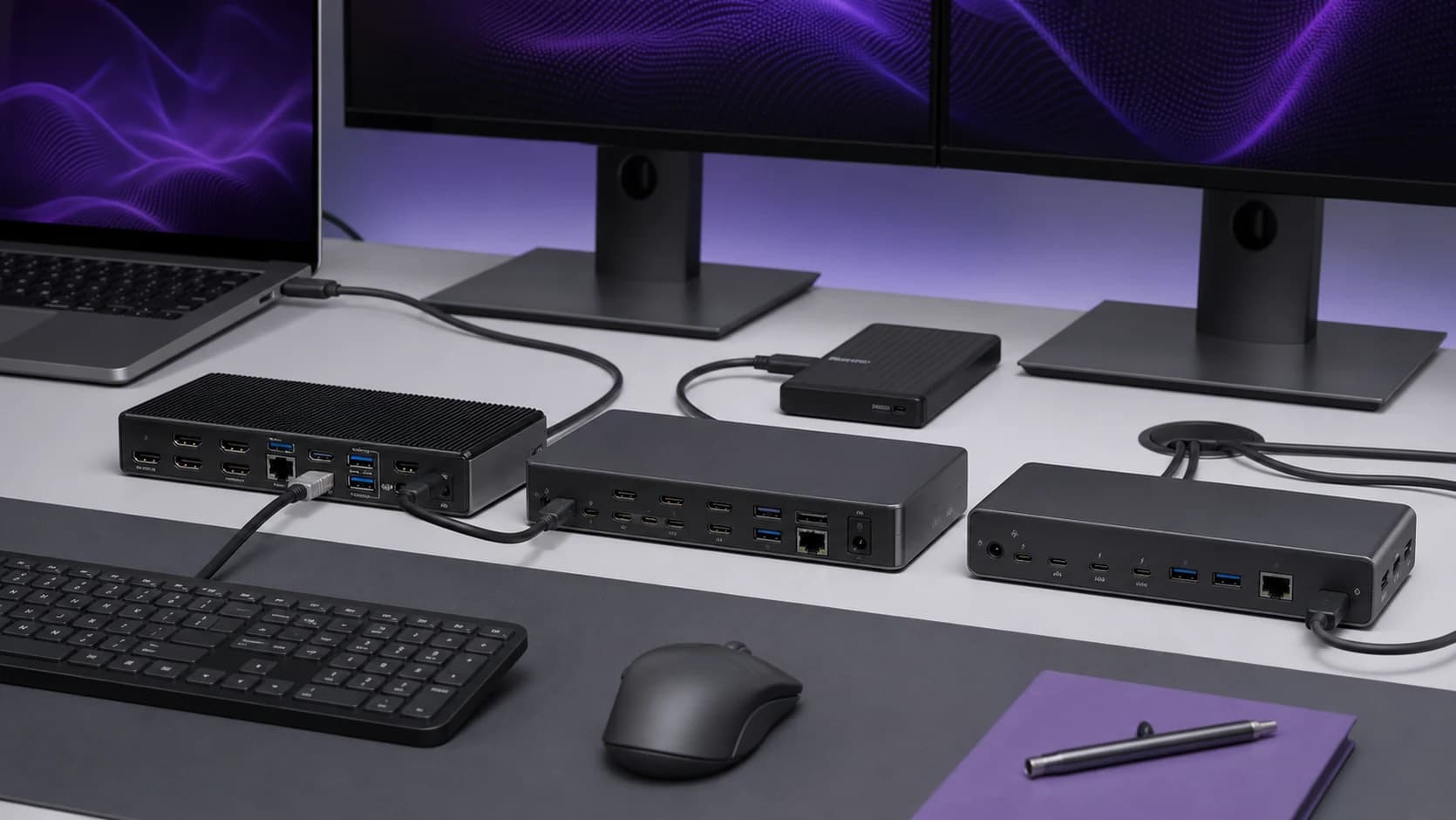
A docking station is the single cable that turns a laptop into a desktop. Plug in, get monitors, keyboard, mouse, storage, ethernet, and charging. Unplug and walk away.
That is the pitch. The reality is messier. Some docks deliver exactly that. Others charge slowly, drop displays at random, and turn your desk into a troubleshooting lab.
This guide covers the best laptop docking stations for 2026, including Thunderbolt 4 and USB-C options, with honest notes on what works and what the product pages leave out.
SolderMag Take: a dock is an anti-chaos purchase
The best docking station is the one you stop thinking about. One cable to the laptop. Monitors wake up. Storage mounts. Charging starts. No drama, no firmware panic, no "why is my second display gone again."
If your current setup involves three adapters and a prayer, a proper dock pays for itself in frustration savings alone.
A dock expands one computer. A KVM switches a desk between computers. If you need the latter, read our best dual-monitor KVM switches guide before stacking a dock and switch without checking the display topology.
Who needs a dock (and who does not)
Buy a dock if:
- You connect two or more peripherals to your laptop daily
- You want dual monitors from a single cable
- You need reliable charging under load (not a slow trickle)
- Your desk has become a tangle of dongles and hubs
Skip the dock if:
- You only need one extra port occasionally (a USB-C hub is cheaper and simpler)
- You never sit at a fixed desk
- Your laptop already has every port you need (lucky you)
For a Steam Deck, ROG Ally, or Legion Go, use a smaller handheld gaming dock unless you specifically need a full laptop dock's display and storage features.
What separates a good dock from an expensive paperweight
1) Charging that keeps up with real work
A dock that charges at 60W sounds fine on paper. In practice, if you are running a video call with two monitors and an external drive, a 60W trickle can actually lose ground. The laptop drains faster than it charges.
Look for 90W+ host charging. That is the zone where most 14 to 16 inch laptops stay topped up even under load.
2) Display support that matches your OS
This is where most dock frustration comes from. "Dual 4K" on the product page means nothing until you answer:
- Which OS? macOS handles multi-display differently than Windows.
- Which laptop? Apple Silicon models have hard limits on external displays that no dock can override.
- Which ports? HDMI and DisplayPort behave differently depending on the dock's internal topology.
Rule of thumb: if dual monitors are the whole reason you are buying a dock, verify your exact laptop model's display output limits first. The dock cannot add capabilities your laptop does not have. Mac buyers can use our two-monitor Thunderbolt dock checklist.
3) Port layout matters more than port count
A dock with 18 ports sounds impressive. But if every port is on the back and you need to plug in a thumb drive once a day, you will hate it.
Front-facing USB-C and USB-A ports are underrated quality-of-life features. Same goes for a front audio jack if you use wired headphones.
4) Thunderbolt 4 vs USB-C: the trust gap
Thunderbolt 4 certified docks meet Intel's minimum requirements for bandwidth, charging, and display support. USB-C/USB4 docks can be just as good, but the certification is looser, so quality varies more.
If you want fewer surprises and don't mind paying a premium, Thunderbolt 4 is the safer bet. If you are comfortable reading specs carefully, USB4 docks can save you real money. For a deeper breakdown, see our Thunderbolt 4 and USB4 dock guide.
Our top picks for 2026
CalDigit TS4 Thunderbolt 4 Dock
Why it works
- 18 ports including 3 downstream TB4
- 98W host charging
- Rock-solid reliability across Mac and Windows
Main trade-off
- Premium price
The CalDigit TS4 is the dock that other docks get compared to. It has 18 ports (including three downstream Thunderbolt 4), 98W of host charging, 2.5GbE, and a track record of firmware stability that most competitors envy. It works equally well on Mac and Windows, which is rare. The price is high, but the "it just works" factor is worth it for anyone who has been burned by cheaper docks.
For a detailed comparison with its closest rival, see our CalDigit TS4 vs Plugable UD-4VPD breakdown.

Kensington SD5780T Thunderbolt 4 Dock
Why it works
- 96W charging
- Dual TB4 downstream ports
- 3-year warranty
Main trade-off
- Plastic front panel feels cheaper than the price suggests
The Kensington SD5780T delivers most of what the CalDigit TS4 does at a lower price. 96W charging, dual Thunderbolt 4 downstream, and Kensington's solid warranty. The build quality is slightly less premium (plastic faceplates), but the performance is right there. A strong pick for anyone who wants Thunderbolt 4 without the flagship price tag.
Plugable USB4 Dual HDMI Docking Station (UD-4VPD)
A dual-HDMI Windows option; Plugable does not support macOS on this model.
Why it works
- Two built-in HDMI outputs
- Up to 100W host charging
- 2.5GbE plus SD and microSD
Main trade-off
- macOS unsupported by Plugable
- No downstream Thunderbolt ports
The Plugable UD-4VPD is a Windows-focused USB4 dock with two HDMI outputs. Resolution and refresh rate depend on the host and display count. Plugable lists macOS as unsupported, so Mac buyers should choose a dock with a documented Mac display path.

Sonnet Echo 20 Thunderbolt 4 SuperDock
Why it works
- 20 ports total
- Excellent for multi-display setups
- High power delivery
Main trade-off
- Larger footprint than most docks
The Sonnet Echo 20 is for the person whose desk looks like mission control. Twenty ports, strong multi-display support, and enough bandwidth to run external storage at full speed alongside monitors. It is bulkier than a typical dock, but if you need the ports, nothing else in this price range covers as much ground.
Docking station FAQ
Can I use a Thunderbolt dock with a USB-C laptop?
It depends. If your laptop has a USB-C port that supports USB4 or Thunderbolt, yes. If it is a basic USB-C port (common on budget laptops), the dock will work but at reduced functionality: fewer displays, slower data, and possibly no charging. Check your laptop specs before buying a Thunderbolt dock for a non-Thunderbolt machine.
Do I need a dock if my monitor has USB-C?
Some monitors with USB-C and power delivery can act as a basic dock: video, charging, and a few USB ports through a single cable. The Dell U2725QE does this well. If your needs are simple (one monitor, a keyboard, and a mouse), a USB-C monitor might be enough. If you need dual monitors, ethernet, fast storage, or more ports, you still need a dedicated dock.
Will a dock make my laptop run hotter?
Slightly, yes. When a dock pushes power to your laptop while also driving displays and peripherals, the laptop works harder than on battery alone. This is normal and generally fine. If heat is a concern, make sure your laptop has adequate ventilation and is not sitting on a soft surface that blocks the fans.
Dock setup tips that save you hours
- Use the cable that came with the dock. Thunderbolt docks are picky about cable quality. A random USB-C cable from a drawer will cause problems. If you need a replacement, get a certified one.
- Update dock firmware before troubleshooting anything. Most intermittent display issues are firmware bugs, not hardware defects.
- Plug high-draw devices into documented high-power ports. External SSDs and bus-powered drives need specific ports on most docks.
- Disable deep sleep on the dock if your monitors do not wake reliably. This is the single most common dock complaint, and it is usually a settings issue.
Docking station red flags
- "Dual 4K" with no mention of OS compatibility or laptop requirements
- Host charging wattage not listed (or buried in footnotes)
- No firmware update mechanism
- USB-C ports with no stated data speed
- Lots of reviews mentioning sleep/wake problems with no manufacturer response
The bottom line
A good docking station should feel invisible. You plug in one cable and your entire workstation appears. The CalDigit TS4 is the broadest fit here. The Kensington SD5780T is the value play. The Plugable UD-4VPD is for compatible Windows USB4 setups. And the Sonnet Echo 20 handles the heaviest port requirements.
Pair any of these with a quality 4K monitor and a good USB-C hub for travel, and your port problems are solved for years.
For the full breakdown on Thunderbolt 4 vs USB4 dock technology, read our dedicated dock guide. And if you are building out a complete desk setup, our CalDigit TS4 vs Plugable UD-4VPD comparison covers the two most popular options head to head.