TESmart HDC202-X24 Review: Laptop + Desktop KVM
The HDC202-X24 switches a Thunderbolt laptop and HDMI/DP desktop across two monitors, but 60W charging and display limits matter.
Research-based review
Recommendations are checked against product documentation, availability, comparative evidence, and clearly disclosed hands-on work where it exists.
Quick picks
The short answer, with the trade-off

Better for two DisplayPort desktops
TESmart DKS202-M24

Better for two HDMI desktops
TESmart HKS202-P23 V2
On this page
- Verdict
- Who this is for
- Who should skip it
- The exact host and monitor layout
- Laptop compatibility comes before KVM compatibility
- Display support: dual 4K60 is the sensible target
- The 60W charging limit matters
- EDID is the practical premium feature
- USB, Ethernet, audio, and the extra Thunderbolt port
- Switching controls and peripheral caveats
- Alternatives
- Setup checklist
- FAQ
- Final recommendation
- Sources and methodology
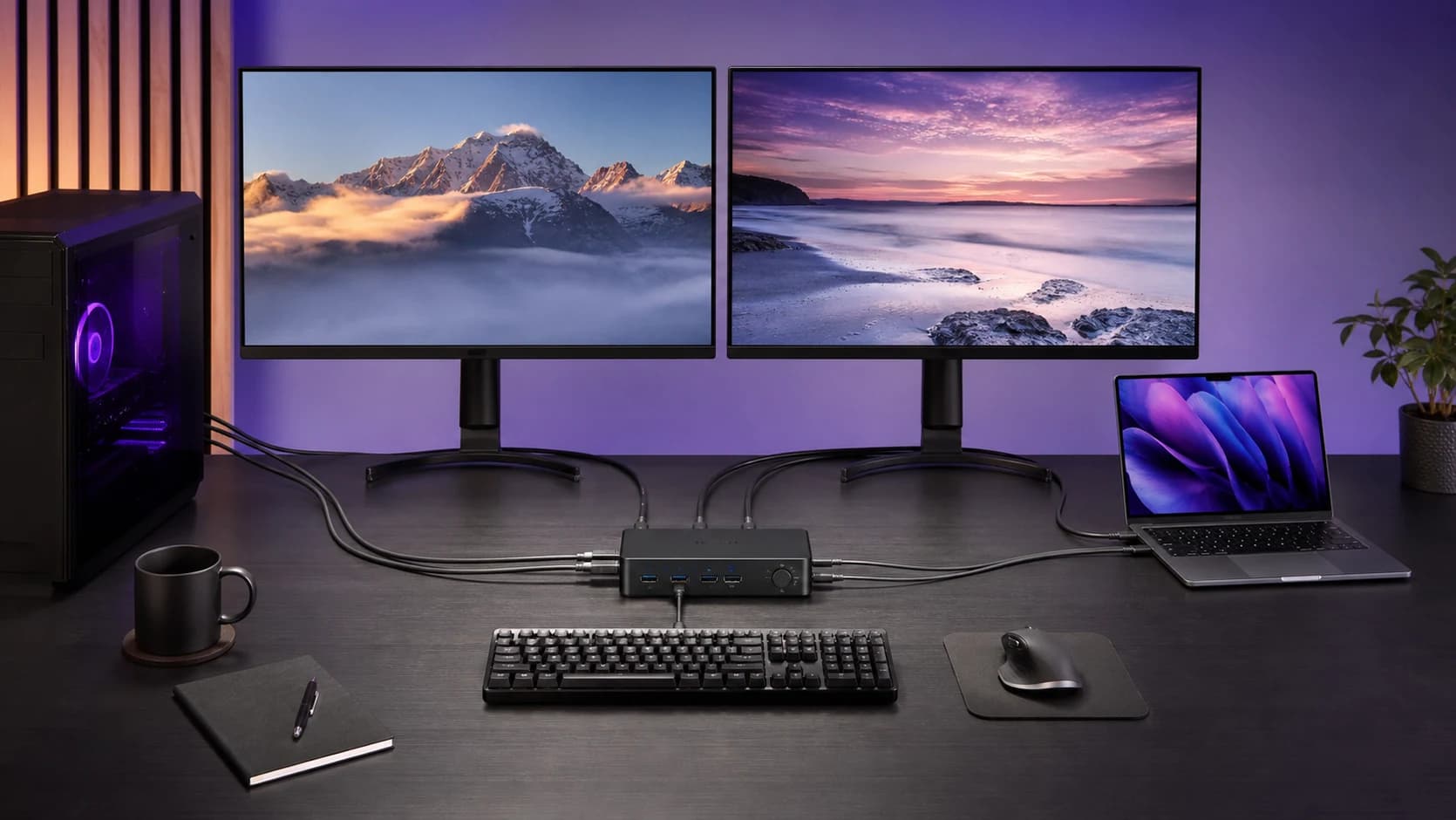
The TESmart HDC202-X24 is worth considering when one Thunderbolt laptop and one desktop need to share two monitors. The laptop gets a one-cable host connection with up to 60W charging. The desktop connects through separate HDMI, DisplayPort, and USB cables. Both can share the displays, keyboard, mouse, USB devices, Ethernet, and audio.
That unusual layout is the reason to buy it. It is also the reason not to buy it casually. The laptop must support the required external displays, both monitors need HDMI inputs, and 60W may be too little for a performance laptop. If both computers are desktops, a conventional KVM is simpler. If both are laptops, this is the wrong two-host topology.
This is a research-based review. We have not completed hands-on switching, wake-from-sleep, latency, display-retention, USB-throughput, charging, thermal, audio, or long-term reliability tests. The verdict is based on TESmart's current product page, model-specific manual and FAQ, Apple's display guidance, connection topology, and exact US Amazon product validation.
Verdict
Buy the HDC202-X24 for a hybrid desk where a compatible Thunderbolt laptop needs one-cable docking and a desktop needs ordinary HDMI plus DisplayPort inputs. TESmart has combined the hard parts in one box: dual-display switching, EDID emulation, laptop power, shared networking and USB, several switching controls, and the cables needed on the host side.
Skip it when the topology does not match exactly. This is not a general two-laptop dock, and it is excessive for two desktops. We would also skip it for a laptop that expects substantially more than 60W, a Mac that cannot natively drive two external displays in the intended configuration, or monitors without suitable HDMI inputs.
The main uncertainty is compatibility at the edges. TESmart documents the ports and supported modes well, but we have not verified every laptop, graphics driver, sleep state, monitor pair, peripheral, or charging profile. Buy from a seller with a practical return path and test the complete desk before routing every cable permanently.
Who this is for
Buy the HDC202-X24 if:
- computer one is a Thunderbolt laptop that supports the intended two-display setup;
- computer two is a desktop with one HDMI output, one DisplayPort output, and USB data;
- both monitors accept HDMI;
- dual 4K60 is enough, or your lower-resolution high-refresh mode appears in TESmart's documentation;
- 60W charging is appropriate for the laptop's normal workload;
- you switch computers often enough to value one box for video, USB, network, and audio;
- EDID-based display retention is worth paying for.
Who should skip it
Skip this KVM if:
- both hosts are laptops or both are conventional desktops;
- the laptop has USB-C but not a suitable Thunderbolt display path;
- the laptop cannot natively run two external displays;
- the laptop needs 90W, 100W, 140W, or another higher power level under load;
- either monitor lacks HDMI or your required display mode is not documented;
- you need guaranteed HDR, VRR, DSC, wake, dock, or unusual ultrawide behavior;
- direct monitor inputs plus a USB switch would be good enough.
The exact host and monitor layout
The HDC202-X24 is easier to understand when the two host sides are treated as different products.
| Connection | Laptop side: PC 1 | Desktop side: PC 2 |
|---|---|---|
| Host video and data | One Thunderbolt cable | One HDMI cable, one DisplayPort cable, and one USB host cable |
| Host charging | Up to 60W stated | None |
| Monitor outputs | Two HDMI outputs shared by both hosts | Two HDMI outputs shared by both hosts |
| Extra TB4 downstream port | Available only to PC 1 | Not available |
| Shared desk ports | Keyboard, mouse, USB, Ethernet, and audio | Keyboard, mouse, USB, Ethernet, and audio |
If you are comparing this with a separate dock and conventional switch, our laptop dual-monitor KVM setup guide maps the full cable budget and operating-system checks.
The laptop connects to the PC 1 Thunderbolt host port. The desktop needs three connections: HDMI for one display path, DisplayPort for the other, and USB for shared peripherals, audio, and network data. The KVM then sends the active video paths to two HDMI monitors.
TESmart lists one Thunderbolt 4 cable, one combined KVM cable, and one DisplayPort cable in the box. Those cover the host-side paths described by the manual. Confirm the exact retail bundle and plan the two monitor-side HDMI cables separately rather than assuming every cable on the desk is included.
The US retail identity used here is HDC202-X24-USBK, ASIN B0DLGP1NDJ. Do not substitute the similarly named HDC202-P23, dual-laptop CKS models, or three-monitor HDC models. Their host ports and display paths are different.
Laptop compatibility comes before KVM compatibility
A Thunderbolt connector does not give a computer another display engine. The HDC202-X24 can route display signals; it cannot make the laptop produce two extended desktops when the hardware or operating system supports only one.
TESmart's manual says PC 1 needs Thunderbolt 3 or higher for two external displays. If the host connection is not Thunderbolt 3 or higher, the manual warns that only one external display will be available. That is a stronger buying test than the shape of the USB-C socket.
For a Mac, check the exact chip and model in Apple's display-support specifications. Apple notes that a supported hub or daisy chain can carry two displays over one Thunderbolt port, but it does not increase the Mac's maximum display count. Recent MacBook Air and MacBook Pro configurations differ, and resolution, refresh rate, lid state, and chip generation can all matter.
Our guide to running two monitors through a Thunderbolt dock on a Mac explains the model check before the dock or KVM enters the decision. Do not assume that a Windows compatibility example proves the same extended-display behavior on macOS.
Display support: dual 4K60 is the sensible target
TESmart positions the HDC202-X24 as a dual-4K60 KVM. Its current documentation lists these ceilings for each KVM output:
| Resolution | Published refresh-rate ceiling |
|---|---|
| 3840 x 2160 | 60Hz |
| 3440 x 1440 | 100Hz |
| 3840 x 1080 | 120Hz |
| 2560 x 1440 | 120Hz |
| 2560 x 1080 | 165Hz |
| 1920 x 1080 | 240Hz |
Treat those figures as documented modes, not SolderMag test results and not guarantees for every two-monitor combination. The laptop, desktop GPU, cable, KVM, HDMI input, monitor firmware, color depth, HDR setting, and refresh-rate configuration still have to agree.
This is primarily a hybrid work KVM. The lower-resolution high-refresh modes may suit a gaming desktop, but buyers who need uncompromised VRR, HDR, unusual timings, or a specific dual-monitor combination should get written confirmation for that exact path or keep the gaming display connected directly.
The HDC202-X24 can also show one host on both monitors or split the desk so each computer appears on one monitor. In the split mode, hotkeys move keyboard and mouse focus between the hosts. That is useful for monitoring one machine while actively controlling the other, but the manual contains mode-specific rules. Read that section before treating it like a free-form video matrix.
The 60W charging limit matters
Sixty watts is useful for many thin-and-light laptops doing office work. It is not a universal laptop power supply.
Compare the HDC202-X24's output with the wattage and USB Power Delivery behavior of the laptop's normal adapter. A mobile workstation or gaming laptop may charge slowly, reduce performance, drain its battery under sustained load, or still require its original power brick.
TESmart also publishes two model-specific cautions. A laptop that does not accept a 20V charging profile may receive only 7.5W, and some ThinkPad Yoga and T-series models may not accept the full 60W from this unit. Those are reasons to verify the exact laptop, not footnotes to discover after purchase.
If the laptop already needs a more capable dock or its original charger, the all-in-one argument becomes weaker. Compare the HDC202-X24 with a conventional dock plus direct monitor-input switching before paying for functions the laptop cannot fully use. Our Thunderbolt 4 and USB4 dock guide covers charging and display trade-offs on single-computer docks.
EDID is the practical premium feature
EDID is the display information that tells a computer which monitors are connected and which modes they support. A basic KVM may make the inactive computer think both displays were unplugged. Windows can move, resolutions can change, and applications may return on the wrong screen.
TESmart documents EDID emulation for the HDC202-X24 to keep display information available during switching. That is a useful fit for a two-monitor work desk, particularly when window placement matters.
It is not a blanket promise of instant or flawless switching. We have not verified the KVM across different sleep states, graphics drivers, monitor pairs, operating systems, firmware versions, or mixed resolutions. EDID reduces one class of disconnect problem; it does not remove every display-handshake variable.
USB, Ethernet, audio, and the extra Thunderbolt port
The HDC202-X24 combines several desk connections that would otherwise require a dock and a switch:
- two front USB 3.2 Gen 2 ports rated up to 10Gbps and 7.5W each;
- one rear USB 3.2 Gen 1 port rated up to 5Gbps;
- dedicated keyboard and mouse ports;
- Gigabit Ethernet;
- a 3.5mm headset connection;
- one downstream Thunderbolt 4 expansion port available only to PC 1.
The downstream Thunderbolt port is not shared with the desktop. TESmart documents a theoretical 40Gbps ceiling and support for devices such as storage or another display, but actual bandwidth and display behavior depend on the host and everything else using the link. We have not measured storage speed, dock chaining, device power, or contention while both KVM displays are active.
TESmart allows USB and audio focus to be locked separately from the visible computer. That can keep a call, external drive, or audio device attached to one host while the displays change. It also adds state to remember: USB focus is separate from keyboard and mouse focus.
Switching controls and peripheral caveats
There are four documented ways to switch: front-panel buttons, the IR remote, keyboard hotkeys, and a mouse-wheel action. The hotkey trigger can be customised when Right Ctrl conflicts with an application.
The dedicated keyboard and mouse ports have pass-through and legacy-emulation modes. Pass-through is the sensible first choice for programmable keyboards, high-DPI mice, macros, and vendor software. Legacy mode is intended to improve basic compatibility and hotkey behavior, but TESmart warns that it disables driver-based functions and advanced features. Bluetooth keyboards and mice are not supported through the dedicated K&M path.
That trade-off matters for gaming peripherals and unusual receivers. We have not measured polling rate, reconnect time, macro behavior, wireless interference, audio dropouts, webcam stability, or bus-powered storage on this KVM. Test every important peripheral before committing to the final cable route.
Alternatives
TESmart DKS202-M24 for two DisplayPort desktops
Choose the DKS202-M24 when both computers already have two DisplayPort outputs and high-refresh headroom matters more than laptop docking. It keeps EDID, hotkeys, shared USB, Ethernet, and audio, but removes Thunderbolt charging from the design. Our DKS202-M24 review maps its six DisplayPort runs.

TESmart DKS202-M24 DisplayPort KVM
Why it works
- Two-computer dual-DP topology
- EDID and high-refresh positioning
- Shared USB, Ethernet, audio, and controls
Main trade-off
- No one-cable laptop input
- Six DisplayPort runs
TESmart HKS202-P23 V2 for two HDMI desktops
Choose the HKS202-P23 when both computers can provide two HDMI feeds and dual 4K60 is enough. It is a more conventional and usually easier-to-explain KVM, but each host needs two video cables plus USB. Our HKS202-P23 review covers the cable count and EDID behavior.

TESmart HKS202-P23 V2 HDMI KVM
Why it works
- Straightforward dual-HDMI layout
- EDID emulation
- USB, audio, remote, and hotkeys
Main trade-off
- Not a laptop dock
- Two HDMI feeds required per host
Direct video plus a USB switch
Use the monitors' own inputs and switch only the keyboard, mouse, and other USB devices when video quality or compatibility matters more than one-action switching. It is cheaper and leaves the KVM out of the display path, but changing two monitor inputs can become annoying.
If none of these layouts obviously matches the desk, start with our dual-monitor KVM buying guide. The host connections should decide the product class before extra features enter the shortlist.
Setup checklist
Before ordering:
- Confirm the laptop has a suitable Thunderbolt port, not just a USB-C connector.
- Check the laptop's model-specific two-display limit.
- Compare its normal charger with the KVM's 60W output and 20V requirement.
- Confirm the desktop has one HDMI output, one DisplayPort output, and USB data.
- Confirm both monitors accept HDMI and support the intended mode on that input.
- Write down the exact resolution and refresh rate of each display.
- Check whether HDR, VRR, DSC, or a particular ultrawide timing is essential.
- Plan the two monitor-side HDMI cables and the included host-side cables.
- List every shared USB, audio, and network device.
- Test switching, sleep, charging, audio, and peripherals before hiding the cables.
FAQ
Can the HDC202-X24 run two extended monitors from a laptop?
Yes, when the laptop supports two external displays through the connected Thunderbolt path. TESmart's manual says a PC 1 connection below Thunderbolt 3 will provide only one external display. The KVM cannot increase the laptop's native display limit.
Does it work with a MacBook?
It can work with compatible Mac models, but “MacBook” is not a sufficient compatibility check. Verify the exact chip, model, lid-state requirement, maximum external-display count, and intended resolution and refresh rate in Apple's specifications.
Does the HDC202-X24 charge the laptop?
TESmart states up to 60W through the PC 1 connection. Laptops without a compatible 20V charging profile may receive only 7.5W, and some ThinkPad Yoga and T-series models may not accept the full output. It does not charge the desktop side.
What monitor ports does it use?
The KVM has two HDMI monitor outputs. The desktop side uses one HDMI input and one DisplayPort input, while the laptop side carries its display signals through Thunderbolt.
Does it support 4K at 60Hz on two monitors?
TESmart documents up to 3840 x 2160 at 60Hz per output. The result still depends on the host, GPU, cables, HDMI inputs, monitor pair, color settings, operating system, and other signal-chain details. We have not independently verified dual 4K60.
Can it show one computer on each monitor?
Yes. TESmart documents a split mode that displays one host on each monitor and uses hotkeys to move keyboard and mouse focus. Read the manual's mode rules before relying on it as a general video matrix.
Does it support Bluetooth keyboards and mice?
TESmart says Bluetooth keyboards and mice are not supported through the dedicated keyboard and mouse path. Other receivers and advanced peripherals may behave differently between pass-through and legacy-emulation modes.
Final recommendation
Buy the TESmart HDC202-X24 when its asymmetric layout describes the desk exactly: one compatible Thunderbolt laptop, one HDMI/DisplayPort desktop, and two HDMI monitors. Its value is combining the dock, dual-display KVM, EDID handling, Ethernet, audio, and USB sharing in one device.
Skip it for a vague future setup. The 60W power limit, laptop display support, HDMI monitor outputs, and PC 1-only Thunderbolt expansion are purchase-defining details. A cheaper conventional KVM or direct video plus a USB switch is better when one-cable laptop docking is not essential.
Sources and methodology
- TESmart official HDC202-X24 product page for current model identity, host layout, display modes, charging, ports, switching, and package contents.
- TESmart official HDC202-X24 manual for the port map, PC 1 Thunderbolt requirement, display modes, downstream-port scope, and control behavior.
- TESmart official HDC202-X24 FAQ for model-specific setup and compatibility guidance.
- Apple external-display guidance for the rule that a dock or hub does not increase a Mac's native display limit.
- Amazon Creators API exact-product validation for US model HDC202-X24-USBK (
B0DLGP1NDJ) using the configuredsoldermag-20Associate tag.
We weighted host fit, documented display support, charging compatibility, EDID behavior, shared ports, included cables, control options, and whether a cheaper topology solves the same desk. We did not use fixed prices, discounts, ratings, review counts, seller claims, or unverified hands-on findings.
As an Amazon Associate I earn from qualifying purchases.