Best Dual-Monitor KVM Switches (2026): Laptop and Desktop Picks
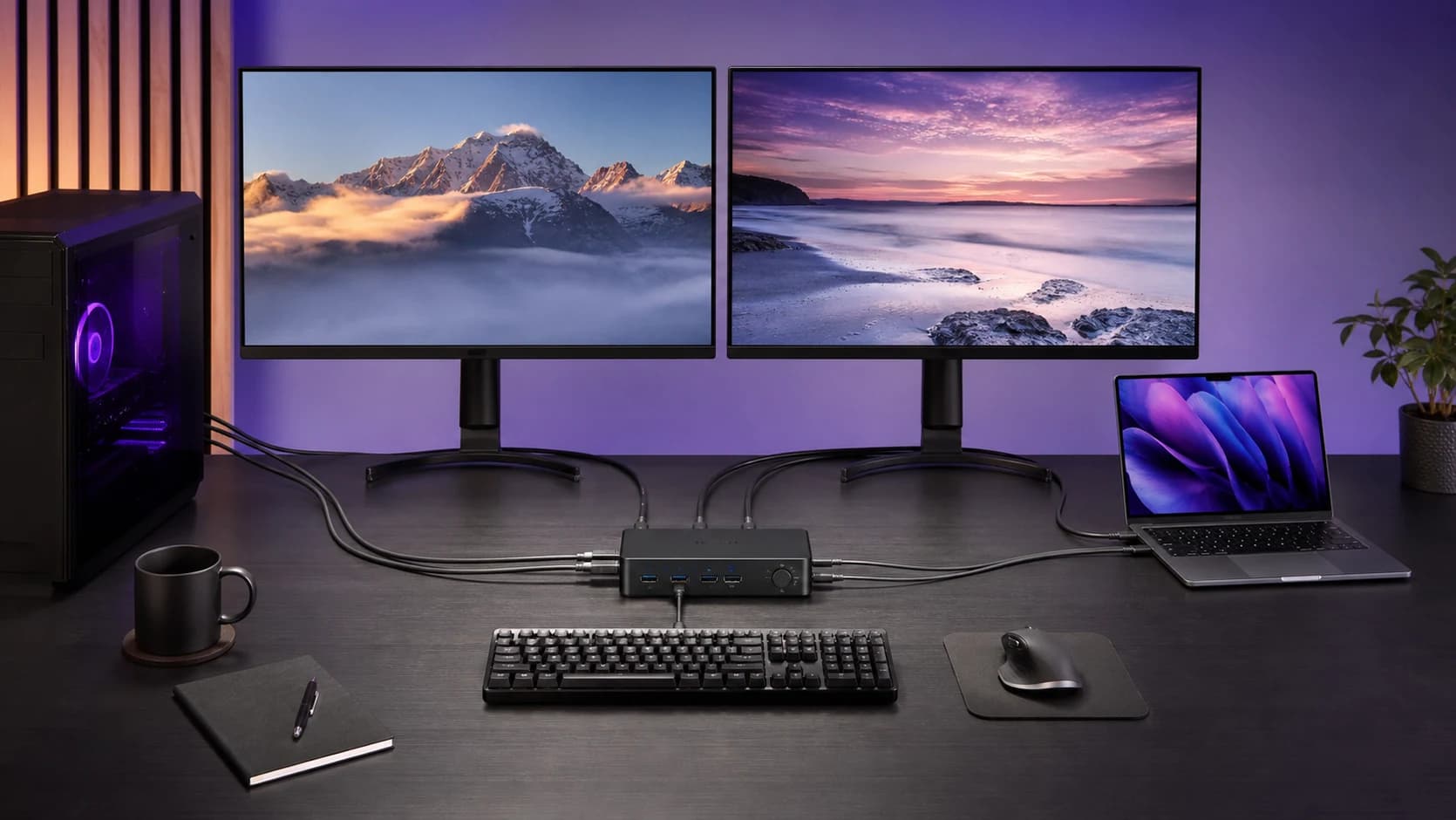
The right dual-monitor KVM depends on your ports, refresh rate, and whether you are switching desktops, laptops, or one of each. These are sensible 2026 picks.
Research-based buying guide
Recommendations are checked against product documentation, availability, comparative evidence, and clearly disclosed hands-on work where it exists.
Quick picks
The short answer, with the trade-off

Best DisplayPort gaming pick
TESmart DKS202-M24

Best laptop + desktop pick
TESmart HDC202-X24

Best value dual-DisplayPort pick
UGREEN Dual-Monitor DisplayPort KVM
Trade-off: No hotkey switching
On this page
- Quick comparison
- Who this guide is for
- Best dual-HDMI office KVM: TESmart HKS202-P23
- Best DisplayPort KVM for gaming: TESmart DKS202-M24
- Best KVM for one laptop and one desktop: TESmart HDC202-X24
- Best value dual-DisplayPort KVM: UGREEN
- Map the setup before choosing a KVM
- The specifications that actually matter
- MacBook compatibility: check the exact model
- When a USB switch is the better buy
- Common mistakes
- Alternatives to consider
- FAQ
- Final recommendation
- Sources and methodology
Buying a dual-monitor KVM switch backwards is expensive. The product name might promise two computers and two 4K displays, but that tells you almost nothing about whether it fits your desk.
The useful questions are more specific: does each computer have two HDMI outputs, two DisplayPort outputs, or one Thunderbolt port? Do you need 4K at 60Hz or a high-refresh gaming display? Does the switch preserve display information when you change computers? Can your laptop drive two external displays in the first place?
This guide is research-based. We have not completed hands-on testing of every KVM below. The recommendations are based on current manufacturer documentation, Amazon product-page checks, connection topology, stated display support, EDID features, included ports, and the setup each model is designed to solve.
Quick picks: buy the TESmart HKS202-P23 for a straightforward two-computer, two-HDMI-monitor office setup. Buy the TESmart DKS202-M24 for two DisplayPort desktops and high-refresh displays. Buy the TESmart HDC202-X24 only when you specifically need to switch one Thunderbolt 4 laptop and one desktop through the same dual-monitor desk. The UGREEN dual-DisplayPort KVM is the cheaper DisplayPort option if you can live without hotkey switching or EDID emulation.
Before choosing a laptop setup, use our dual-monitor KVM cable and compatibility checklist to map video feeds, dock outputs, USB data and charging.
If a switch is already on the desk but a monitor stays dark, drops to 60Hz, or moves every window after a changeover, use our KVM black-screen troubleshooting order before replacing hardware.
Our HKS202-P23 vs DKS202-M24 comparison maps the HDMI-versus-DisplayPort decision directly.
Quick comparison
Scroll horizontally to compare all 5 columns →
| Pick | Host setup it suits | Display connection | Main reason to buy | Main trade-off |
|---|---|---|---|---|
| TESmart HKS202-P23 | Two desktops or laptops with two HDMI outputs each | Dual HDMI | Straightforward 4K60 office switching with EDID emulation | Needs two HDMI feeds from each computer |
| TESmart DKS202-M24 | Two DisplayPort desktops | Dual DisplayPort 1.4 | Higher refresh-rate headroom, EDID emulation, and included DP input cables | Poor fit for a laptop unless its dock exposes two suitable DP outputs |
| TESmart HDC202-X24 | One Thunderbolt 4 laptop and one desktop | TB4 laptop input plus desktop HDMI/DP input | Purpose-built hybrid topology with laptop charging and shared desk ports | Expensive, and 60W charging is not enough for every laptop |
| UGREEN dual-monitor DisplayPort KVM | Two DisplayPort computers | Dual DisplayPort | Lower-cost route to sharing two DP monitors and four USB devices | No hotkey switching or EDID emulation; display support depends on the full signal chain |
The table is a starting point, not a compatibility guarantee. Resolution and refresh-rate claims assume that the source computer, graphics output, KVM, cables, and monitors all support the required bandwidth and features.
Who this guide is for
Buy a dual-monitor KVM if:
- you regularly switch one keyboard, mouse, and two displays between two computers
- changing both monitor inputs manually is slowing you down
- you want USB peripherals to follow the active computer
- window rearrangement after switching is a recurring problem and you want EDID emulation
- you have mapped every host and monitor port before buying
Skip a dual-monitor KVM if:
- you use one monitor and only need to share a keyboard and mouse
- your monitors already have enough inputs and a simple USB switch solves the peripheral problem
- one computer cannot natively drive two external displays
- you expect a KVM to add display support that the laptop or operating system does not have
- your gaming setup depends on a resolution, refresh rate, VRR mode, HDR format, or DSC path that the KVM documentation does not explicitly support
If you are still choosing the displays, start with our best work monitors or best 32-inch 4K monitors guides. A monitor with a useful built-in KVM may remove the need for a separate box.
Best dual-HDMI office KVM: TESmart HKS202-P23
The TESmart HKS202-P23 is the cleanest recommendation when both computers can provide two HDMI outputs and both monitors accept HDMI. TESmart specifies dual-monitor switching for two computers, up to 4K at 60Hz, USB 3.0 peripheral sharing, audio connections, hotkey and button controls, and EDID emulators.
That last feature matters on a work desk. EDID is the display information a computer uses to understand which monitors are connected and which modes they support. A KVM with EDID emulation can keep the displays visible to the inactive computer, reducing the chance that windows collapse onto one screen whenever you switch away. It does not guarantee perfect behavior with every computer, monitor, or operating system, but it is more useful than buying on the largest resolution number alone.
The HKS202-P23 is not a one-cable laptop dock. Each host needs two HDMI video connections plus USB for peripheral switching. A laptop with one USB-C port will need a compatible dock or adapter that can expose the required outputs, and the laptop still needs native support for two external displays.
Buy this if you have a conventional dual-HDMI office setup and want a clearly documented switching path. Skip it if either host is DisplayPort-first, you need a one-cable Thunderbolt laptop connection, or your main monitor runs above the modes TESmart documents.
For the exact cable count, EDID limitations, per-screen mode, hotkey behavior, and laptop caveats, read our TESmart HKS202-P23 review.
TESmart HKS202-P23 Dual-Monitor HDMI KVM
Why it works
- Purpose-built for two computers and two HDMI monitors
- EDID emulation helps retain display information
- USB 3.0, button, remote, and hotkey switching
Main trade-off
- Requires two HDMI outputs from each host
- 4K60 class rather than a high-refresh 4K gaming solution
Best DisplayPort KVM for gaming: TESmart DKS202-M24
The TESmart DKS202-M24 is the more appropriate pick for two DisplayPort desktops connected to high-refresh monitors. TESmart documents DisplayPort 1.4, EDID emulation, USB 3.x peripheral sharing, Gigabit Ethernet, audio, and advertised support up to 8K60 or 4K144-class modes depending on the signal chain.
Treat those headline figures as ceilings, not promises. High-resolution, high-refresh output may depend on Display Stream Compression, cable quality, graphics-card output, monitor input support, color depth, HDR, and whether adaptive sync remains available in the chosen mode. Check the exact resolution and refresh-rate combination you use rather than assuming that an “8K” label covers everything below it.
This is also a cable-heavy product. Two computers feeding two monitors means four DisplayPort input connections before the two monitor outputs and USB host connections are counted. TESmart lists the required host-side DisplayPort and USB cables with the kit, which reduces one source of ambiguity, but you should still plan the physical routing before buying.
Buy this if both computers are DisplayPort desktops and keeping high-refresh display support is worth paying for. Skip it if your second machine is a USB-C laptop and you want one cable to handle video, peripherals, and charging.
Our TESmart DKS202-M24 review maps the six DisplayPort runs, EDID behavior, published high-refresh ceilings, included cables, and laptop limitations before you buy.

TESmart DKS202-M24 DisplayPort KVM
Why it works
- DisplayPort 1.4 topology for two dual-monitor desktops
- EDID emulation and higher refresh-rate headroom
- USB sharing, Ethernet, audio, and included host cables
Main trade-off
- Expensive and cable-heavy
- Maximum display modes depend on the complete DP signal chain
Best KVM for one laptop and one desktop: TESmart HDC202-X24
The TESmart HDC202-X24 exists for the awkward setup most cheaper KVMs do not solve cleanly: one Thunderbolt 4 laptop, one desktop, and two shared monitors.
TESmart specifies a Thunderbolt 4 connection for the laptop side, separate HDMI and DisplayPort connections for the desktop side, dual 4K60-class display support, EDID emulation, shared USB ports, Gigabit Ethernet, audio, and up to 60W charging for the connected laptop. This is much closer to a KVM and dock combined than a basic video switch.
The topology is the reason to buy it, but it is also the reason to be careful. The laptop needs a compatible Thunderbolt connection and native support for the required number of external displays. Apple’s current guidance says external-display support varies by Mac model, resolution, and refresh rate. A KVM cannot increase that native limit. Windows laptops also vary, even when their USB-C ports look identical.
The 60W charging figure deserves attention. It is enough for many thin-and-light laptops during normal work, but larger mobile workstations and performance laptops may charge slowly, reduce performance, or still require their original power adapter under load. Check the laptop manufacturer’s power requirement before treating this as a complete one-cable replacement.
Buy this if you specifically have one compatible TB4 laptop and one HDMI/DisplayPort desktop. Skip it if both computers are ordinary desktops, both are USB-C laptops, or the price is close to replacing a monitor with one that has a built-in KVM.
Our TESmart HDC202-X24 review maps the asymmetric host wiring, Mac display checks, 60W charging limit, shared ports, and split-screen mode before you buy.

TESmart HDC202-X24 Thunderbolt 4 KVM
Why it works
- Designed for one TB4 laptop and one desktop
- Dual-display switching with EDID emulation
- Shared USB, Ethernet, audio, and 60W laptop charging
Main trade-off
- Premium price
- 60W charging and dual-display support will not suit every laptop
Best value dual-DisplayPort KVM: UGREEN
UGREEN’s dual-monitor DisplayPort KVM is the simpler value option for two computers with two DisplayPort outputs each. UGREEN specifies support for two computers and two monitors, four shared USB 3.0 ports, DisplayPort 1.4, a front button, and a wired desktop controller. UGREEN explicitly lists no hotkey switching and no EDID emulation.
Our dedicated UGREEN 55851 DisplayPort KVM review maps the six DP cables, missing EDID emulation, high-refresh caveats, and laptop requirements before you buy.
The appeal is straightforward: it covers the common dual-DisplayPort topology without the price or larger feature set of the TESmart DKS202-M24. That makes sense for a productivity desk where you want both screens and common USB peripherals to follow the active desktop.
The main work-desk trade-off is missing EDID emulation: the inactive computer may see disconnected monitors, so do not buy this to solve window rearrangement. UGREEN advertises high resolution and refresh-rate support, but buyers should still validate the exact mode, cables, graphics outputs, monitors, and adaptive-sync requirements. If persistent display identity and carefully documented EDID behavior are central to the purchase, the TESmart is the safer model to research first.
Buy this if you want a lower-cost dual-DisplayPort switch and button or wired-controller switching is enough. Skip it if you need hotkeys, EDID emulation to help preserve your window layout, a one-cable laptop input, or the strongest available documentation for a high-refresh gaming chain.

UGREEN Dual-Monitor DisplayPort KVM
Why it works
- Two-computer, two-monitor DisplayPort layout
- Four shared USB 3.0 ports
- Button and wired desktop controller
Main trade-off
- No hotkey switching
- No EDID emulation to retain inactive display identity
Map the setup before choosing a KVM
Write down the ports instead of relying on product-category labels.
Scroll horizontally to compare all 5 columns →
| Device | Connection 1 | Connection 2 | USB/peripheral link | Required mode |
|---|---|---|---|---|
| Computer A | HDMI, DisplayPort, or USB-C/TB | Second video output if required | USB-A/B, USB-C, or TB | Resolution + refresh rate |
| Computer B | HDMI, DisplayPort, or USB-C/TB | Second video output if required | USB-A/B, USB-C, or TB | Resolution + refresh rate |
| Monitor 1 | HDMI or DisplayPort input | Spare input if bypassing KVM | n/a | Resolution + refresh rate |
| Monitor 2 | HDMI or DisplayPort input | Spare input if bypassing KVM | n/a | Resolution + refresh rate |
The host topology must match the KVM. A dual-HDMI KVM normally needs two HDMI feeds from each computer. A dual-DisplayPort KVM needs two DP feeds. USB-C does not automatically mean video, charging, Thunderbolt, or two-display support.
If your laptop is the difficult part, our best laptop docking stations and Thunderbolt 4 and USB4 dock guide explain the port differences. Avoid stacking a dock and KVM unless both vendors document the intended setup; every added link makes compatibility harder to predict.
The specifications that actually matter
EDID emulation
EDID tells a computer which display is connected and which modes it supports. Without persistent display information, switching away can look like physically unplugging the monitors. Windows may move, desktops can rearrange, and applications can reopen on the wrong screen.
EDID emulation is worth paying for when display arrangement matters. It is not a guarantee against every wake, firmware, graphics-driver, or operating-system issue. If your picture returns but your apps move, our guide to KVM window rearrangement and persistent display detection explains what to check before paying for an emulator or replacement.
Resolution and refresh rate
Ignore the largest number on the box until you find your exact mode. “8K60” does not automatically guarantee dual 4K144 with HDR, full color depth, VRR, and every graphics card. Bandwidth may depend on DSC and the capabilities of every component in the path.
For office use, dual 4K60 is the sensible target. For gaming, confirm the precise resolution, refresh rate, HDR mode, adaptive-sync support, and cable specification.
USB speed and device behavior
A keyboard and mouse require little bandwidth. Webcams, capture devices, audio interfaces, and external SSDs are less forgiving. Check how many USB ports are shared, their stated speed, and whether the KVM provides enough power for bus-powered devices.
Wireless receivers can also behave differently from simple wired devices. A product saying “keyboard and mouse support” is not proof that every Bluetooth adapter, multi-device receiver, macro keyboard, or gaming peripheral will switch perfectly.
Charging power
Charging only matters on KVMs with laptop docking features. Compare the KVM’s stated output with the laptop’s normal adapter. A 60W source can keep an efficient laptop running while still being a poor match for a mobile workstation that expects 100W or more.
Cables in the box
A dual-monitor KVM can require four host video cables, two display cables, two USB host cables, and power. Check what is included. Do not mix unverified adapters into a high-refresh path and then assume the KVM is the cause of every blank screen.
MacBook compatibility: check the exact model
Do not buy a dual-monitor KVM on the assumption that every MacBook can drive two external displays through one cable. Apple documents display limits by model, chip, resolution, and refresh rate. Some recent Macs support two external displays, while older or lower-tier models may have different limits or operating conditions.
The KVM does not create an extra display engine. Confirm the Mac’s native external-display support first, then confirm that the KVM uses a connection method the Mac supports. Be especially careful with USB-C docks that rely on DisplayPort MST: a manufacturer may document different extended-display behavior for Windows and macOS.
When a USB switch is the better buy
You may not need a video KVM at all.
If both monitors have two inputs, connect each computer directly to each monitor. Then use a basic USB switch for the keyboard, mouse, webcam, and other peripherals. Switching takes an extra button press or two, but the displays keep a direct signal path and you avoid paying for high-bandwidth video switching.
Our USB switch vs KVM switch guide maps the wiring, high-refresh trade-offs, and the exact cases where saving money creates more daily friction.
This approach is often better when:
- the primary display runs at a high refresh rate
- each monitor already has enough inputs
- you change computers only once or twice per day
- you want to keep VRR, HDR, or unusual display modes out of the KVM path
- the KVM that matches the exact topology costs more than the inconvenience is worth
An ultrawide with a built-in KVM is another clean alternative. Our best ultrawide monitors guide includes work-focused models with USB-C, Ethernet, and KVM features.
For the rest of the desk, our ergonomic workstation guide covers monitor placement, input devices, lighting, and cable planning.
Common mistakes
Counting KVM outputs but not host inputs: two monitor outputs do not mean one cable from each computer. Many dual-monitor KVMs need two video feeds per host.
Assuming every USB-C port carries video: USB-C describes the connector. The port may lack DisplayPort Alt Mode, Thunderbolt, charging input, or the required multi-display support.
Buying on “8K” branding: your exact dual-monitor mode matters more than the maximum single-display headline.
Ignoring EDID: a cheaper switch may move every window when you change computers. That becomes annoying quickly on a work desk.
Expecting the KVM to fix a laptop display limit: the computer must support the number and type of displays before the switch enters the picture.
Using random cables and adapters: high-bandwidth display problems are often signal-chain problems. Use appropriately rated cables and keep the path simple.
Alternatives to consider
- Monitor with a built-in KVM: best when you are replacing the display anyway and want fewer boxes.
- USB switch plus direct video inputs: cheaper and often safer for high-refresh monitors.
- Thunderbolt dock plus monitor input switching: useful when the laptop needs one-cable docking but video switching is occasional.
- Software keyboard and mouse sharing: suitable when you only need input sharing and both computers stay on the same network. It does not switch the monitors.
- Remote desktop: useful for administering a secondary computer, but not a replacement for direct display access in latency-sensitive or graphics-heavy work.
FAQ
Can a KVM switch run two extended monitors?
Yes, if the KVM is designed for two monitors and each computer provides the required video signals. A dual-monitor KVM cannot make a computer support an extra display that it cannot drive natively.
Do I need two video cables from each computer?
Usually, for conventional HDMI or DisplayPort dual-monitor KVMs. Dock-style Thunderbolt or USB-C models may carry multiple display signals through one host cable, but only with compatible computers and documented display support.
Is DisplayPort or HDMI better for a KVM?
Use the interface that matches both computers and monitors. DisplayPort is the more natural fit for many high-refresh PC setups. HDMI is common on office monitors and laptops. Converting between them adds another compatibility point.
Does a KVM add input lag?
A correctly functioning digital KVM should not be treated like a game-streaming device, but we have not independently measured latency on these models. Competitive players should prioritize a documented high-refresh signal path and consider direct video connections with a separate USB switch if uncertainty is unacceptable.
Why do my windows move after switching computers?
The inactive computer may think its monitors were disconnected. EDID emulation can help keep display identity available during switching, although graphics drivers, operating-system behavior, monitor firmware, and sleep settings can still affect window placement.
Our KVM black-screen and display-detection guide separates EDID symptoms from bandwidth, cable, dock, wake, and host-topology faults.
Will a dual-monitor KVM work with a MacBook?
Only if the exact MacBook supports the required external-display configuration and the KVM’s host connection matches it. Check Apple’s model-specific display documentation and the KVM manufacturer’s macOS notes before buying.
Can I connect a dock to a KVM?
Sometimes, but it adds another device to the video and USB chain. Use a dock-plus-KVM arrangement only when the required outputs, resolution, refresh rate, charging, and operating-system behavior are documented or returnable if incompatible.
Final recommendation
Buy the TESmart HKS202-P23 for a normal dual-HDMI office desk. It is the least complicated route when both hosts already provide the required HDMI outputs.
Buy the TESmart DKS202-M24 for two DisplayPort desktops and high-refresh monitors. Pay for it because the topology and EDID features match the job, not because the box says 8K.
Buy the TESmart HDC202-X24 only for its intended one-Thunderbolt-laptop, one-desktop setup. Check display support and charging requirements first.
Buy the UGREEN dual-DisplayPort KVM when you want the basic dual-DP job done for less and do not need hotkeys or EDID emulation.
Sources and methodology
- TESmart HKS202-P23 V2 official product page: https://www.tesmart.com/products/hks202-p23-v2
- TESmart DKS202-M24 official product page: https://www.tesmart.com/products/DKS202-M24
- TESmart HDC202-X24 official product page: https://www.tesmart.com/products/hdc202-x24
- TESmart 2026 KVM selection guide: https://support.tesmart.com/hc/en-us/articles/51073635294105-Choose-the-Right-TESmart-KVM-for-Your-Setup
- UGREEN dual-monitor DisplayPort KVM product page: https://eu.ugreen.com/en-gr/products/kvm-switch-2computers-2monitors-8k60hz
- Cable Matters KVM topology and compatibility reference: https://www.cablematters.com/Cable-Matters-KVM.aspx
- Apple external-display guidance: https://support.apple.com/en-us/102555
- Amazon US product-page checks for TESmart HKS202-P23 (
B0CQQYHQLL), TESmart DKS202-M24 (B0F5M8MMBM), TESmart HDC202-X24 (B0DLGP1NDJ), and the UGREEN dual-monitor DisplayPort KVM (B0DXF5Z23S) using SolderMag’s configured US Associate tag.
We weighted connection fit, stated display support, EDID behavior, USB sharing, laptop charging, documentation quality, current product-page specificity, and whether each recommendation helps a buyer avoid the wrong KVM topology. Prices, discounts, ratings, and review counts were not used.
As an Amazon Associate I earn from qualifying purchases.