Best Monitor Arms (2026): The Non-Wobbly Way to Fix Your Desk
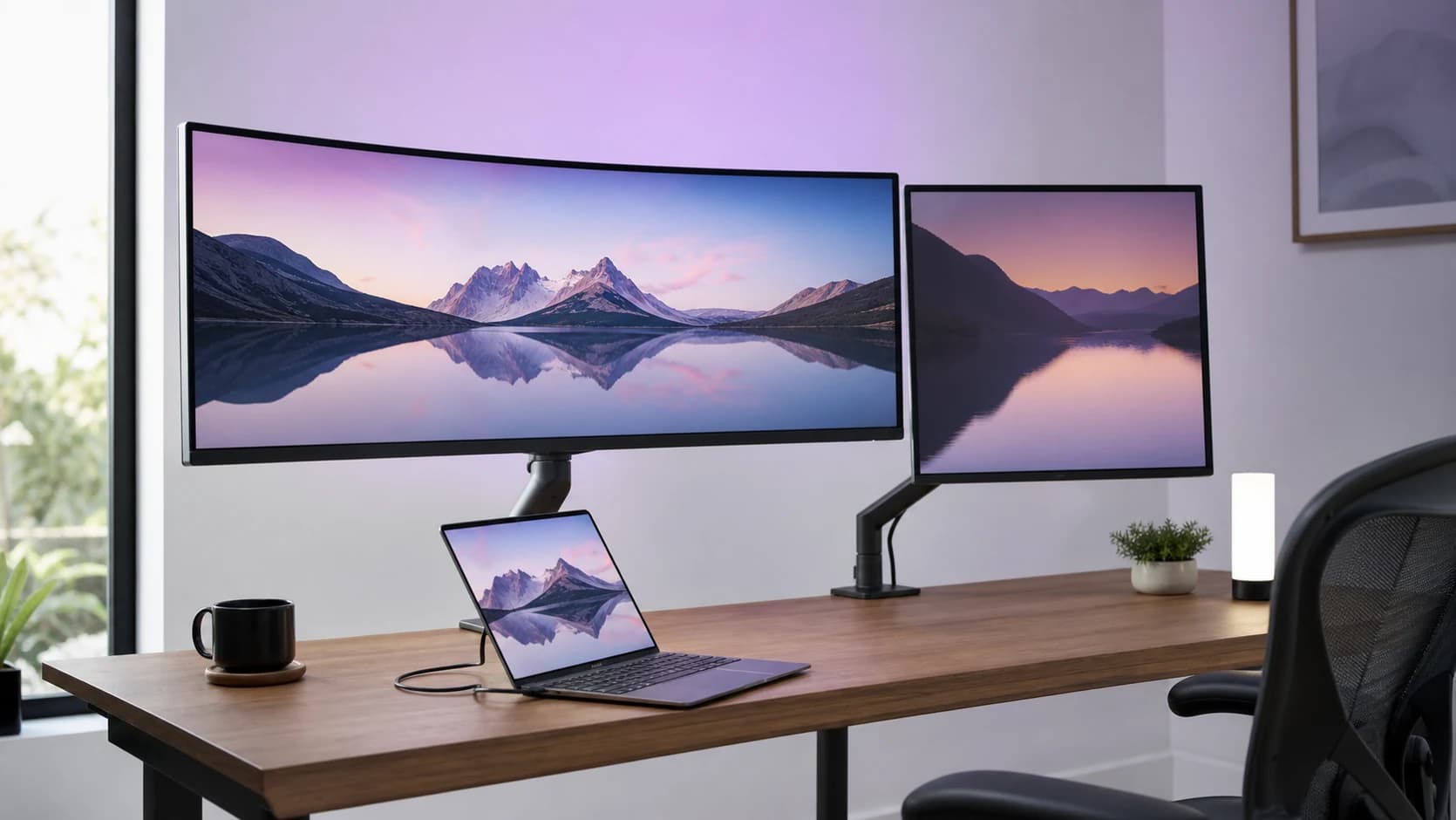
A monitor arm is either a daily delight or a slow-motion rage machine. Here’s how to pick one that holds position, fits your desk, and doesn’t bounce every time you type.
Editorial evidence review
Recommendations are checked against product documentation, availability, comparative evidence, and clearly disclosed hands-on work where it exists.
Quick picks
The short answer, with the trade-offBest overall
Herman Miller Jarvis Single Monitor Arm
Sleek robust build, smoothest motion, wide adjustability, 15-year warranty
Trade-off: Basic cable management

Best for heavy monitors
Ergotron LX Desk Monitor Arm
Trade-off: More expensive

Best for ultrawides
Ergotron HX Desk Monitor Arm
Trade-off: Large base, premium price

Best value
HUANUO HNDS6 Dual Monitor Gas Spring Arm Mount
Trade-off: Plastic parts feel less premium
On this page
- SolderMag Take: the best monitor arms pay for stiffness, not features
- Who should buy a monitor arm in 2026
- The 6 monitor arm features that actually matter
- Monitor arm traps (and how to avoid them)
- Monitor arm buying checklist
- Our top monitor arm picks for 2026
- Related workstation fixes
- Sources and methodology
A good monitor arm does two things:
- puts your screen where your neck wants it
- stays there
A bad one? It sags, drifts, shakes when you breathe near the keyboard, and makes you think you hate “ergonomics” when you actually just hate flexy metal.
SolderMag Take: the best monitor arms pay for stiffness, not features
Most monitor arms fail in boring ways:
- the joints can’t hold torque (so the screen droops)
- the pole/clamp flexes (so the screen wobbles)
- the tension range doesn’t match your monitor weight (so setup is a fight)
The best upgrade isn’t “more articulation” or “more RGB desk vibes.” It’s rigidity + the right tension range.
Who should buy a monitor arm in 2026
Buy a monitor arm if you:
- want the top of your screen at (or just below) eye level
- need your desk space back (keyboard, notebook, mic, or drawing tablet)
- share a desk or frequently reposition your display
Pairing an arm with a solid 27-inch 4K monitor is one of the best desk upgrades you can make. If you use a wider display, check arm weight and tilt ratings before buying; our ultrawide monitor guide explains why 34-inch, 38-inch, and 49-inch screens put very different loads on a mount.
Skip the arm (or delay it) if you:
- have a flimsy desk that flexes when you type
- use a monitor with no VESA mount support (or can’t get an adapter)
- already have a solid height-adjustable stand and never move it
The 6 monitor arm features that actually matter
1) VESA mount pattern (usually 75×75 or 100×100)
Most arms are built around common VESA patterns. Before you buy anything:
- check your monitor’s spec sheet for VESA support
- confirm the pattern (75×75 or 100×100 are the common ones)
If your monitor doesn’t support VESA, you’ll need a model-specific adapter. and adapters can add leverage (aka wobble).
2) Weight range (this is where most people mess up)
Monitor arms aren’t rated with one “max weight” in the way shelves are. Many gas-spring arms have a minimum-maximum range.
If your monitor is too light:
- the arm may “float” up and refuse to stay down
If your monitor is too heavy:
- it’ll slowly sag until it’s basically a sad desk lamp
Practical move: look up your monitor’s weight without the stock stand (that’s the number that matters).
3) Desk attachment: clamp vs grommet
Two common mounting styles:
- C-clamp: fastest, easiest, most common. Needs a desk edge with enough depth.
- Grommet mount: bolts through a desk hole. Usually stiffer and great for sit/stand desks.
Also check:
- desk thickness limits
- whether your desk has a reinforced edge (many cheap desktops don’t)
4) Arm type: pole arm vs gas spring
There are two “personalities” here:
Pole arms (sliding collar on a vertical post)
- usually cheaper
- usually stiffer for the money
- height changes take two hands and mild commitment
Gas-spring arms
- easiest to reposition (one-finger moves)
- more sensitive to weight range and tension setup
- can wobble if the build is light
If you rarely move your screen: a solid pole arm can be the best value. If you move it constantly between coding, meetings, and creative work, a gas spring is worth it.
5) Reach + height (fit matters more than you think)
A common failure mode: people buy a “good” arm that simply can’t place the monitor where they need it.
Measure:
- how far back the monitor base currently sits from the desk edge
- how far you want the screen from your eyes
- whether you need the display to go centered or offset
If you run a deep desk or a big 32"+ display, prioritize reach. If you run a shallow desk, prioritize an arm that can fold compactly without pushing the screen too close.
6) Wobble control (the underrated spec)
Wobble comes from:
- thin metal sections
- a flexible pole
- a clamp on a desk edge that isn’t rigid
- long reach with a heavy monitor (leverage is cruel)
Simple heuristics:
- heavier arms (within reason) tend to be stiffer
- dual arms are often less stable than two single arms
- if you type hard, avoid “ultra-budget” gas-spring arms
Monitor arm traps (and how to avoid them)
- “Supports up to X kg” without a lower limit: might still be fine, but it’s a yellow flag for gas-spring designs.
- Stacking adapters: VESA adapter + quick-release + laptop tray = leverage tower.
- Dual-monitor arms for two heavy screens: you can end up with a tuning nightmare. Two single arms are often easier to dial in.
- Mounting to IKEA-style honeycomb tops: use a reinforcement plate or a different desk.
Monitor arm buying checklist
- Confirm VESA pattern (75×75 or 100×100)
- Check monitor weight without stand
- Choose mount: clamp (easy) vs grommet (stiff)
- Pick arm type: pole (value/stiff) vs gas spring (moves easily)
- Confirm desk thickness + clearance behind desk
- If you’re sensitive to shake: prioritize stiffness over features
Our top monitor arm picks for 2026
Herman Miller Jarvis Single Monitor Arm
Why it works
- Sleek robust build, smoothest motion, wide adjustability, 15-year warranty
Main trade-off
- Basic cable management
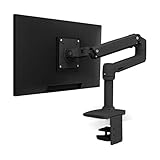
Ergotron LX Desk Monitor Arm
Why it works
- Supports 34lbs/34in screens, extensive adjustments, stable motion, 10-year warranty
Main trade-off
- More expensive

Ergotron HX Desk Monitor Arm
Why it works
- Holds 42lbs/49in, premium build, full motion, good cable management
Main trade-off
- Large base, premium price

HUANUO HNDS6 Dual Monitor Gas Spring Arm Mount
Why it works
- Affordable dual setup, smooth gas spring adjust, Amazon bestseller 20k+ 4.6* reviews, easy install
Main trade-off
- Plastic parts feel less premium
Related workstation fixes
A monitor arm solves screen height and desk space. It does not fix the rest of the workstation by itself.
- If you are building from scratch, start with the complete ergonomic workstation guide so you fix chair, desk, display, keyboard, and mouse in the right order.
- If you mostly work from a laptop, pair the arm with one of our laptop stand picks instead of craning down at the built-in screen.
- If your display still shakes after mounting, the desk may be the weak point. Our standing desk guide focuses on frames that stay stable at sitting and standing heights.
- If you want the full build list, see best home office setup for the monitor, lighting, chair, power, and cable-management pieces that belong around the arm.
Sources and methodology
- VESA standards list (includes FDMI, the mounting interface standard): https://vesa.org/vesa-standards/
- OSHA Computer Workstations eTool. monitor placement quick tips (distance/height/angle principles that arms should enable): https://www.osha.gov/etools/computer-workstations/components/monitors
For the full workstation picture, see our desk setup essentials guide.