USB Switch vs KVM Switch: Which One Fits Your Desk?
A USB switch shares peripherals; a KVM also moves the display. Here is the cheaper, cleaner choice for dual-monitor and high-refresh desks.
Research-based guide
Recommendations are checked against product documentation, availability, comparative evidence, and clearly disclosed hands-on work where it exists.
Quick picks
The short answer, with the trade-off
Best when video can stay direct
UGREEN 15705 USB 3.0 Switch
Shares four USB devices between two computers
Trade-off: Does not switch video
Best when displays must switch too
Compare dual-monitor KVM switches
On this page
- Quick answer
- USB switch vs KVM switch: the difference
- What a USB switch actually does
- What a KVM switch adds
- Choose a USB switch when video quality is the priority
- Choose a KVM when one-action switching matters
- A practical USB switch example: UGREEN 15705
- Who this setup is for
- Who should skip a USB switch
- Four desk layouts and the better choice
- Common mistakes
- Alternatives
- Frequently asked questions
- Final recommendation
- Sources and methodology
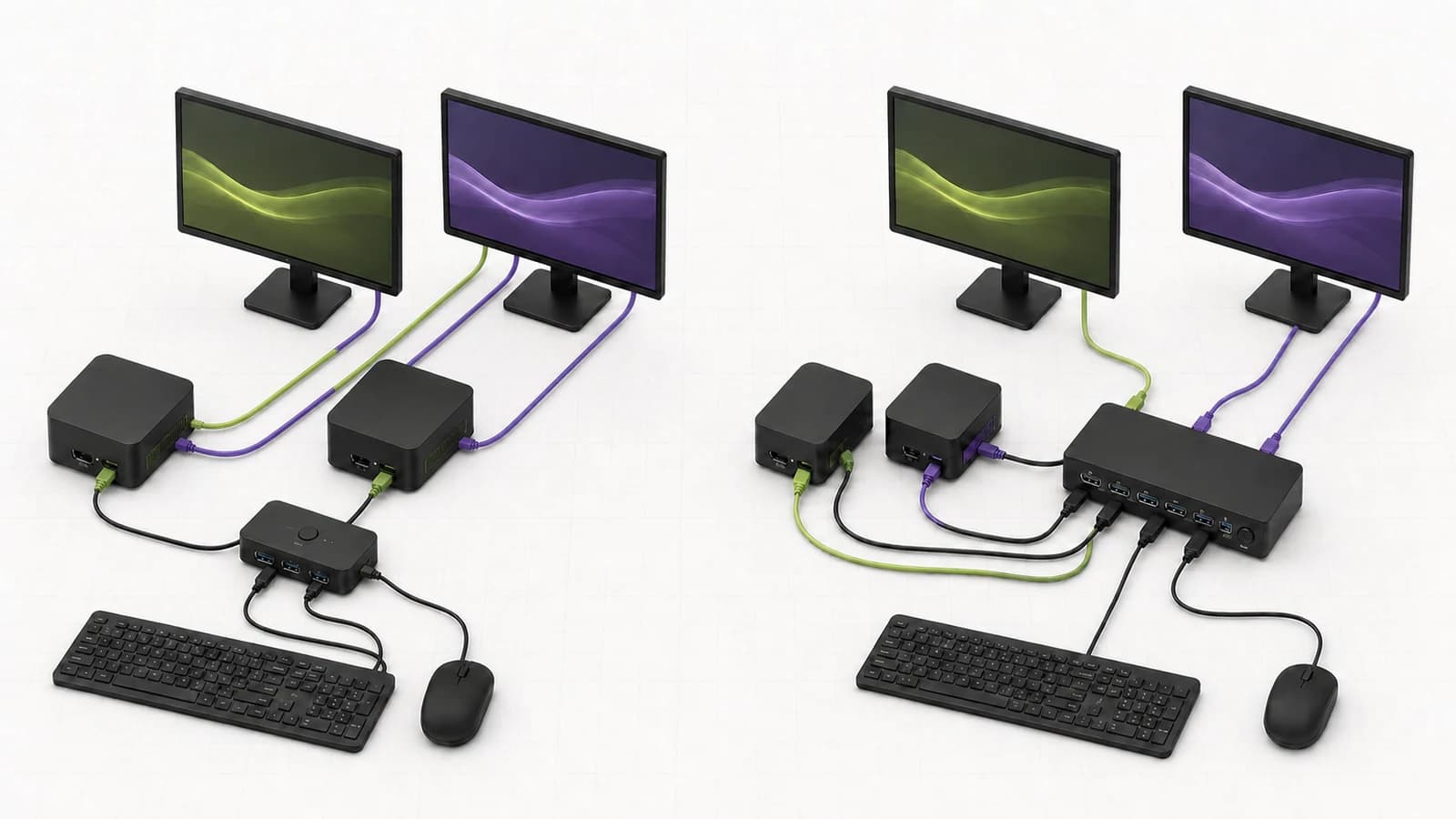
A USB switch is the better buy when both computers can stay connected directly to the monitors. It moves the keyboard, mouse, webcam, printer, or other USB devices between computers without putting another box in the video path. That is usually the cheaper and safer layout for high-refresh monitors.
A KVM switch is worth paying for when you want one control to move the displays and USB devices together. The trade-off is stricter compatibility, more video cables, and a greater chance that resolution, refresh rate, HDR, VRR, or window placement becomes part of the troubleshooting job.
The decision is not about which device is more advanced. It is about which signals actually need to move.
Quick answer
Buy a USB switch if your monitors have enough inputs for both computers and you can tolerate changing monitor inputs separately. Buy a KVM if one-button switching, display retention, or frequent changes between computers matter more than cost and signal-path simplicity.
For a gaming desktop beside a work laptop, direct video plus a USB switch is often the sensible setup. For an office desk that changes computers many times each day, a properly matched KVM can save enough friction to justify its extra cables and compatibility checks.
USB switch vs KVM switch: the difference
| Question | USB switch | KVM switch |
|---|---|---|
| What moves? | USB peripherals only | Keyboard, video, mouse, and usually extra USB devices |
| Monitor connection | Each computer connects directly to each monitor | Video passes through the KVM |
| Everyday switching | USB button plus monitor input controls | Usually one button, remote, or hotkey |
| Video limits | None added by the switch | Limited by the KVM and the complete cable chain |
| Dual-monitor wiring | Two video paths per computer still go directly to the displays | Often two video feeds per computer enter the KVM |
| Window retention | Displays normally stay connected to both computers | Depends on EDID emulation and KVM design |
| Best fit | High-refresh gaming, occasional switching, monitors with spare inputs | Frequent switching, inaccessible monitor controls, one-action desk changes |
| Main risk | More than one action to change computers | Buying the wrong video topology or display specification |
Both devices can share a keyboard and mouse. Only the KVM is designed to switch the display signal as part of the same action.
What a USB switch actually does
A USB sharing switch has two or more host connections and a bank of downstream USB ports. The keyboard, mouse, webcam, printer, audio interface, or storage device plugs into the switch. A physical button chooses which computer owns those peripherals.
It does not switch HDMI, DisplayPort, or USB-C video. Each computer remains connected to the monitor through its own video cable. On a two-monitor desk, both computers need a viable path to both displays, and both displays need enough inputs.
That separation is the point. A 4K high-refresh display can stay connected directly to the gaming PC over DisplayPort while the work laptop uses the monitor's second input. The USB switch never has to understand the resolution, refresh rate, HDR mode, adaptive sync, or Display Stream Compression.
The downside is visible at changeover. You press the USB switch, then change the input on each monitor. Some monitors place the input control behind the panel or bury it in an on-screen menu. Two or three actions can become irritating if you swap computers every few minutes.
What a KVM switch adds
KVM stands for keyboard, video, and mouse. A hardware KVM accepts video and USB from each computer, then sends the selected computer to one or more monitors and the shared peripherals.
The convenience is real: one front button, wired controller, remote, or keyboard hotkey can move the desk. Better models also keep display information visible to the inactive computer through EDID emulation. That can reduce rearranged windows and slow display handshakes after a switch.
The cost is a more demanding signal chain. A dual-monitor KVM commonly needs:
- two video feeds from computer A
- two video feeds from computer B
- two video outputs to the monitors
- one USB host connection from each computer
- power, plus any remote-switch cable
The KVM cannot create a second display output that a laptop does not support. It also cannot turn an unsuitable adapter chain into a reliable high-bandwidth connection. Our dual-monitor KVM buying guide explains the HDMI, DisplayPort, USB-C, EDID, and cable-count decisions in more detail.
Choose a USB switch when video quality is the priority
Direct video is the safer layout when the display mode is difficult to reproduce through a switch.
That includes:
- 4K at a high refresh rate
- ultrawide resolutions with unusual timings
- HDR and variable refresh rate
- competitive gaming where a blank-screen handshake is unacceptable
- mixed HDMI and DisplayPort monitors
- a desk that already uses adapters or a laptop dock
This does not mean every KVM reduces image quality or adds perceptible input latency. A digital KVM that supports the exact mode can work correctly. The problem is verification: “8K” on a product title does not prove the two-monitor combination, colour depth, HDR mode, VRR range, cables, dock, and graphics outputs you intend to use.
A USB switch removes that uncertainty from the video path. It is the conservative choice when you switch once at the start of work and once when work ends.
Choose a KVM when one-action switching matters
A KVM earns its cost when the whole desk must change computers quickly and predictably.
Buy the KVM when:
- you switch computers repeatedly through the day
- the monitor input controls are awkward to reach
- both monitors must always follow the same computer
- EDID emulation is important for preserving window positions
- you need a remote switch button or keyboard hotkey
- the exact KVM documentation names your display topology and target mode
- the included cables reduce the real setup cost
Do not buy it merely because “KVM” sounds more complete. A cheap KVM with the wrong ports, no EDID emulation, or an insufficient refresh-rate ceiling can create more work than it removes.
A practical USB switch example: UGREEN 15705
The UGREEN 15705 is a useful example of the category because its limitations are explicit. It lets two computers share four USB 3.0 devices through three USB-A ports and one USB-C data port. UGREEN rates the data path up to 5Gbps and includes two 1.5m USB-A host cables plus a wired controller.
It does not carry video. It does not charge either computer. Its USB-C socket is a downstream data port, while a separate USB-C power input can supply extra power to attached devices when needed. UGREEN specifies a standard 5V/2A adapter for that optional input and does not include the adapter.
UGREEN 15705 USB 3.0 Switch
Why it works
- Shares four USB devices between two computers
- Three USB-A plus one USB-C data port
- Front button and wired controller
Main trade-off
- Does not switch video
- Optional 5V/2A power adapter is not included
- USB-C-only hosts need the documented adapter path
This is not a hands-on review. The product details above are based on UGREEN's current model-specific documentation and exact US Amazon catalogue identity for SKU 15705 / ASIN B0C8MSP967. SolderMag has not measured switch time, transfer speed, wake behavior, wireless-receiver interference, device compatibility, or long-term reliability.
The model is a sensible fit for a keyboard, mouse, webcam, and occasional printer or storage device. Four ports still share one active host path, so “5Gbps” should not be read as 5Gbps for every attached device at once. UGREEN also recommends direct host connections rather than placing another hub in front of the switch.
For a USB-C-only laptop, follow UGREEN's documented connection method: use the included USB-A-to-A host cable with an appropriate USB-C-to-A adapter. A random USB-C-to-A cable is not automatically wired for the same host-side role.
Who this setup is for
Choose direct monitor inputs plus a USB switch if:
- you have one gaming PC and one work computer
- both monitors expose a spare input for each computer
- you want the gaming display connected directly to the graphics card
- the work laptop already uses a compatible dock
- you share only USB peripherals
- you change computers a few times per day rather than every few minutes
The main trade-off is manual display switching. Check the monitor controls before ordering anything. A joystick under the bezel is manageable; two displays with slow, rear-mounted menu buttons may make the cheaper layout feel expensive in daily irritation.
Who should skip a USB switch
Skip it if either monitor lacks enough usable inputs, both displays must change with one action, or the inactive computer should behave as though its monitors remain connected.
Also skip it when the desk is already difficult to explain. If a household member or colleague needs a single obvious button, a well-documented KVM is easier than a sequence involving a USB controller and two monitor menus.
A USB switch also does not replace a dock. A laptop still needs charging, networking, and enough native display support. Read our guide to running two monitors from a Thunderbolt dock on a Mac before assuming the switch or dock can exceed the computer's display limit.
Four desk layouts and the better choice
Gaming desktop plus work laptop
Start with a USB switch. Keep the gaming monitor connected directly to the desktop over the preferred DisplayPort path. Connect the laptop or dock to the monitor's second input. Move to a KVM only if the repeated input changes become a genuine problem.
Two office desktops with dual 4K60 monitors
A KVM is usually cleaner. The display target is well within the documented range of many dual-monitor office models, and frequent switching makes one-action control more valuable. The TESmart HKS202-P23 review shows what the six-video-cable HDMI layout requires.
Two high-refresh gaming computers
Use direct video plus a USB switch unless a KVM vendor documents the exact two-display modes and features you need. Keep the video path short, use appropriate cables, and accept the extra input-button presses.
One laptop used at two desks
Neither device may be the first purchase. A dock handles one-cable laptop power, displays, networking, and peripherals. A KVM or USB switch becomes relevant only when a second computer shares that desk. Start with the laptop docking station guide.
Common mistakes
Expecting a USB switch to move the monitor: it shares USB data only. The display input still changes at the monitor.
Counting monitor outputs but not host inputs: a dual-monitor KVM often needs two video feeds from every computer, not one.
Assuming USB-C means video and charging: the connector shape does not guarantee DisplayPort Alt Mode, Thunderbolt, Power Delivery, or a host-data role.
Connecting power to the wrong port: optional power on a USB switch usually supports downstream devices. It does not turn the switch into a laptop charger.
Putting storage, a webcam, and audio on one shared path without a plan: bandwidth and power are shared. Put high-demand or latency-sensitive equipment directly on a computer if stability matters more than switching convenience.
Ignoring monitor input controls: the USB-switch layout is only pleasant when changing display inputs is reasonably quick.
Already have a switch but the keyboard or mouse does not follow the selected computer? Use the KVM USB input checklist to separate a missing host connection from port or receiver compatibility before buying another device.
Alternatives
Monitor with a built-in KVM: the cleanest route when a display replacement is already planned. USB-C work monitors can combine host charging, video, and peripheral switching, but port and refresh-rate details still need checking.
Software keyboard and mouse sharing: tools such as PowerToys Mouse Without Borders can move input across networked Windows computers. They do not switch the displays, USB storage, webcams, or pre-boot screens.
Remote desktop: useful for administration and light work on the second computer. It adds a network and software layer, so it is not a substitute for direct access in gaming, colour-sensitive, or latency-sensitive work.
Separate keyboards and mice: inelegant but reliable. If the desk has room and switching is rare, buying no switch at all can be the lowest-friction answer.
Frequently asked questions
Can a USB switch share a keyboard and mouse between two computers?
Yes. That is its main job. Confirm the number and type of downstream ports, the host cables, and whether unusual keyboards, receivers, audio interfaces, or webcams have documented power or compatibility requirements.
Does a USB switch add monitor lag?
No video passes through it, so it cannot add processing to the display signal. Keyboard and mouse traffic does pass through the USB switch. SolderMag has not measured latency on the UGREEN 15705, so no model-specific latency claim is made here.
Can one USB switch handle two monitors?
The switch does not handle either monitor. Both computers connect directly to both monitors, and the monitors' own input controls select the visible computer.
Is a USB switch the same as a KVM without video?
That is a useful shorthand, but product behavior differs. Some KVMs provide dedicated keyboard emulation, hotkeys, EDID handling, audio, Ethernet, or charging. A basic USB switch normally exposes shared USB ports and a manual host selector.
Will a KVM reduce refresh rate?
It can limit the available mode if the KVM, cable, adapter, dock, or source cannot carry the required bandwidth and features. Match the complete signal chain to the exact resolution, refresh rate, HDR, colour depth, and adaptive-sync requirement.
Can I use a USB hub with a USB switch?
Sometimes, but it adds another shared power and data layer. UGREEN specifically advises connecting model 15705 directly to the computer rather than through another hub. If more ports are essential, use a powered design whose documentation covers that topology.
Final recommendation
Buy a USB switch when the monitors can remain directly connected and video performance matters more than one-button convenience. It is the practical choice for a gaming PC beside a work laptop, especially when high refresh rate, HDR, VRR, or mixed display connections make a suitable KVM difficult to verify.
Buy a KVM switch when you change computers often and need both displays plus the peripherals to move together. Pay for the exact port layout, display modes, EDID behavior, switching controls, and included cables—not the largest resolution printed in the title.
Sources and methodology
- UGREEN official model 15705 product page for its two-host/four-device topology, 5Gbps rating, port layout, switching controls, optional 5V/2A device power, included cables, and connection cautions: https://us.ugreen.com/products/ugreen-usb-c-switch-2-port-4-usb3
- UGREEN official USB-switch category page for current product-family positioning: https://us.ugreen.com/collections/usb-switches
- Microsoft PowerToys Mouse Without Borders documentation for the software input-sharing alternative: https://learn.microsoft.com/en-us/windows/powertoys/mouse-without-borders
- Amazon Creators API exact-product validation for UGREEN SKU 15705 / US ASIN
B0C8MSP967using SolderMag's configuredsoldermag-20Associate tag.
We compared signal topology, display risk, switching friction, cable requirements, peripheral power and bandwidth, product documentation, and the situations in which paying more removes a real annoyance. We did not convert published interface ceilings into measured performance or imply hands-on use.
As an Amazon Associate I earn from qualifying purchases.