Can a Thunderbolt Dock Run Two Monitors on a Mac?
A Thunderbolt dock can run two Mac displays only when the Mac itself supports that display count and the dock documents the right macOS connection path.
Editorial evidence review
Recommendations are checked against product documentation, availability, comparative evidence, and clearly disclosed hands-on work where it exists.
On this page
- Quick answer
- Why the Mac model matters more than the dock
- The lid-closed exception on some Macs
- One cable does not always mean one display
- Resolution and refresh rate still matter
- Who this guide is for
- Who should skip a full dock
- Troubleshooting a dock that mirrors both screens
- Which dock type should you buy?
- FAQ
- Sources
Yes, a Thunderbolt dock can run two monitors on a Mac—but only if the specific Mac supports two external displays and the dock supports that arrangement on macOS. A dock routes display signals. It does not add native displays beyond the Mac's own limit.
That distinction explains most disappointing “dual 4K” dock purchases. The box describes the dock's capability, while the Mac's chip, lid state, resolution and connection path decide what actually works.
Quick answer
Before buying a dock for two monitors, check these in order:
- Open the technical specifications for your exact Mac and find Display Support or Video Support.
- Confirm whether the count includes the built-in display or requires the laptop lid to be closed.
- Check the dock maker's macOS compatibility table for the exact dock model.
- Check the supported resolution and refresh rate for two displays, not the single-display maximum.
- Make sure the supplied Thunderbolt cable and the monitor cables support the required path.
If any product page simply says “dual display” without naming macOS limits, treat that as incomplete information.
Why the Mac model matters more than the dock
Apple publishes display support by chip and computer model. Current MacBook Pro configurations do not all support the same number of external displays, and older base-chip models can behave differently from Pro or Max variants.
The useful rule is blunt: a dock cannot override a Mac's native external-display limit. Apple says that a supported hub or daisy chain may carry multiple displays over one Thunderbolt port, but it does not increase the maximum number the Mac can drive.
Do not shop from “M-series Mac” advice. Identify the exact chip in Apple menu → About This Mac, then read that model's current technical specifications.
The lid-closed exception on some Macs
Some M3 MacBook Air and base M3 MacBook Pro models support two external displays only with the laptop lid closed. Apple requires an external keyboard and pointing device, suitable macOS version and power. Opening the lid while both displays are attached can make the second external display disconnect or go dark.
That is a workable desk setup, but it is not the same as running the built-in panel plus two external monitors. If you need three active screens, confirm the total active-display count rather than counting ports.
Newer Mac models may support two external displays while the built-in display remains active. Because this changes by generation, use Apple's live support page instead of relying on a dock review's year-old table.
One cable does not always mean one display
Thunderbolt can carry more than one display stream over a single upstream cable when the Mac and dock both support the arrangement. Some current Macs also support multiple displays over one Thunderbolt port.
The catch is the dock's output design. A dock with two physical HDMI sockets is not automatically a two-display Mac dock. Some models target Windows graphics paths and explicitly exclude macOS. Conversely, a Thunderbolt dock with downstream Thunderbolt ports may route two compatible displays even without two built-in HDMI sockets.
Buy from the compatibility table, not the connector count.
Resolution and refresh rate still matter
“Supports two monitors” is not a complete specification. A computer may support one display at a higher resolution or refresh rate than it supports with two connected. HDR and scaled modes can change which refresh rates appear in macOS.
Write down the intended setup before shopping:
- number of external displays;
- resolution of each display;
- target refresh rate of each display;
- whether the laptop lid stays open;
- whether either display uses Adaptive Sync or HDR;
- which connection each display accepts.
A dock that is fine for two 4K 60Hz office monitors may be the wrong choice for a high-refresh gaming screen and a second display.
Who this guide is for
This checklist is for MacBook owners building a fixed desk with one upstream cable, charging, peripherals and two displays. It is also useful when a current dock mirrors both monitors instead of extending them.
Who should skip a full dock
Skip a large Thunderbolt dock if you need only one display and charging. A smaller USB-C hub for MacBook may be enough.
Also skip the dock upgrade if the Mac supports only one external display and your goal is native dual-display output. Buying a more expensive dock will not change that limit. A software-driven display adapter is a separate approach with its own compression, driver, protected-content and update trade-offs; do not confuse it with native Thunderbolt display support.
Troubleshooting a dock that mirrors both screens
Start with the Mac's display limit and the dock's macOS table. If both support the intended setup:
- Update macOS and any dock firmware.
- Use the dock's included Thunderbolt cable or a certified replacement.
- Connect the displays in the order the manufacturer recommends.
- Open System Settings → Displays and confirm the screens are set to extend, not mirror.
- Test one display at a time and lower refresh rate or resolution temporarily.
- If Apple advises a direct connection for that model, connect one display to the Mac rather than forcing both through the dock.
Do not buy new cables at random before checking the display count. Cables cause failures, but they cannot fix an unsupported topology.
Which dock type should you buy?
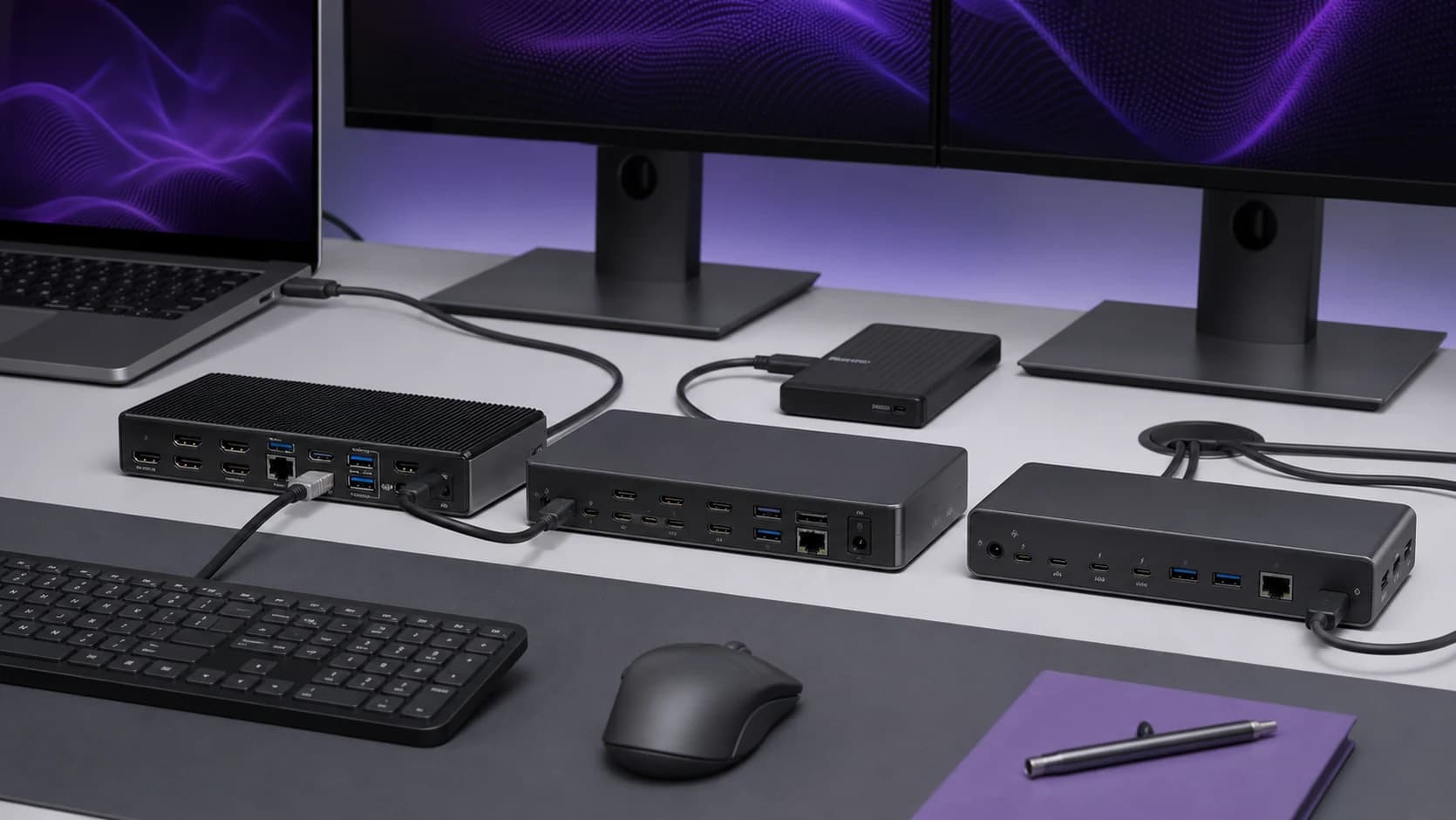
Choose a Thunderbolt dock with a published macOS display matrix that matches your exact setup. Downstream Thunderbolt ports are useful when your displays accept USB-C/Thunderbolt or you are comfortable using documented adapters.
For a concrete example, our CalDigit TS4 vs Plugable UD-4VPD comparison shows why the nominally simpler dual-HDMI option can be the wrong purchase for a Mac. Our best Thunderbolt and USB4 docks guide covers broader port and charging trade-offs.
If the dock will feed a dual-monitor switch, read our UGREEN 55851 DisplayPort KVM review before adding another box. The KVM needs two independent DP feeds and cannot raise the Mac's native display limit.
FAQ
Can an M3 MacBook Air run two external monitors through a dock?
Apple supports two external displays on M3 MacBook Air models with the lid closed and the stated macOS, power and peripheral requirements. Check Apple's instructions for the exact resolution limits and connection order.
Will two HDMI ports always give me an extended desktop on macOS?
No. Physical outputs do not prove macOS can extend across them. Confirm both the Mac's limit and the dock maker's macOS support.
Can a dock increase the number of monitors my Mac supports?
Not through native Thunderbolt display output. It can route supported displays over one cable, but Apple says a hub or daisy chain does not raise the Mac's maximum display count.
Is Thunderbolt 5 required for two Mac displays?
No. Compatible Thunderbolt 4 systems and docks can handle two displays. Thunderbolt 5 may offer more bandwidth and newer topology options, but the Mac's published display support remains the first check.
Sources
- Apple: connect one or more external displays with Mac
- Apple: how many displays can be connected to MacBook Pro
- Apple: use dual monitors with M3 MacBook Air and MacBook Pro
The sensible purchase is the dock whose documentation names your computer, operating system and exact display arrangement. If the support table is vague, keep looking.