Laptop Dual-Monitor KVM Setup: Cables and Compatibility
Connect a laptop and desktop to two monitors without buying the wrong KVM. Check video feeds, cable counts, USB-C, Mac support and charging first.
Research-based guide
How we evaluate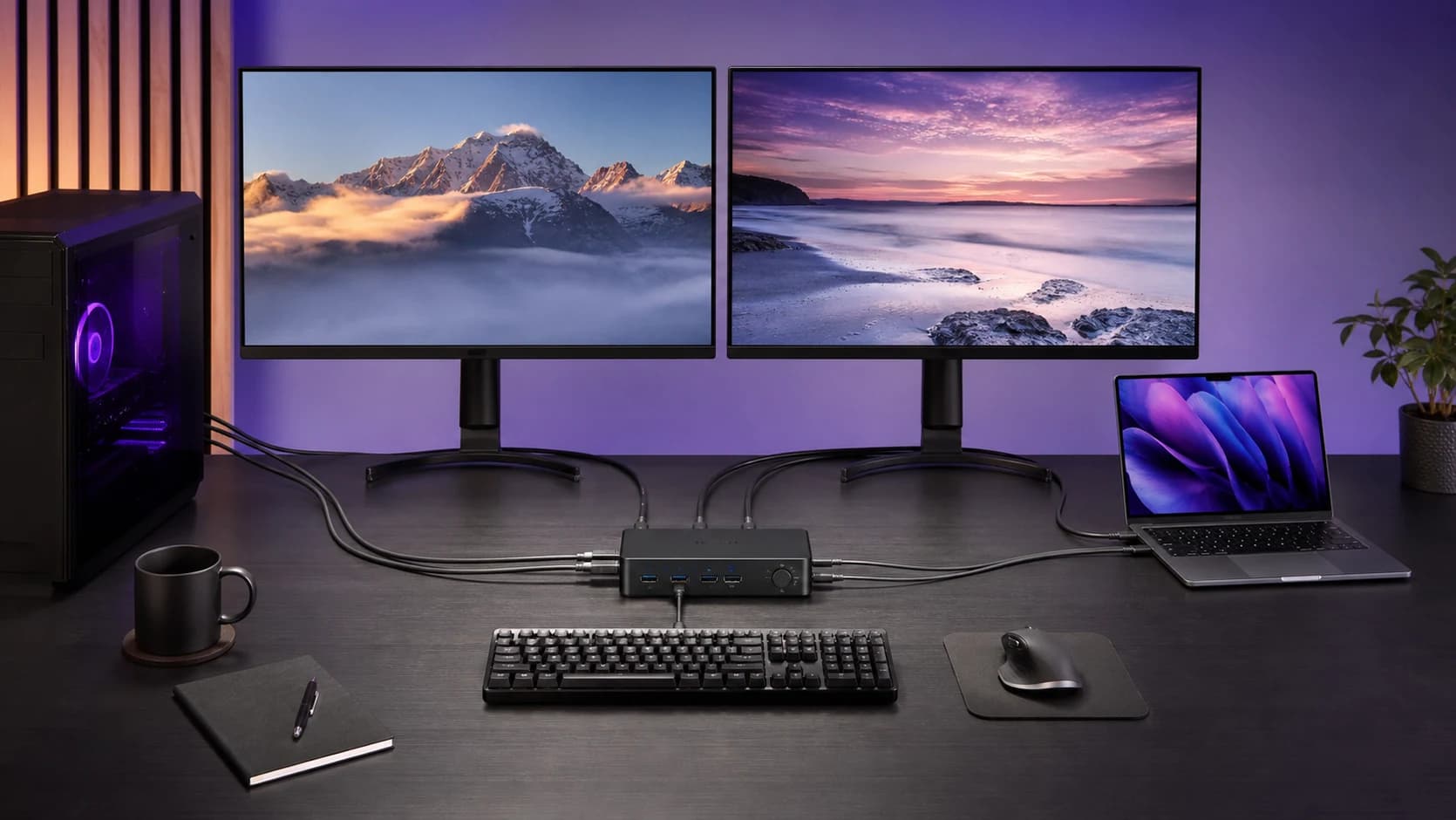
On this page
- Quick decision: which connection layout fits?
- 1. Write down the laptop's display limit
- 2. Budget six video runs for a conventional KVM
- 3. Connect an existing dock to the computer input group
- 4. Treat USB-C as a connector, then check its job
- 5. Check whether two displays rely on MST
- 6. Include lid state and charging in the plan
- A worked planning example
- Who should use this setup, and who should skip it?
- Final checks before ordering
- Frequently asked questions
A conventional dual-monitor KVM needs two video feeds and one USB connection from each computer. For a laptop, those video feeds can come from suitable built-in outputs, a compatible dock, or a combination of both. A single-cable laptop connection works only when the KVM or dock explicitly supports it with your computer.
Before ordering, prove that the laptop can run both external screens in extended mode at the same time. Two sockets on an adapter do not prove that. Neither does a listing that says “dual 4K.”
This is a research-based connection-planning guide using manufacturer and operating-system documentation. We have not tested every laptop, dock or KVM combination. The hero is a general desk illustration, not a port-accurate wiring diagram.
Quick decision: which connection layout fits?
| What you already have | Start with | Check before buying |
|---|---|---|
| Laptop with two usable video outputs | Conventional HDMI or DisplayPort KVM | Both outputs work simultaneously; their signal types match the KVM |
| Laptop with a working dual-display dock | Dock feeding a conventional KVM | Dock produces two extended displays on your operating system |
| Laptop with one suitable Thunderbolt port | Compatible Thunderbolt dock or hybrid KVM | Exact laptop, dock/KVM and two-screen combination is documented |
| USB-C laptop and an MST-based dual-output adapter | Compatibility check first | Host, operating system and adapter support independent displays |
| Monitors with spare inputs; switching is occasional | Direct video plus a USB switch | Each computer still has a working path to both screens |
Our recommendation: reuse a dock that already drives your two monitors correctly. Pay for an integrated laptop KVM when reducing daily plugging and switching is worth the extra cost. Choose the dual-monitor KVM after you know the connection layout.
1. Write down the laptop's display limit
Record the exact laptop model, processor or chip, operating system and dock model. Then write the resolution and refresh rate of each external monitor, and whether the laptop screen must remain active.
A useful requirement reads: “Two external 2560×1440 displays at 60Hz, extended desktop, laptop lid open.” That is something a support table can confirm. “Supports two monitors” leaves too much unresolved.
For Macs, Apple's MacBook Pro display guidance separates support by chip and display arrangement. It also explains that a hub or daisy chain does not increase the computer's maximum display count. Windows buyers should use the equivalent specifications for their exact laptop and graphics configuration.
Test the intended arrangement directly before adding the KVM, if the hardware is already available. A working single monitor is not enough: both displays must work together with separate content.
2. Budget six video runs for a conventional KVM
For two computers and two monitors, a separate-input KVM typically has this cable budget:
| Connection | Video runs | USB host runs |
|---|---|---|
| Laptop or its dock → KVM computer 1 input group | 2 | 1 |
| Desktop → KVM computer 2 input group | 2 | 1 |
| KVM → two monitors | 2 | 0 |
| Total | 6 | 2 |
Add power cables, peripheral cables and any laptop-to-dock cable separately. A bundled “KVM cable” may combine connectors, so count the required signals rather than assuming one item in the box equals one function.
TESmart's conventional dual-monitor setup instructions specify two video connections and one USB connection per computer. This cable count does not describe every USB-C or Thunderbolt KVM.
For installation, label the two laptop video runs “PC1 screen A” and “PC1 screen B”; label the desktop pair PC2. Keep each computer's USB host cable in that same input group. This small job is easier before the switch is mounted under a desk.
Check the actual box contents before buying extra cables. Compare the full installed cost, including adapters and a dock, rather than the switch price alone.
3. Connect an existing dock to the computer input group
With a conventional KVM, the order is:
laptop → compatible dock → KVM host inputs → monitors
The dock's two video outputs feed the two video inputs belonging to one KVM computer group. Connect that group's USB host connection to a suitable USB data port on the dock, following the KVM manual. The keyboard and mouse go on the shared side of the KVM.
TESmart's installation guide illustrates a laptop with a dock as one host and a desktop as the other. A dock is optional when the laptop already exposes the needed connections.
Do not select a dock simply because its outputs fit the switch. First connect those outputs directly to your monitors and verify the target arrangement. Then insert the KVM using the same working outputs. This gives you a known starting point if the added switch changes the result.
4. Treat USB-C as a connector, then check its job
A USB-C socket might carry data, video, charging, or a supported combination. The same shape can appear on a laptop host port, a peripheral port or a power input.
VESA's DisplayPort FAQ explains how DisplayPort Alt Mode can share USB-C with USB data and Power Delivery. That capability still needs implementation at the relevant ports and a suitable cable.
For a one-cable laptop KVM, answer three separate questions:
- Does this upstream connection carry the required two-display arrangement from this laptop?
- Does it also connect the shared USB peripherals?
- Does it provide enough charging power for the laptop's intended workload?
An answer to one is not an answer to all three. Read the host-port description and cable requirements, not just the number of USB-C sockets in the photograph.
5. Check whether two displays rely on MST
DisplayPort Multi-Stream Transport, or MST, can carry multiple display streams over a compatible link. Some USB-C docks and KVMs use it to turn one laptop connection into two extended displays on supported Windows systems.
Do not transfer that Windows promise to a Mac. CalDigit's MST explanation distinguishes separate extended desktops from mirroring and the different use of MST inside tiled displays. An MST hub arrangement intended to extend two separate screens on Windows is not a safe assumption for macOS.
The difference can even change cable count. TESmart's HCK402-P FAQ documents one USB-C connection per compatible Windows laptop in MST mode, but two USB-C connections per Mac in its macOS layout. This is an example of why the exact manual matters, not a rule for all KVMs.
Thunderbolt is another route. Check a dock maker's Mac-specific display matrix for the supported computer and port arrangement. Two native displays over a compatible Thunderbolt dock are not the same topology as a USB-C MST adapter.
6. Include lid state and charging in the plan
For the base-M3 MacBook Air and MacBook Pro, Apple documents two external displays with the lid closed, with power, external input devices and the stated macOS requirements. Opening the lid can disconnect the secondary external screen. Do not generalise that behaviour to every Mac generation.
Our Mac Thunderbolt dual-display guide covers the wider model and dock checks.
Charging is a separate purchase decision. Compare the dock or KVM's laptop power output with the laptop manufacturer's requirements. Budget space for the original charger if it will still be needed. A conventional video-and-USB KVM should not be assumed to charge the laptop.
For an integrated alternative, the hybrid laptop-and-desktop KVM review shows why upstream wiring and charging capacity belong in the same buying decision.
A worked planning example
Suppose a work laptop already drives two office monitors through a dock, and a desktop has two suitable video outputs. You want one button to move the desk between them.
Keep the dock. Record its working monitor modes, then choose a conventional KVM with matching inputs and outputs. Budget the six video runs in the table, two USB host runs, dock power and KVM power. Compare the bundle against that list before paying for cables twice.
Now change one fact: the laptop has no dock. The conventional switch price no longer represents the full purchase. Compare dock plus KVM plus cables against an integrated laptop KVM whose manual confirms your exact host arrangement. Spending more is justified when it removes equipment you would otherwise need, not merely because the product has Thunderbolt in its name.
Who should use this setup, and who should skip it?
Use a dual-monitor KVM when you change computers frequently and both displays should follow the keyboard and mouse together.
Skip the extra video-switching hardware when each monitor already has spare inputs and you switch only occasionally. Our USB switch vs KVM guide explains that cheaper layout. The laptop still needs a valid two-display path; the USB switch handles peripherals only.
Also postpone buying when nobody can confirm the laptop's simultaneous display support. A vague answer from a listing is a reason to keep researching, not to buy a more expensive switch.
Final checks before ordering
- Exact laptop and operating system support the intended active screens.
- Dock or KVM documents independent extended displays through the chosen ports.
- Input and output signal types match, including any directional adapters.
- Both monitor modes are supported together, rather than only individually.
- USB host connections and laptop charging are accounted for.
- Included cables have been compared with the complete wiring list.
- The seller's return terms leave time to test the actual desk.
Once connected, test each computer, both displays, shared peripherals and sleep/wake before tidying the cables permanently. If the direct paths work but the switch does not, move to the KVM black-screen troubleshooting guide.
Frequently asked questions
Can one laptop HDMI port feed both KVM video inputs?
Not as two independent desktops simply by duplicating that output. A conventional dual-input KVM needs two independent video feeds. Check for a second supported laptop output or a compatible dock arrangement.
Do I always need a docking station?
No. Suitable built-in video outputs plus the KVM's USB host connection can be enough. A dock is useful when it supplies connections or charging you actually need.
Can I use one USB-C cable instead of two video cables?
Only through a KVM or dock designed for that arrangement with your laptop. Check whether it relies on MST, Thunderbolt or another documented display method, and read the operating-system restrictions.