The Complete Monitor Buying Guide (2026): From 27″ 4K to 49″ Ultrawide
Monitor shopping went from a one-panel choice to an aspect-ratio, HDR-tier, USB-C docking, panel-technology decision tree. Here is the complete SolderMag map — every monitor category, every pick.
Editorial evidence review
Recommendations are checked against product documentation, availability, comparative evidence, and clearly disclosed hands-on work where it exists.
On this page
- The three decisions that drive the rest
- Size and aspect ratio — the actual decision
- Panel technology in 2026
- Refresh rate — only matters if you game
- Connectivity — does the monitor replace a dock?
- HDR — the confusing spec
- Monitor arm — skipping this is a mistake
- Common mistakes to avoid
- Budget vs premium — what changes
- Sources and methodology
- The full SolderMag monitor stack
A single 24" 1080p monitor was the answer for fifteen years. In 2026 there are 27" 4K, 32" 4K, 34" ultrawide, 38" ultrawide, 49" super-ultrawide, QD-OLED, IPS Black, 120Hz, 240Hz, USB-C PD, Thunderbolt 4, KVM, HDR1000, and portable options. Most buyers overthink panel tech and underthink aspect ratio.
This guide maps every decision. Links out to the specific buying guides for every category.
The three decisions that drive the rest
Before any specs, answer three questions:
- What do you do with the screen most of the day? (Code, design, video, gaming, spreadsheets, reading)
- How much desk space do you have? (32" wide? 50"? Fit matters as much as specs)
- Are you replacing one monitor or two? (One ultrawide replaces two 24s cleanly; a single 27" 4K doesn't)
Pick aspect ratio and size from those answers, then worry about panel tech.
Size and aspect ratio — the actual decision
- 24" 1080p: outdated. Only buy if you need a cheap secondary or a gaming esports-focused mode.
- 27" 1440p: budget sweet spot. Still very common.
- 27" 4K: the modern default. ~163 PPI, retina-sharp text, excellent for mixed work. The answer for most buyers.
- 32" 4K: more real estate at a softer pixel density (~137 PPI). Good for spreadsheets, design reviews, dashboards, and big single-screen desks.
- 34" ultrawide (3440x1440): replaces dual monitors cleanly. Good for finance / code / multi-window.
- 38" ultrawide (3840x1600): more vertical pixels, bigger canvas. Expensive, premium workstations.
- 49" super-ultrawide (5120x1440): equivalent to two 27" 1440p side-by-side. Serious multi-window productivity, sim gaming.
- Portable 15.6" USB-C: travel / second-screen. Not a primary.
Rule of thumb: if you're not sure, get a 27" 4K. If you've had dual monitors and want to simplify, get a 34" ultrawide. Anything else has to justify itself with a specific workflow.
Panel technology in 2026
- IPS Black (Dell UltraSharp, LG work lines): the current gold standard for work monitors. 2000:1 contrast (vs 1000:1 classic IPS), strong colour, no OLED burn-in risk.
- QD-OLED (Samsung panels, Alienware, Dell UltraSharp premium): perfect blacks, instant response, stunning HDR. Burn-in risk with static UIs. 3-year burn-in warranties are now standard at the premium tier.
- Mini-LED IPS: expensive, great HDR peak brightness, no burn-in. A creative-pro niche.
- Classic IPS: still fine for budget, but if you can afford IPS Black, go there.
- VA: deeper blacks than classic IPS, worse off-angle. Common on 49" super-ultrawides.
Refresh rate — only matters if you game
For productivity: 60 Hz works, 120 Hz feels noticeably smoother during scrolling and window drags.
For gaming:
- 144 Hz: the competitive baseline.
- 240 Hz: esports / competitive FPS.
- 360–480 Hz: OLED-specific, marginal returns, pro esports territory.
See Best Gaming Monitors (2026) for the gaming-first picks.
Connectivity — does the monitor replace a dock?
A big deal in 2026. A good monitor with USB-C PD 90W+ or Thunderbolt 4 means one cable from laptop to monitor handles:
- Video signal
- Charging
- USB data (keyboard, mouse, webcam plugged into monitor)
- Sometimes Ethernet (via built-in LAN port)
- KVM to switch peripherals between two machines
Premium work monitors (Dell UltraSharp U3425WE, LG 34WQ75C-B) replace a dock entirely. Pure gaming monitors usually don't — you'll need a separate Thunderbolt 4 dock.
If you are choosing specifically between two USB-C ultrawides, read Dell U3425WE vs LG 34WQ75C-B. That comparison is the practical decision point for buyers who want one monitor to replace both a display and a dock.
HDR — the confusing spec
HDR tiers:
- DisplayHDR 400: almost meaningless. Call it "SDR with a brighter mode."
- DisplayHDR 600: decent HDR for games.
- DisplayHDR 1000: proper HDR peak brightness. Nearly all premium 2026 monitors.
- DisplayHDR True Black 400 / 500: OLED-specific. Best in the game for HDR because of infinite contrast.
Windows HDR handling is still a mess in 2026. macOS handles HDR better. If HDR is important to you, check that the monitor works well with your OS before buying.
Monitor arm — skipping this is a mistake
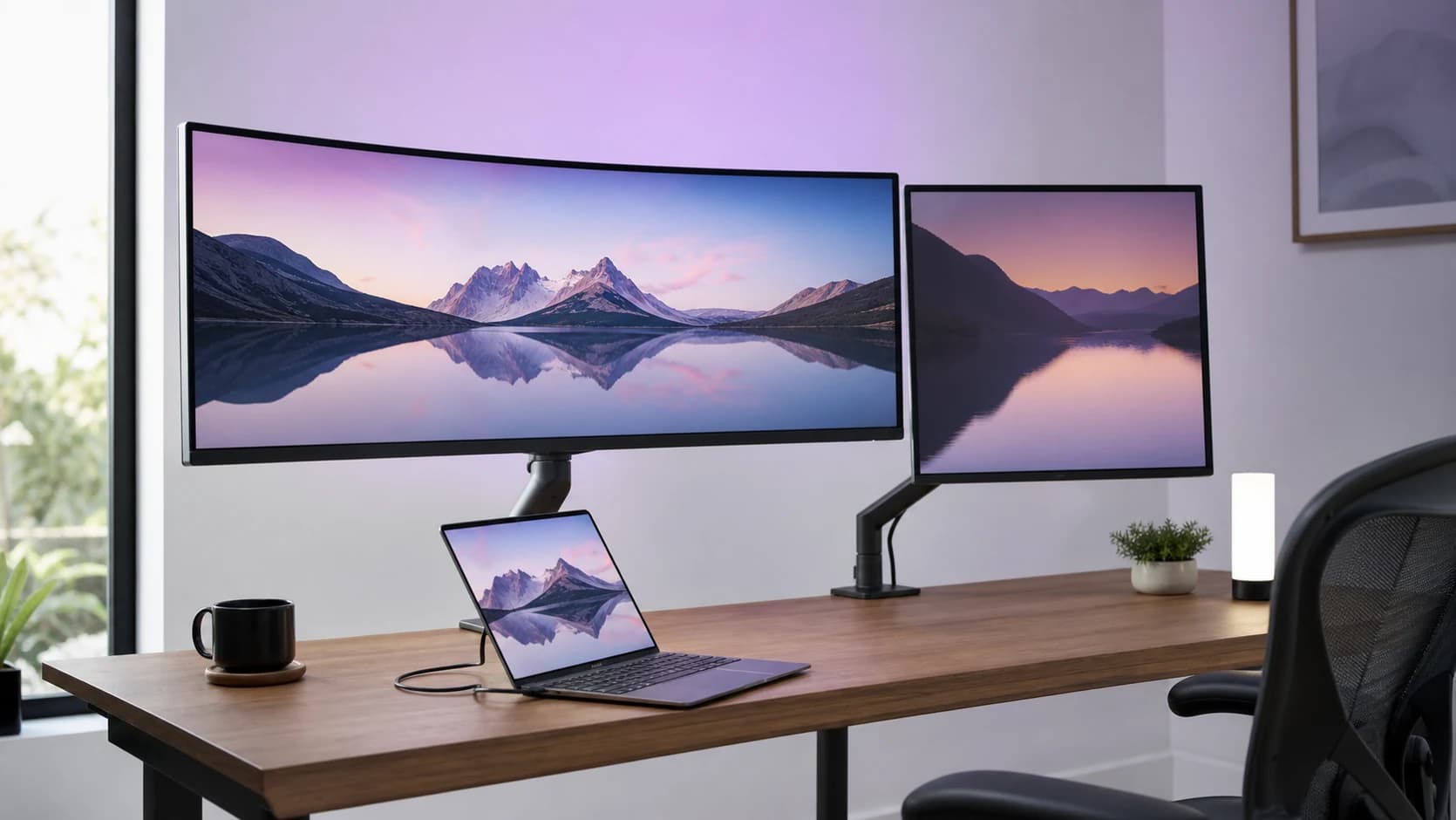
A monitor on the included stand sits at a fixed height, can't tilt easily, and takes more desk space. A monitor arm fixes all three and costs $150–250 for a premium one (Ergotron LX), $80 for a solid budget pick (Vivo, HUANUO).
Check: VESA mount (100×100 is universal), weight rating (49" ultras need heavy-duty arms), clamp or grommet mount matching your desk.
For evening work, add a monitor light bar after the monitor and arm are sorted. It is a small purchase, but it can reduce desk glare and make dark-mode work less fatiguing.
Common mistakes to avoid
- Buying "bigger = better." A 49" monitor for single-app writing is overkill and tiring.
- Skipping USB-C on a $600+ work monitor. In 2026 that's a missing feature, not a cost saving.
- OLED for 8-hour static UI work without burn-in warranty coverage. Nice visuals, real risk.
- Assuming "1440p" = "4K" because some listings muddle terms. 1440p is QHD; 4K is 2160p. Different price brackets.
- Buying a gaming ultrawide for pure productivity. You'll pay for the 240Hz panel you don't use.
- Calibrating the colour without a colorimeter. Manufacturer factory calibration is close enough for most work. If you're a pro, buy a colorimeter.
Budget vs premium — what changes
Budget tier ($300–500): LG 34WN80C-B (budget USB-C ultrawide), budget 27" 4K from LG/BenQ, 1440p gaming monitors from AOC/ASUS.
Premium tier ($800–1,500): Dell UltraSharp U2723QE, U3425WE, LG 34WQ75C-B, Alienware AW3423DWF QD-OLED.
Flagship ($1,500+): Apple Studio Display (macOS-native), Samsung Odyssey OLED G9, Pro Display XDR territory.
The biggest gap isn't raw panel quality — it's build, warranty, and connectivity. A $400 monitor does the job; a $900 monitor does the job AND replaces your dock AND comes with a proper warranty.
Sources and methodology
- VESA DisplayHDR, DisplayPort, and USB-C PD specifications.
- RTINGS.com, Monitors Unboxed, TFT Central for independent panel testing.
- Manufacturer white papers on panel technology and HDR certification.
- Long-running coverage in The Verge, Tom's Hardware, Linus Tech Tips.
- Long-running workstation notes where available, plus published panel measurements and manufacturer specifications.
The full SolderMag monitor stack
- Best 27-inch 4K Monitors (2026)
- Best 32-Inch 4K Monitors (2026)
- Best Ultrawide Monitors (2026)
- Best Gaming Monitors (2026)
- Best Portable Monitors (2026)
- Best Monitor Arms (2026)
- Best Monitor Light Bars (2026)
- Dell U3425WE vs LG 34WQ75C-B
- How to Calibrate a 4K Monitor
- Your Monitor Is Too Small
- ASUS ROG Swift OLED PG27AQDP Review