Best Ultrawide Monitors (2026): 34″, 38″, and 49″ Picks For Work and Play
One ultrawide on a single arm replaces a dual-monitor setup with fewer bezels, less tilt, and better ergonomics. Here are the ultrawide monitors actually worth the money in 2026 — work, gaming, and the 49″ super-ultras.
Editorial evidence review
Recommendations are checked against product documentation, availability, comparative evidence, and clearly disclosed hands-on work where it exists.
Quick picks
The short answer, with the trade-offBiggest canvas
Dell UltraSharp U3824DW (38″ USB-C)
Best for gaming
Alienware AW3423DWF 34″ QD-OLED
Best 49″ super-ultrawide
Samsung Odyssey G9 G95C DQHD 240Hz
Best value USB-C
LG 34WN80C-B 34″ Curved USB-C
Best work with KVM
LG 34WQ75C-B 34″ USB-C with KVM + LAN
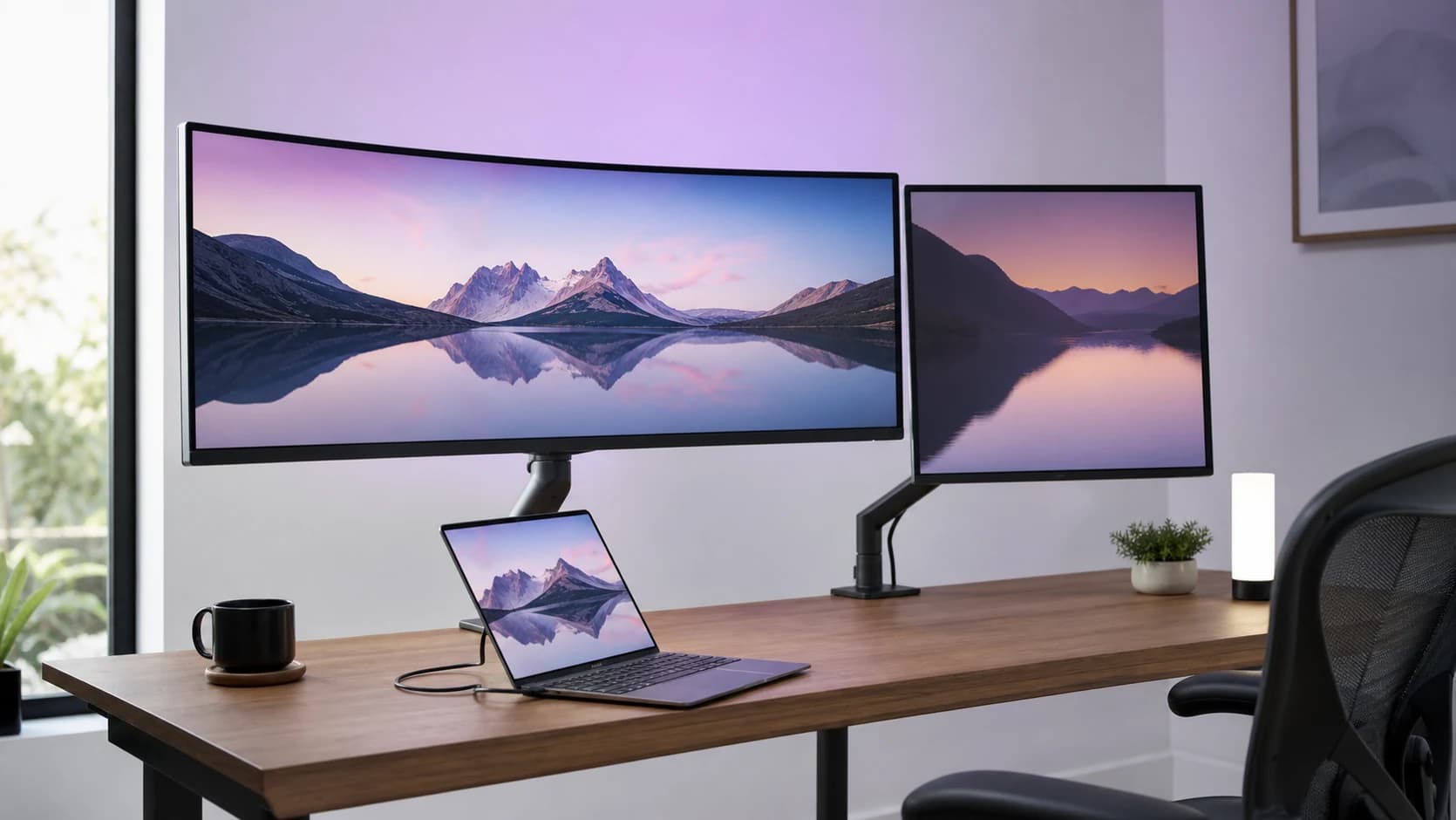
Two monitors side by side were the default workstation answer for fifteen years. Ultrawides replaced them because they killed the bezel in the middle, removed the head-swivel fatigue, and cut the desk footprint.
The problem in 2026: "ultrawide" covers everything from a 34" 21:9 work monitor for $400 to a 49" 32:9 QD-OLED that costs $1,600, and the tradeoffs between them are not small. Buy wrong and you'll stare at the wrong aspect ratio for three years.
This guide picks ultrawide monitors based on the workflow they actually solve — not on panel hype cycles.
SolderMag Take: pick the aspect ratio before the brand
Ultrawide shopping goes sideways when people compare a 34" IPS against a 49" QD-OLED against a 38" as if they're the same product. They are not. Aspect ratio determines everything about how the monitor feels day-to-day.
- 34" 21:9 (3440×1440): the best general-purpose ultrawide. Drops in place of a dual-monitor setup, works for video calls, gaming, and productivity without feeling freakishly wide. If this is your first ultrawide, start here.
- 38" 21:9 (3840×1600) or 37.5": more vertical pixels, more horizontal pixels, noticeably more real estate than 34". Better for code editors, finance, CAD. Expensive. Needs a larger desk.
- 49" 32:9 (5120×1440): equivalent to two 27" 1440p monitors welded together. Incredible for production work (video editing, trading desks, multi-window workflows) or immersive gaming. Overwhelming for single-app work like writing or email.
- Curved vs flat: almost all ultrawides are curved now. The 1500R, 1800R, 1000R numbers describe the radius — lower = more aggressive curve. For a single user at one workstation, 1500R–1800R is the sweet spot. 1000R is mostly for 49" super-ultras where the extra curve matters at that width.
Rule of thumb: buy a 34" unless you have a specific reason to go bigger. 38" for code or heavy multi-window; 49" only if you already know you need it.
Best ultrawide monitors at a glance
- Want a work monitor that docks your MacBook with Thunderbolt and runs fast enough for casual gaming: Dell U3425WE.
- Want the biggest usable canvas without jumping to 49": Dell U3824DW 38".
- Want the best-in-class gaming ultrawide on a QD-OLED panel: Alienware AW3423DWF.
- Want the "two-monitor replacement" super-ultrawide: Samsung Odyssey G9 G95C.
- On a budget but want real USB-C docking and sRGB-accurate colour: LG 34WN80C-B.
- Want to switch one monitor between a work laptop and a personal desktop via KVM: LG 34WQ75C-B.
What actually matters in an ultrawide
1) Resolution and pixel density
- 34" 3440×1440 = ~109 PPI — a touch less dense than 27" 4K but fine for most users.
- 38" 3840×1600 = ~111 PPI — sweet spot for vertical pixels without 4K scaling hassles.
- 34" 5120×2160 ("5K2K") = ~164 PPI — retina-like, but these are rare and expensive.
- 49" 5120×1440 (DQHD) = ~109 PPI — essentially two 27" 1440p panels.
If you're on macOS, remember: Apple's display scaling is picky. It loves exactly 2x pixel density (1x at 220 PPI, 2x at 218 PPI, etc). Most ultrawides land in a non-integer scaling zone, which means slightly softer text compared to a 5K or 4K display. BetterDisplay fixes this, but know going in.
2) Panel type
- IPS Black (Dell, LG latest): better contrast than classic IPS (~2000:1 vs 1000:1), still strong colour accuracy. The current gold standard for work ultrawides.
- QD-OLED (Alienware, Samsung OLED G9): perfect blacks, blazing-fast response, brilliant colours. Burn-in risk with static UI elements (taskbars, docks) over years of 40+ hr/week work. Manufacturer warranties now cover burn-in for 3 years, but it's a real tradeoff.
- VA (most 49" curved): deep contrast, worse off-angle than IPS. The Samsung Odyssey G9 uses VA on the LCD model and QD-OLED on the OLED variants.
- Classic IPS: still fine, but look for "IPS Black" if you care about dark-theme contrast.
3) Connectivity — does it replace a dock?
This is the single most-underrated spec on work ultrawides. A good ultrawide with Thunderbolt 4 or USB-C PD 90W+ means one cable does everything: video, charging, USB data to the laptop's peripherals.
- Thunderbolt 4 with 140W PD and KVM (Dell U3425WE): one cable for a 16" MacBook Pro including MagSafe-equivalent charging. Works as a full dock.
- USB-C with 90W PD (most premium ultrawides): works for MacBook Air, most 14" laptops, gets you most of the way to a 16" MacBook Pro.
- USB-C with 60W PD (LG 34WN80C-B and friends): fine for MacBook Air, insufficient for a 16" MBP or gaming laptop under load.
- No USB-C (most pure gaming ultrawides): you'll need a separate Thunderbolt 4 dock or USB-C hub.
4) Refresh rate
- 60 Hz (Dell U3824DW): fine for work; you'll feel the ceiling if you switch from a 120 Hz screen.
- 120 Hz (Dell U3425WE, newer LG work models): sweet spot for mixed work + occasional gaming.
- 144–165 Hz (most mid-range gaming ultrawides): gaming target.
- 240 Hz (Samsung G95C, Alienware AW3425DW): competitive gaming / latency-sensitive use.
For pure productivity, 120 Hz makes scrolling feel noticeably smoother and that's it. For gaming, 144+ is the threshold where motion clarity matters.
5) Stand, VESA, and desk footprint
- Width of 34" ultrawide: ~32" (81 cm). Check your desk.
- Width of 38": ~35" (89 cm).
- Width of 49": ~47" (120 cm) — needs a deep desk and a stand that can handle the weight.
VESA 100×100 is universal on premium panels for mounting to a monitor arm. The 49" ultras often need specific heavy-duty arms (check arm weight rating before buying).
The picks
Best overall work: Dell UltraSharp U3425WE
Who it's for: professionals who want the "buy one monitor and forget about it for five years" ultrawide — with Thunderbolt 4 docking, IPS Black, and casual-gaming-capable 120 Hz.
The U3425WE is the 2024 update to Dell's long-running U34xx ultrawide line. 34" 3440×1440 IPS Black (2000:1 contrast), 120 Hz refresh rate, 99% sRGB and 98% DCI-P3 coverage, and a built-in Thunderbolt 4 hub that delivers 140W power to a connected laptop — enough to run a 16" MacBook Pro at full load through a single cable. Built-in KVM lets you switch the attached peripherals between Thunderbolt and HDMI/DisplayPort inputs.
The honest caveats: it's expensive, and the 120 Hz doesn't quite compete with 144–240 Hz gaming panels for esports. But for 90% of buyers who want a productivity-first monitor that also handles gaming and docks their laptop on one cable, this is the answer. Three-year advance-exchange warranty with a premium panel guarantee.
If the lower-cost LG is also on your shortlist, our Dell U3425WE vs LG 34WQ75C-B comparison separates the docking, refresh-rate and value trade-offs.
Dell UltraSharp U3425WE 34″ Thunderbolt Ultrawide
Why it works
- Thunderbolt 4 with 140W PD — charges a 16″ MacBook Pro on one cable
- IPS Black panel (2000:1 contrast) — noticeably deeper blacks vs classic IPS
- 120 Hz refresh rate with KVM built in
Main trade-off
- Expensive; positioned as a work premium product
- 120 Hz is adequate for gaming but not competitive-esports fast
Biggest canvas: Dell UltraSharp U3824DW (38")
Who it's for: developers, traders, CAD/BIM users, anyone whose work benefits from more vertical pixels than a 34" gives.
The U3824DW is a 38" 3840×1600 IPS Black ultrawide — effectively a larger, higher-resolution version of the 34" design. The extra 400 vertical and 400 horizontal pixels give you a usable additional column of code or a wider spreadsheet without feeling oversized. It has USB-C with 90W PD (not Thunderbolt), HDMI, DisplayPort, KVM, an integrated USB hub, and IPS Black's 2000:1 contrast.
Two caveats: it's 60 Hz, not 120, which makes it a poor gaming choice. And it's clearly positioned as a work-first monitor — colour accuracy is excellent, but it's not targeting creative pros who need wide-gamut HDR. For a "replace my dual 24s with one bigger, better monitor" upgrade, it's the cleanest answer under $1,300.
Dell UltraSharp U3824DW 38″ USB-C Ultrawide
Why it works
- 3840×1600 resolution — genuinely more useful pixels than 34″ options
- IPS Black panel with 2000:1 contrast and accurate sRGB/P3 coverage
- 90W USB-C PD handles most laptops on one cable + KVM
Main trade-off
- 60 Hz only — not a gaming monitor
- Needs a deep desk; 35+ inch width
Best for gaming: Alienware AW3423DWF 34" QD-OLED
Who it's for: gamers who want the current best-in-class ultrawide experience and don't mind managing burn-in risk through thoughtful use.
The AW3423DWF is the monitor that made QD-OLED ultrawide gaming mainstream. 34" 3440×1440, 165 Hz, 0.1ms response time, 1000 nits peak HDR brightness, and a Samsung QD-OLED panel with DCI-P3 99.3% coverage. Deep blacks, instant pixel response, colour that genuinely pops. It's been "the" ultrawide gaming monitor since it shipped, and remains the best value against its newer 240 Hz sibling (AW3425DW) for anyone who doesn't need the competitive refresh rate.
Two honest caveats: QD-OLED burn-in is a real long-term consideration — Alienware covers it for 3 years, but if you run static UIs 8 hours a day, the newer AW3425DW or a non-OLED option may be a better fit. And it's not great at daylight desks; the glossy panel shows reflections. Pair with curtains and you're fine.
Alienware AW3423DWF 34″ QD-OLED Ultrawide
Why it works
- QD-OLED panel with true blacks and 0.1ms pixel response
- 165 Hz refresh rate, AMD FreeSync Premium Pro, G-Sync compatible
- DisplayHDR True Black 400 + 1000 nits peak HDR
Main trade-off
- Glossy panel reflects daylight on a bright desk
- Burn-in risk with 8-hour/day static UI work
Best 49" super-ultrawide: Samsung Odyssey G9 G95C
Who it's for: traders, video editors, sim racers, people running 4–6 applications side-by-side who want the equivalent of two 27" 1440p monitors welded together.
The G95C is a 49" 5120×1440 curved VA LCD at 240 Hz, 1 ms response time, 1000R curve (aggressive), and DisplayHDR 1000 peak brightness. It's not OLED (that's the newer G95SD/G91SD at much higher prices), but for the money it's the best super-ultrawide that's not going to burn in. The VA panel gives real blacks compared to IPS, the 240 Hz handles anything, and for productivity you effectively get dual 27" 1440p with no bezel.
The caveats: it's massive — check your desk depth (22"+), width (50"), and the stand alone weighs more than many full desktops. Gaming on a 32:9 aspect ratio is amazing for sims and supported MMOs, but many competitive FPS titles don't scale correctly past 21:9. And for video work, 49" of display is great for timelines but overkill for colour-critical final review (use a calibrated 27" 4K alongside).
Samsung Odyssey G9 G95C 49″ DQHD 240Hz Ultrawide
Why it works
- 5120×1440 — equivalent to two 27″ 1440p monitors, no bezel
- 240 Hz refresh rate with DisplayHDR 1000 peak brightness
- 1000R aggressive curve wraps the periphery naturally at 49″
Main trade-off
- Massive desk footprint — 50″ wide, 22″ deep, heavy base
- Some competitive FPS games don't scale well to 32:9
Best value USB-C: LG 34WN80C-B
Who it's for: budget-conscious buyers who still want real USB-C docking and 99% sRGB accuracy — typically MacBook Air / 14" laptop users.
The 34WN80C-B is LG's long-running "everyday ultrawide" — 34" 3440×1440 IPS, 60 Hz, 99% sRGB, and USB-C with 60W Power Delivery. It is worth considering when you want a work-focused ultrawide that can carry display, USB data, and laptop power over one cable. Confirm that 60W is enough for the exact laptop and workload before treating it as a dock replacement.
Caveats: 60 Hz feels dated if you switch from 120/144 Hz, the sRGB-focused panel isn't great for HDR or video editing, and the 60W PD falls short for 16" MacBook Pros under heavy load. For the target audience (Air or 14" user, work-focused, not gaming), it's the obvious value pick.
LG 34WN80C-B 34″ Curved USB-C Ultrawide
Why it works
- USB-C with 60W Power Delivery
- 99% sRGB coverage for general work
- Mature and widely sold design
Main trade-off
- 60 Hz refresh rate — fine for work, not gaming
- 60W PD insufficient for 16″ MacBook Pro under full load
Best work with KVM: LG 34WQ75C-B
Who it's for: people running a work laptop and a personal laptop/desktop who want one monitor to switch cleanly between both with a single keyboard and mouse.
The 34WQ75C-B is LG's productivity-focused 34" ultrawide with two killer features: a built-in KVM (switch between two computers with one click) and an RJ-45 LAN port that uses the monitor as a wired-network bridge for laptops without ethernet. USB-C with 96W PD covers most laptops. 3440×1440 IPS at 60 Hz, 99% sRGB.
The honest notes: 60 Hz again, no HDR worth using, and it's priced between the LG 34WN80C-B and the Dell U3425WE — it's the "more cables sorted, fewer desk accessories needed" middle ground. If you regularly switch between two machines, the built-in KVM alone saves the cost difference vs a separate KVM hardware device.
LG 34WQ75C-B 34″ Ultrawide with KVM + Ethernet
Why it works
- Built-in KVM switches peripherals between two computers seamlessly
- RJ-45 LAN port — monitor doubles as wired network for MacBook Air
- USB-C with 96W PD charges 14″ MacBook Pro on one cable
Main trade-off
- 60 Hz — gaming-averse
- HDR support is present but underwhelming in practice
Ultrawide buying checklist
Before you add to cart:
- Aspect ratio first: 34" 21:9 (starter), 38" 21:9 (more pixels), 49" 32:9 (dual-monitor replacement).
- Connectivity: does it replace your dock? USB-C 90W+ for most laptops; Thunderbolt 4 with 140W PD if you have a 16" MacBook Pro.
- Refresh rate: 60 Hz for pure work, 120 Hz sweet spot, 144+ for gaming, 240 Hz for competitive.
- Panel: IPS Black for work (best contrast at sensible price), QD-OLED for gaming (watch burn-in), VA for 49" super-ultras.
- Desk check: measure your desk depth and width. 34" needs 32" width; 38" needs 35"; 49" needs 50" of desk and 22" of depth.
- Monitor arm compatibility: VESA 100×100 standard, but check your arm's weight rating — 38" and 49" panels are heavy.
Ultrawide red flags
- "Ultrawide" at 2560×1080. That's 1080p ultrawide — an outdated resolution even in 2019. Skip.
- No USB-C on a $600+ monitor. In 2026 that's a missing feature, not a cost saving.
- Gaming ultrawides with under 144 Hz. If it's marketed for gaming but caps at 100 Hz, it's a work monitor in a gamer wrapper.
- Off-brand 49" super-ultras with no burn-in policy. Samsung and LG are the only brands with real warranty coverage at this size.
- Listings that don't specify the panel type (IPS vs VA vs OLED). Sign of a low-effort listing; the spec matters.
Does ultrawide help for specific use cases?
- Code editors: yes, but 38" is better than 34" for most code. Vertical pixels matter.
- Design/video: yes for timeline work. Pair with a calibrated 27" 4K for colour-critical review.
- Spreadsheets/finance: yes, hugely. The more horizontal columns visible the better.
- Gaming: varies by title. Single-player: incredible. Competitive FPS: check if the game supports 21:9 / 32:9 (some flag it as unfair advantage).
- Writing/email: no. A 27" 4K is better because you stay in one window.
- Video calls: a 34" is fine; 49" is excessive and Zoom windows look weirdly stretched.
The two cases where ultrawide clearly wins: dual-window productivity (IDE + docs, or browser + spreadsheet) and immersive gaming. If neither describes your day, a 27" 4K is often the right answer.
Sources and methodology
- VESA DisplayHDR and DisplayPort 2.1 specification documentation for peak brightness and refresh rate claims.
- Manufacturer white papers on IPS Black, QD-OLED, and VA panel characteristics for contrast, response time, and burn-in risk.
- Independent panel testing from RTINGS.com, TFT Central, and Tom's Hardware on refresh rate performance, colour accuracy, and USB-C PD delivery under load.
- Long-running coverage in The Verge, Monitors Unboxed, and Linus Tech Tips on real-world use cases for 34" vs 38" vs 49" ultrawides.
- Comparative review of current dimensions, port specifications, and established independent desk-use evaluations. SolderMag has not completed matched hands-on testing of every monitor.
Product availability and ASINs verified April 2026. Prices move; affiliate links route to the current Amazon listing.
Related reading
- Best 27-inch 4K Monitors (2026): the alternative to ultrawide — higher PPI, smaller footprint.
- Best Gaming Monitors (2026): non-ultrawide gaming picks if you don't need 21:9.
- Best Monitor Arms (2026): ultrawides benefit hugely from arm mounting. Check arm weight rating before buying.
- Your Monitor Is Too Small: the essay that argued the case for going bigger before ultrawides were mainstream.
- Best Thunderbolt 4 / USB4 Docks (2026): if your ultrawide doesn't include a dock, this is where it goes.
- Best Laptop Stands (2026): pair with an ultrawide if you're clamshelling a laptop.