Best Thunderbolt 5 Docks (2026): What to Buy and What to Wait On
Thunderbolt 5 docks promise more display and storage headroom, but many desks are still better served by Thunderbolt 4 or USB4.
Editorial evidence review
Recommendations are checked against product documentation, availability, comparative evidence, and clearly disclosed hands-on work where it exists.
Quick picks
The short answer, with the trade-offBest creator dock class
Thunderbolt 5 dock for creators
Best safer value
Thunderbolt 4 dock
Best USB4 alternative
USB4 dock
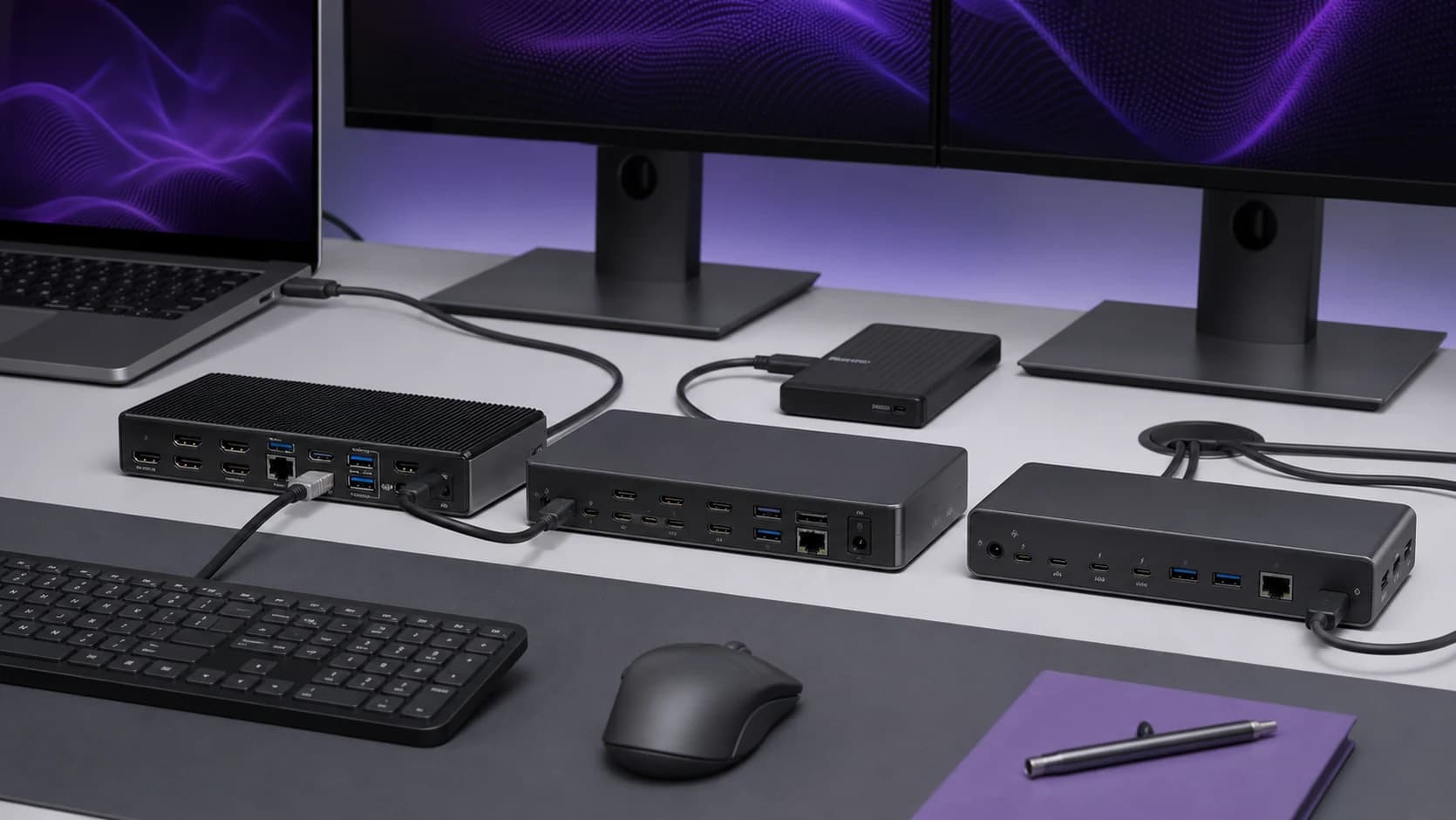
Thunderbolt 5 docks are the new premium option for high-end laptops, multi-monitor desks, and fast external storage. The pitch is simple: more bandwidth, better display headroom, and more room for demanding accessories.
The buying decision is less simple. Many desks still do not need Thunderbolt 5, and many laptops cannot use it fully. Before paying early-adopter prices, check what your computer, monitors, and storage actually support.
SolderMag Take: Thunderbolt 5 is for bandwidth problems
Do not buy Thunderbolt 5 because it is newer. Buy it because you have a specific bandwidth problem:
- multiple high-resolution high-refresh displays
- fast external SSD arrays
- capture devices and storage used together
- a laptop that actually supports Thunderbolt 5
- a desk that you plan to keep for several years
If your desk is one laptop, one 4K monitor, Ethernet, keyboard, mouse, and webcam, a good Thunderbolt 4 or USB4 dock is still the more sensible purchase.
Which dock should you buy?
Thunderbolt 5 dock class: best for high-end new laptops
Buy a Thunderbolt 5 dock if your laptop supports Thunderbolt 5 and you need the extra display or storage headroom. This is most compelling for newer high-end creative laptops, workstation-class notebooks, and desks that combine monitors with fast external drives.
Check power delivery, display support, and host compatibility carefully. The dock being Thunderbolt 5 does not guarantee that every laptop will expose every capability.
Creator dock class: best for media desks
Creator-focused docks are useful when the port layout matches your actual work: card readers, fast downstream ports, Ethernet, audio, and enough power for the laptop. For video and photo workflows, the convenience can matter as much as peak speed.
Avoid paying for creator branding if you only need office ports.
Thunderbolt 4 dock: best safer value
Thunderbolt 4 docks remain the right buy for many people. They are mature, widely compatible, and enough for most one- or two-monitor productivity setups.
If you are unsure whether you need Thunderbolt 5, you probably need Thunderbolt 4.
USB4 dock: best budget alternative
USB4 docks can be excellent value for desks that need one monitor, Ethernet, USB ports, and charging. Compatibility varies more than Thunderbolt, so check laptop support and return policy.
Thunderbolt 5 dock checklist
Confirm host support
Your laptop must support Thunderbolt 5 to get Thunderbolt 5 behavior. A dock can be backwards compatible and still run at lower limits on an older laptop.
This matters because many buyers upgrade the dock before the computer. If the host is still Thunderbolt 4 or USB4, the new dock may work, but the extra Thunderbolt 5 bandwidth is not available. In that case, the better move is often to buy a proven Thunderbolt 4 dock now and revisit Thunderbolt 5 with the next laptop.
Confirm display modes
Display support depends on the dock, laptop GPU, operating system, cable, and monitor. Check exact display combinations rather than assuming every port works at full speed together.
Check power delivery
Large laptops can need more than basic USB-C power. Make sure the dock can charge your machine at an acceptable rate, especially under load.
Use certified cables
Cable quality matters more as bandwidth rises. Use the cable included with the dock or a certified cable rated for the mode you need.
Keep heat in mind
High-bandwidth docks can run warm. Put the dock somewhere ventilated instead of hiding it under paper, behind a hot monitor, or inside a closed drawer.
When to wait
Wait on Thunderbolt 5 if:
- your laptop does not support it
- your current dock already drives your monitors reliably
- you use one 4K display plus normal office peripherals
- the dock costs more than the display or storage upgrade it enables
The early adopter premium only makes sense when the dock removes a real bottleneck. For many desks, the money is better spent on a better monitor, a proper cable set, or a higher-quality Thunderbolt 4 dock.
Setup checklist
- Use the included cable first.
- Update dock firmware before troubleshooting.
- Test monitors one at a time before connecting the full desk.
- Check laptop charging under load, not only at idle.
- Keep high-speed SSDs on documented high-bandwidth downstream ports.
- Save the box until sleep/wake, display, and heat behavior are proven.
The verdict
Thunderbolt 5 docks are exciting, but they are not automatic upgrades. Buy one if you have a Thunderbolt 5 laptop and a real display/storage bandwidth need. Otherwise, a mature Thunderbolt 4 or USB4 dock is cheaper, simpler, and still excellent for most desks.
Related reading: CalDigit TS5 vs OWC Thunderbolt 5 Hub, Best Thunderbolt 4 and USB4 Docks, Best USB-C Cables, and Best 32-Inch 4K Monitors.
Sources and methodology
We evaluate docks by host compatibility, display support, power delivery, downstream ports, thermal behavior, cable requirements, and whether Thunderbolt 5 solves a real workflow problem.