Best Monitors for MacBook Pro (2026): 5K, 4K, and USB-C Picks
The best external monitors for MacBook Pro users, from sharp 5K displays to practical USB-C and creator-friendly 4K options.
Editorial evidence review
Recommendations are checked against product documentation, availability, comparative evidence, and clearly disclosed hands-on work where it exists.
Quick picks
The short answer, with the trade-offBest 5K alternative
ViewSonic VP2788-5K / 5K USB-C monitor
Best 32-inch workspace
Dell UltraSharp 32-inch 4K USB-C monitor
Best budget 4K pick
27-inch 4K USB-C monitor
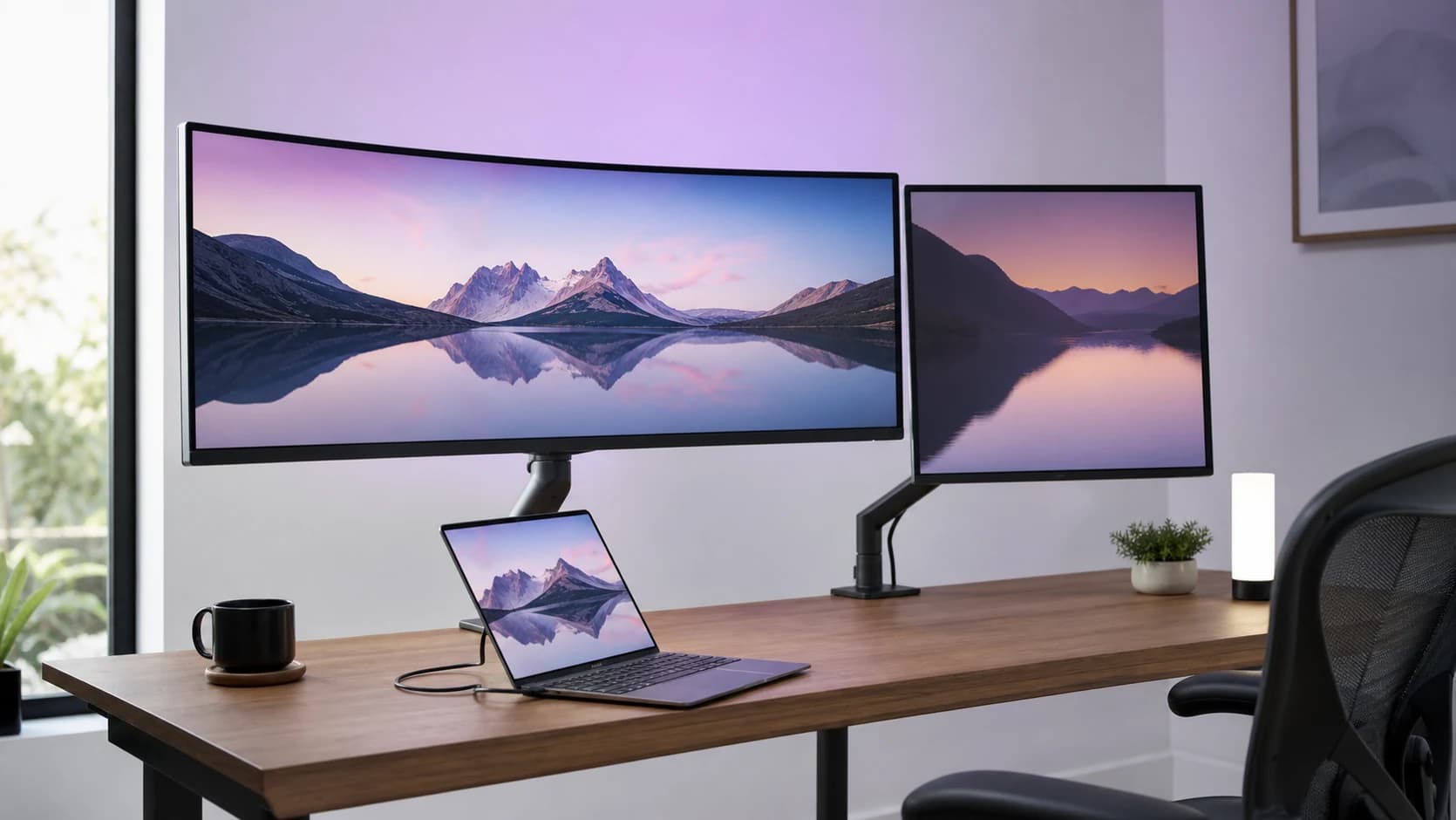
The best monitor for a MacBook Pro is not automatically the biggest or most expensive screen. macOS cares about pixel density, USB-C/Thunderbolt behavior, scaling, and how cleanly the display fits into a one-cable desk.
That is why some otherwise excellent PC monitors feel slightly awkward with a MacBook Pro. Text can look a little soft, brightness controls can feel disconnected, and cheap USB-C implementations may charge slowly or skip data hub features.
This guide focuses on monitors that make sense for MacBook Pro owners: sharp text, useful connectivity, enough power delivery, and a desk setup that does not require a cable puzzle every morning.
SolderMag Take: MacBook Pro buyers should start with pixel density
MacBook Pro screens are sharp. A low-density external monitor can feel like a downgrade even when it is physically larger. For macOS, the safest paths are:
- 27-inch 5K if text quality is the priority
- 27-inch 4K if you want value and can accept scaling tradeoffs
- 32-inch 4K if you want a larger workspace
- ultrawide only if window width matters more than Retina-like text
Apple's own display support guidance changes by MacBook Pro chip and model, so check your exact machine before building a multi-monitor desk. Recent MacBook Pro models can drive serious external displays, but the number of displays and the maximum resolution/refresh combination are model-dependent.
Which monitor should you buy?
Apple Studio Display: best overall MacBook Pro monitor
The Studio Display is expensive because it solves the boring Mac problems cleanly: 5K resolution, strong macOS integration, Thunderbolt connectivity, built-in speakers, camera, microphone, and laptop charging from one cable.
It is the easiest recommendation for writers, designers, developers, and anyone who values crisp text above gaming features. The downside is obvious: price, 60Hz refresh, and limited adjustability unless you pay more for the right stand.
Buy it if you want the Mac-like answer and do not want to debug compatibility.
5K USB-C monitor class: best value alternative
Third-party 5K monitors are the most interesting alternative because they target the same core issue: text density. A 27-inch 5K panel gives macOS more comfortable scaling than many 27-inch 4K panels.
Look for USB-C or Thunderbolt connectivity, at least 90W power delivery for larger MacBook Pro models, and clear macOS compatibility notes. If the listing hides power delivery, hub speed, or display input details, skip it.
Dell UltraSharp 32-inch 4K USB-C class: best big workspace
A 32-inch 4K monitor will not look as Retina-sharp as 27-inch 5K, but it gives you a lot of room. It works well for spreadsheets, timelines, dashboards, and side-by-side documents.
This class is especially good if you care about USB-C docking, Ethernet, KVM-style workflows, and adjustable stands. For more general buying advice, read our best 32-inch 4K monitors guide.
27-inch 4K USB-C monitor: best budget pick
If you want an affordable MacBook Pro monitor, a 27-inch 4K USB-C display is the practical floor. Text is sharp enough for most people, the size fits normal desks, and the right model can charge your laptop.
Do not buy the cheapest 4K monitor without checking the stand, brightness, USB-C wattage, and return policy. A good budget monitor still needs to be comfortable for long workdays.
Specs that matter for MacBook Pro
Resolution and scaling
5K at 27 inches is the cleanest external-monitor experience for macOS text. 4K at 27 inches is good value. 4K at 32 inches is better for workspace than pure sharpness.
USB-C and Thunderbolt
The port needs to carry video and power. For one-cable desks, check:
- USB-C DisplayPort Alt Mode or Thunderbolt
- power delivery wattage
- downstream USB ports
- Ethernet if you want wired networking through the monitor
Power delivery
Small MacBooks are easy to charge. Larger MacBook Pro models need more headroom. If you work under load, choose a monitor or dock with enough wattage that the laptop does not slowly drain while connected.
Refresh rate
Most work monitors are 60Hz. That is fine for writing, coding, docs, and design. If you also game, a 4K high-refresh monitor may make more sense than 5K.
What to avoid
Avoid monitors that only say "USB-C" without describing power delivery and video support. Avoid cheap 32-inch 4K VA panels if text clarity and viewing angles matter. Avoid ultrawides if you mostly want MacBook-level text sharpness.
The verdict
Most MacBook Pro users should start with a 27-inch 5K monitor if text is the priority, a 32-inch 4K USB-C monitor if workspace is the priority, or a 27-inch 4K USB-C monitor if budget is the priority. The Apple Studio Display remains the simplest premium answer, but third-party 5K and USB-C monitors are the value play.
Related reading: Best 27-Inch 4K Monitors, Best 32-Inch 4K Monitors, Best Monitor Arms, and Best USB-C Hubs for MacBook.
Sources and methodology
We prioritize macOS scaling, external display support, USB-C/Thunderbolt behavior, power delivery, ergonomics, and long-workday comfort. Product availability changes often, so marketplace links use search pages where exact listings vary by region.