Best USB‑C Hubs for MacBook (2026): The Dual‑Monitor Reality Check
Most ‘MacBook USB‑C hubs’ are fine. until you add a second display, fast storage, and a flaky HDMI cable. Here’s what actually matters, what to buy, and what to avoid.
Editorial evidence review
Recommendations are checked against product documentation, availability, comparative evidence, and clearly disclosed hands-on work where it exists.
Quick picks
The short answer, with the trade-off
Best overall
Plugable 9-in-1 USB-C Hub Multiport Adapter
9 ports including Ethernet
Trade-off: None notable

Best value
Anker 555 USB-C Hub (8-in-1)
Trade-off: Gets warm under load

Best for power users
CalDigit TS4 Thunderbolt 4 Dock
Trade-off: High price

Best for dual monitors
Baseus 10-in-1 Dual Display USB-C Hub
Trade-off: Bulkier design
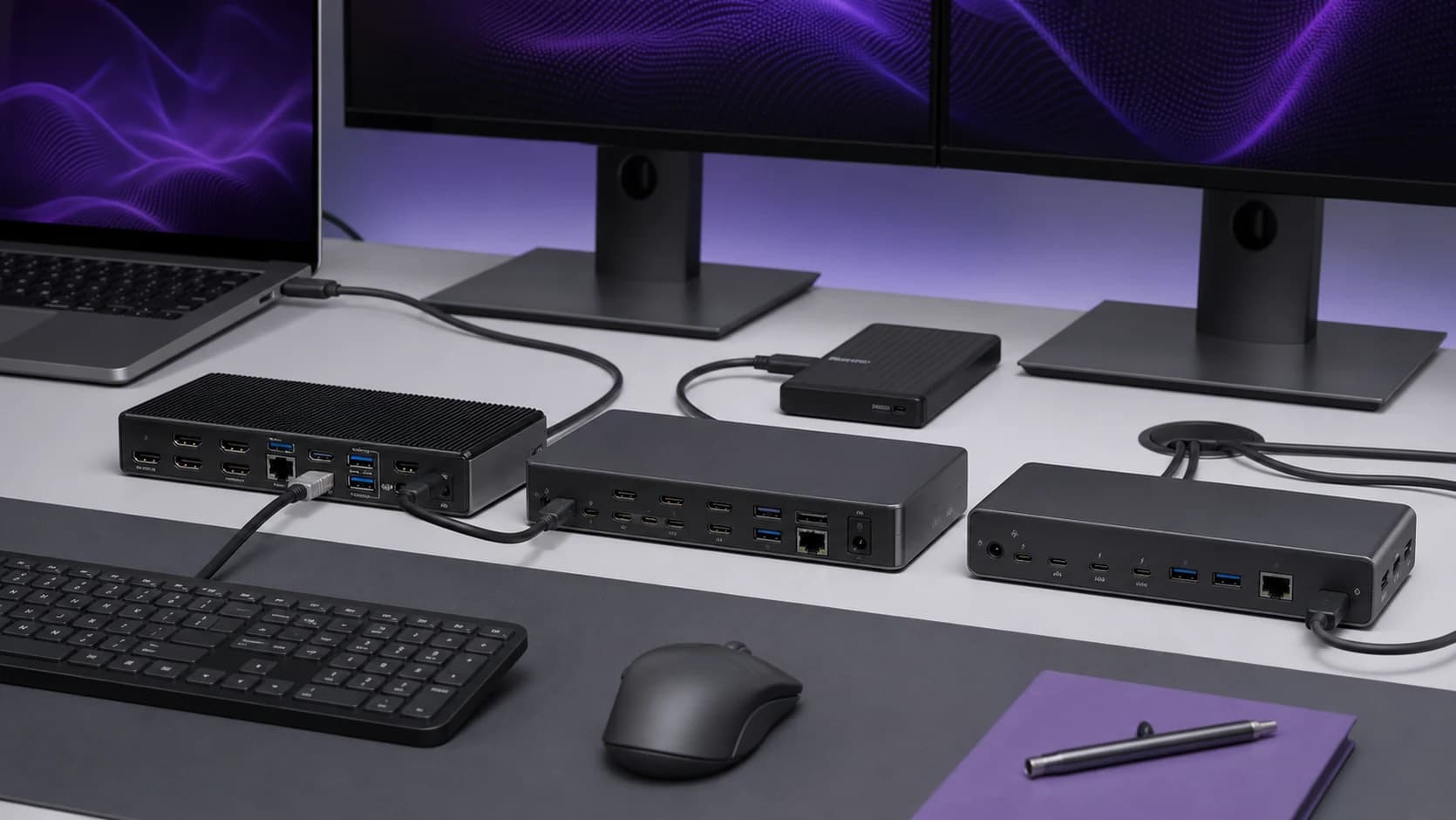
USB‑C hubs for MacBook are one of those purchases you make when you’re optimistic:
- “I’ll just add HDMI and a couple of ports.”
- “It’s a Mac. surely it’ll be painless.”
Then you plug it in and learn the industry’s favourite trick: turning a single USB‑C port into a bundle of compromises.
This is a buying guide with a bias: I want your hub to keep working after the novelty wears off.
SolderMag Take: the best hub is the one that matches your MacBook’s display limits
Most hub guides talk about ports. MacBook hub pain is usually about display modes.
Three blunt truths:
- Some MacBooks can’t run two external displays natively. No hub can “fix” that.
- A lot of “dual HDMI” hubs rely on DisplayLink (software video). It can be fine. but it’s a different category, with different tradeoffs.
- If you actually want reliable multi-display + fast storage + clean power, you may want a Thunderbolt dock, not a hub.
So the goal isn’t “buy the hub with the most holes.” It’s: buy the hub that won’t surprise you.
What matters (and what’s marketing)
1) Power Delivery (PD) passthrough: the number on the listing isn’t what your Mac gets
Listings often say “100W PD.” That usually means:
- the hub can accept up to 100W from your charger
- then it keeps some power for itself
- and passes the rest to the MacBook
Practical expectation:
- If you want your MacBook to comfortably charge under load, use a 100W charger and look for hubs that state 85W/90W to host (or similar).
Buying tip: if the product page won’t state “to host” power, assume it’s not great.
2) HDMI: 4K “support” is not the same as 4K you’ll enjoy
You’ll see:
- “4K@30” (fine for slides, not great for daily work)
- “4K@60” (what most people actually want)
If you’re on a 4K monitor and you hate eye strain: don’t accept 30Hz.
Also: Macs are picky about cables and adapters. Budget an extra $20-$40 for a decent HDMI cable and don’t blame the hub for a $6 cable’s sins.
3) Dual monitors: native vs DisplayLink
There are two ways hubs claim “dual display.”
A) Native USB‑C Alt Mode / Thunderbolt displays
- No extra drivers
- Clean and stable
- But limited by your MacBook model’s external display support
B) DisplayLink (software video over USB)
- Can enable more display setups on Macs that otherwise can’t
- Requires installing DisplayLink software
- Tradeoffs: extra CPU use, occasional weirdness after macOS updates, DRM playback quirks (varies), and more moving parts
Rule of thumb: if you care about “it just works,” prefer native. If you care about “I need two screens, period,” DisplayLink can be the pragmatic choice.
4) SD card readers: UHS‑I vs UHS‑II (this is where cheap hubs quietly lose)
Most hubs have an SD slot. Fewer have a fast SD slot.
- UHS‑I is fine for casual transfers.
- UHS‑II is the difference between “coffee break” and “done already” if you move a lot of photos/video.
If your workflow includes SD cards weekly, pay for UHS‑II.
5) USB ports: a hub can’t magically create bandwidth
A single USB‑C connection has finite bandwidth. If a hub advertises:
- HDMI
- Ethernet
- multiple USB‑A ports
- SD reader
…that all shares the upstream link.
This is why:
- plugging in a fast SSD and a high‑refresh display can lead to “why is everything weird?” moments
- Thunderbolt docks (when supported) cost more but feel calmer
The “buying decision” checklist
Answer these fast and the right category will pop out.
-
How many external monitors do you truly need?
- 0-1 → most USB‑C hubs are fine
- 2 → check your Mac’s native support first; otherwise consider Thunderbolt or DisplayLink
-
Do you care about 4K@60?
- yes → make 4K@60 explicit; avoid 4K@30 listings
-
Do you routinely move large files?
- yes → prioritise USB‑C data (10Gbps), UHS‑II SD, and don’t expect miracles from “8‑in‑1” hubs
-
Do you want Ethernet?
- yes → prefer gigabit for ordinary networks; use a dedicated USB-C 2.5GbE adapter if NAS transfers or multi-gig internet are the real requirement
-
Is this travel gear or desk gear?
- travel → smaller, fewer ports, better reliability
- desk → consider a dock; your future self will thank you
Red flags (skip these listings)
- No power allocation details (“100W PD” with no “to host” number)
- Dual HDMI with no mention of DisplayLink or macOS behaviour (they’re hiding the mechanism)
- “4K” with no refresh rate stated (it’s often 30Hz)
- USB‑C port that is charge‑only (common; annoying)
- Tiny hub that promises everything (thermals and stability are real)
- Reviews mentioning coil whine, random disconnects, or hot-to-touch behaviour
Setup tips (so you don’t blame the wrong thing)
- Update macOS before troubleshooting (it matters for display/USB fixes).
- Test with a known‑good charger and cable first.
- If your external drive disconnects, try:
- a different USB‑C port on the hub
- a shorter cable
- powering the hub with a higher‑wattage charger
If problems only happen when you connect a display and storage, you’re likely hitting bandwidth/power limits. not “bad luck.”
Our top picks
Plugable 9-in-1 USB-C Hub Multiport Adapter
Why it works
- 9 ports including Ethernet
- 4K@60Hz HDMI
- 125W PD charging
Main trade-off
- None notable

Anker 555 USB-C Hub (8-in-1)
Why it works
- Compact design
- 4K@60Hz HDMI
- Gigabit Ethernet
Main trade-off
- Gets warm under load

CalDigit TS4 Thunderbolt 4 Dock
Why it works
- 18 ports
- 98W charging
- Dual 4K@60Hz
Main trade-off
- High price

Baseus 10-in-1 Dual Display USB-C Hub
Why it works
- Dual HDMI support
- Wide range of ports
- Strong performance
Main trade-off
- Bulkier design
Sources
- Apple Support: Mac notebook external display support and port behaviour (model-dependent)
- USB‑IF overview material on USB‑C / USB Power Delivery fundamentals
- DisplayLink: official documentation on how DisplayLink works on macOS and its requirements
- Baseus official 10-in-1 Dual Display USB-C Hub product page
And make sure the cable between your hub and MacBook is up to the job. our USB-C cable guide covers what to look for.
Next up in this cluster: Best Thunderbolt 4 / USB4 docks (2026) (for desk setups where “stable” beats “cheap”).