Logitech MX Master 4 vs Lift Vertical: Which Ergonomic Mouse to Buy
MX Master 4 vs Lift Vertical. Ergonomics, precision, battery, and value compared for desk workers in 2026.
Editorial evidence review
Recommendations are checked against product documentation, availability, comparative evidence, and clearly disclosed hands-on work where it exists.
Quick picks
The short answer, with the trade-offBest overall
Logitech MX Master 4
Premium haptic scroll and gesture controls
Trade-off: Palm-down posture, not truly vertical

Best vertical
Logitech Lift Vertical Mouse
Trade-off: Not ideal for large hands
On this page
- SolderMag Take: the MX Master 4 is the better mouse, but the Lift solves a specific pain
- Shape and ergonomics
- Precision and sensor
- Scroll wheel and buttons
- Connectivity and multi-device
- Battery life
- Size and hand fit
- Build quality and feel
- Price and value
- Software and customization
- Quick spec comparison
- The verdict
- Decision checklist
The Logitech MX Master 4 and the Logitech Lift Vertical are both ergonomic mice from the same company, but they solve different problems in very different ways. One is a sculpted palm mouse with a mild tilt. The other puts your wrist into a handshake position and asks you to trust the process.
If you are comparing a conventional productivity shape with a vertical mouse, this is the decision you are actually making. We have not clinically assessed either design, and a mouse is not a treatment for persistent pain.
SolderMag Take: the MX Master 4 is the better mouse, but the Lift solves a specific pain
The MX Master 4 wins on features, precision, scroll wheel quality, and multi-device workflow. It is the better productivity mouse by nearly every traditional measure.
But "better mouse" is not the same as "better shape for you." The Lift uses a 57-degree vertical shape that changes forearm position. If a conventional palm-down mouse feels uncomfortable, the Lift is the more relevant option to try through a retailer with a good return policy.
For feature-heavy desk work: MX Master 4. For buyers specifically seeking a vertical shape: Lift Vertical.
Shape and ergonomics
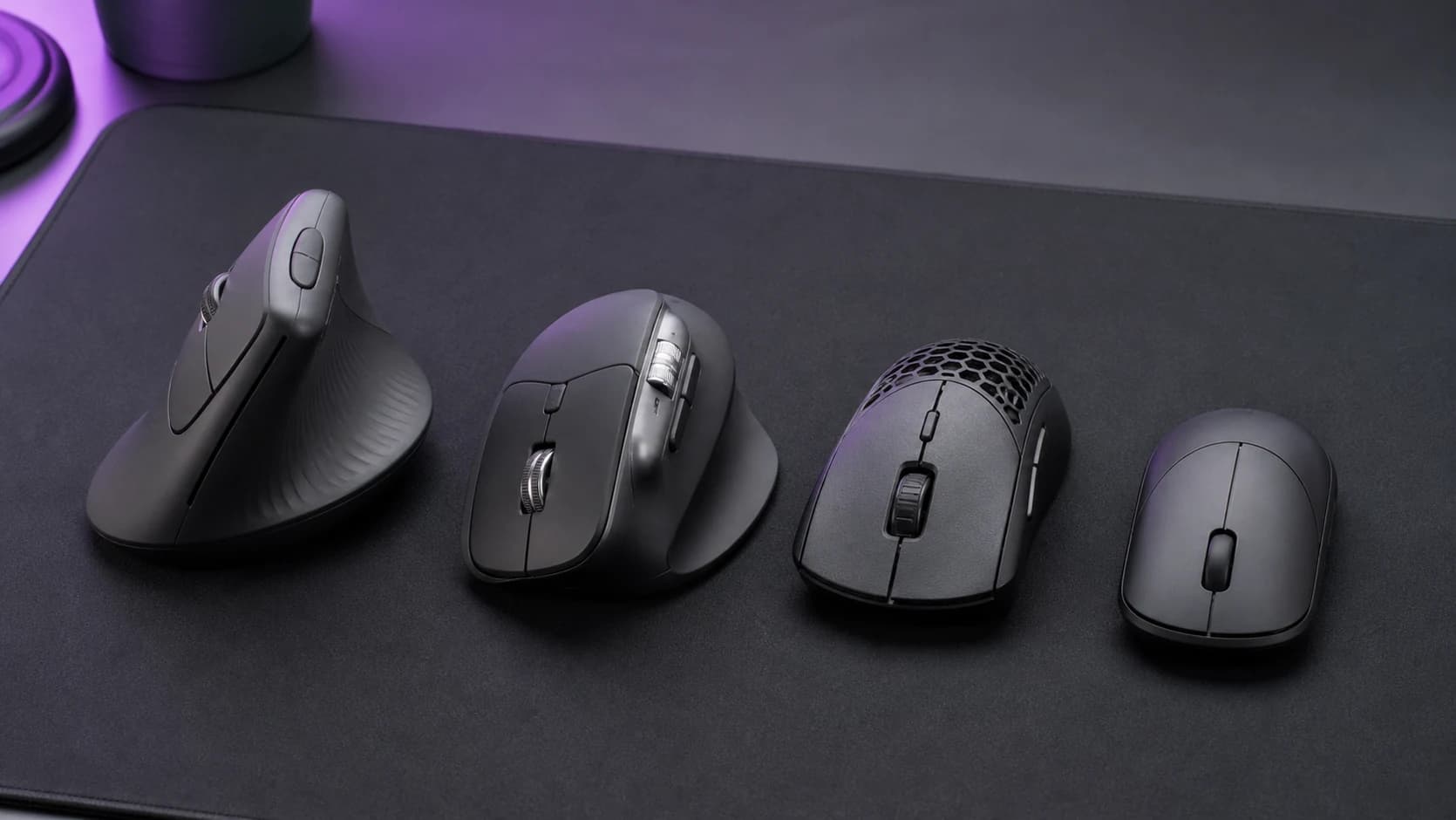
MX Master 4: Large, sculpted palm shape with a mild forward tilt. Your hand rests in a natural curve, and the thumb shelf supports side-button access without stretching. The shape distributes pressure well, but your forearm stays in a mostly pronated (palm-down) position. It is comfortable. Just not radically different from a normal mouse posture.
Lift Vertical: 57-degree vertical angle that puts your wrist into a handshake grip. Your forearm rotates outward, reducing the twist that causes strain during long sessions. The body is compact, designed for small-to-medium hands. If your hands are large, you will feel cramped.
Winner: Depends on your problem. The Master 4 is more universally comfortable. The Lift targets forearm pronation specifically, and does it well.
Precision and sensor
MX Master 4: Tracks on glass, has an 8,000 DPI sensor, and Logitech's latest tracking firmware. For precise work in Figma, Photoshop, or spreadsheets, this mouse is exceptionally smooth. The cursor goes exactly where you think it should.
Lift Vertical: 4,000 DPI sensor with solid but not exceptional tracking. Vertical mice inherently sacrifice some fine-control precision because your wrist and fingers work differently in a handshake grip. For general office use and browsing, the Lift is perfectly accurate. For pixel-level design work, the Master 4 pulls ahead.
Winner: MX Master 4, clearly. The sensor gap and the tracking-on-glass capability set it apart.
Scroll wheel and buttons
MX Master 4: Electromagnetic MagSpeed scroll wheel with haptic feedback, smooth/ratchet switching, and a horizontal thumb scroll wheel. The scroll experience is genuinely best-in-class. Gesture buttons, customizable side buttons, and a thumb wheel make this a power-user tool.
Lift Vertical: Standard scroll wheel with SmartWheel (auto-switching between ratchet and free-spin). Two side buttons for back/forward. Functional, quiet, and reliable, but not in the same league as the Master 4 for scroll or button flexibility.
Winner: MX Master 4. The scroll system alone justifies the price difference for heavy document and spreadsheet work.
Connectivity and multi-device
MX Master 4: Bluetooth and Logi Bolt receiver. Supports up to three devices with Easy-Switch buttons on the mouse body. Flow software lets you move your cursor across computers and drag files between them. For people who use a laptop and a desktop at the same desk, this is a genuine workflow upgrade.
Lift Vertical: Bluetooth and Logi Bolt receiver. Supports up to three devices with Easy-Switch. Same multi-device capability, same pairing flexibility. The Lift does not support Logitech Flow, however, which limits cross-computer workflows.
Winner: MX Master 4, thanks to Flow support and identical baseline multi-device switching.
Battery life
MX Master 4: USB-C rechargeable, up to 70 days on a full charge. One minute of charging gives about three hours of use. You will rarely think about battery with this mouse.
Lift Vertical: Single AA battery, lasts up to 24 months. No charging cable needed, no charging downtime. You swap the battery once every two years and forget about it.
Winner: Lift Vertical. Two years of battery life with zero cable fuss is hard to argue with, even if the Master 4's recharging is convenient.
Size and hand fit
MX Master 4: Full-size mouse designed for medium-to-large hands. Palm grip users will find it extremely comfortable. If you have smaller hands, it may feel bulky, and claw grip users might not love the tall hump.
Lift Vertical: Compact body built for small-to-medium hands. Logitech explicitly designed this as the smaller counterpart to the MX Vertical. If your hands are large, the Lift will feel too small and your fingers may overhang the front edge.
Winner: Tie. Each mouse fits a different hand size. Measure your hand before buying either one.
Build quality and feel
MX Master 4: Premium materials, matte coating that resists fingerprints, solid weight without feeling heavy. The buttons have satisfying tactility. This feels like a $100 mouse.
Lift Vertical: Soft-touch coating, lightweight, quiet clicks. The build is good for the price but does not feel premium. The plastic is fine, not fragile, but you can tell this is a $70 product, not a $100 one.
Winner: MX Master 4. Better materials and a more refined feel overall.
Price and value
The MX Master 4 typically costs around $100. The Lift Vertical sits around $60 to $70. That is a meaningful gap, especially when the Lift does the one thing (vertical posture) that the Master 4 simply cannot replicate.
If you want an ergonomic upgrade and your wrists feel fine in a standard position, the Master 4 gives you more features per dollar. If you specifically need wrist relief from pronation, the Lift solves the problem at a lower price.
Software and customization
MX Master 4: Requires Logi Options+ for full customization. The app lets you remap every button, set per-app profiles, adjust sensitivity curves, and configure gesture controls. It is a powerful tool, but it is also another piece of software running in the background. Some users dislike that the mouse feels incomplete without it.
Lift Vertical: Also uses Logi Options+ for button remapping and sensitivity adjustment, but there is less to configure. Fewer buttons means fewer decisions. The software is optional for basic use, though you will want it for sensitivity adjustments.
Winner: MX Master 4 for customization depth. Lift for simplicity.
Quick spec comparison
| MX Master 4 | Lift Vertical | |
|---|---|---|
| Angle | Mild tilt (palm) | 57-degree vertical |
| Sensor | 8,000 DPI, glass tracking | 4,000 DPI |
| Scroll | MagSpeed haptic + thumb wheel | SmartWheel |
| Connectivity | BT + Bolt, 3 devices, Flow | BT + Bolt, 3 devices |
| Battery | USB-C, ~70 days | AA, ~24 months |
| Hand size | Medium to large | Small to medium |
| Weight | ~117g | ~125g (with battery) |
| Price | ~$100 | ~$60-70 |
The verdict
Logitech MX Master 4
Why it works
- Premium haptic scroll and gesture controls
- 8,000 DPI sensor tracks on glass
- Multi-device Flow support
Main trade-off
- Palm-down posture, not truly vertical
- Requires Logi Options+ for full features

Logitech Lift Vertical Mouse
Why it works
- 57-degree angle reduces forearm strain
- 24-month AA battery life
- Quiet clicks for shared offices
Main trade-off
- Not ideal for large hands
- No Logitech Flow support
- Lower sensor precision than Master 4
Decision checklist
Buy the MX Master 4 if you:
- Want the best all-around productivity mouse
- Use multiple computers and want Flow support
- Do precision work (design, spreadsheets, photo editing)
- Have medium-to-large hands
- Prefer a rechargeable battery over disposable
Buy the Lift Vertical if you:
- Specifically want to try a 57-degree vertical shape
- Have small-to-medium hands
- Want a quiet mouse for a shared workspace
- Prefer set-and-forget AA battery life
- Want ergonomic relief without paying $100
Consider something else if you:
- Want a trackball for minimal wrist movement (see the MX Ergo in our best ergonomic mice roundup)
- Need a gaming mouse with ergonomic features (different category entirely)
For the full ranked list of ergonomic options, see our best ergonomic mice in 2026 guide. For the deep dive on the Master 4, read our Logitech MX Master 4 review. And if your wrist issues go beyond the mouse, our desk setup essentials guide covers the full ergonomic picture.