Logitech MX Master 4 Review (2026): Still the Productivity Mouse to Beat
A research-based Logitech MX Master 4 review covering controls, connections, software, battery claims, shape, and upgrade value.
Research-based review
Recommendations are checked against product documentation, availability, comparative evidence, and clearly disclosed hands-on work where it exists.
Quick picks
The short answer, with the trade-offReviewed
Logitech MX Master 4
Premium ergonomic shape with dual scroll wheels
Trade-off: Requires Logi Options+ for full features

Vertical alternative
Logitech Lift Vertical Mouse

Trackball alternative
Logitech MX Ergo Trackball
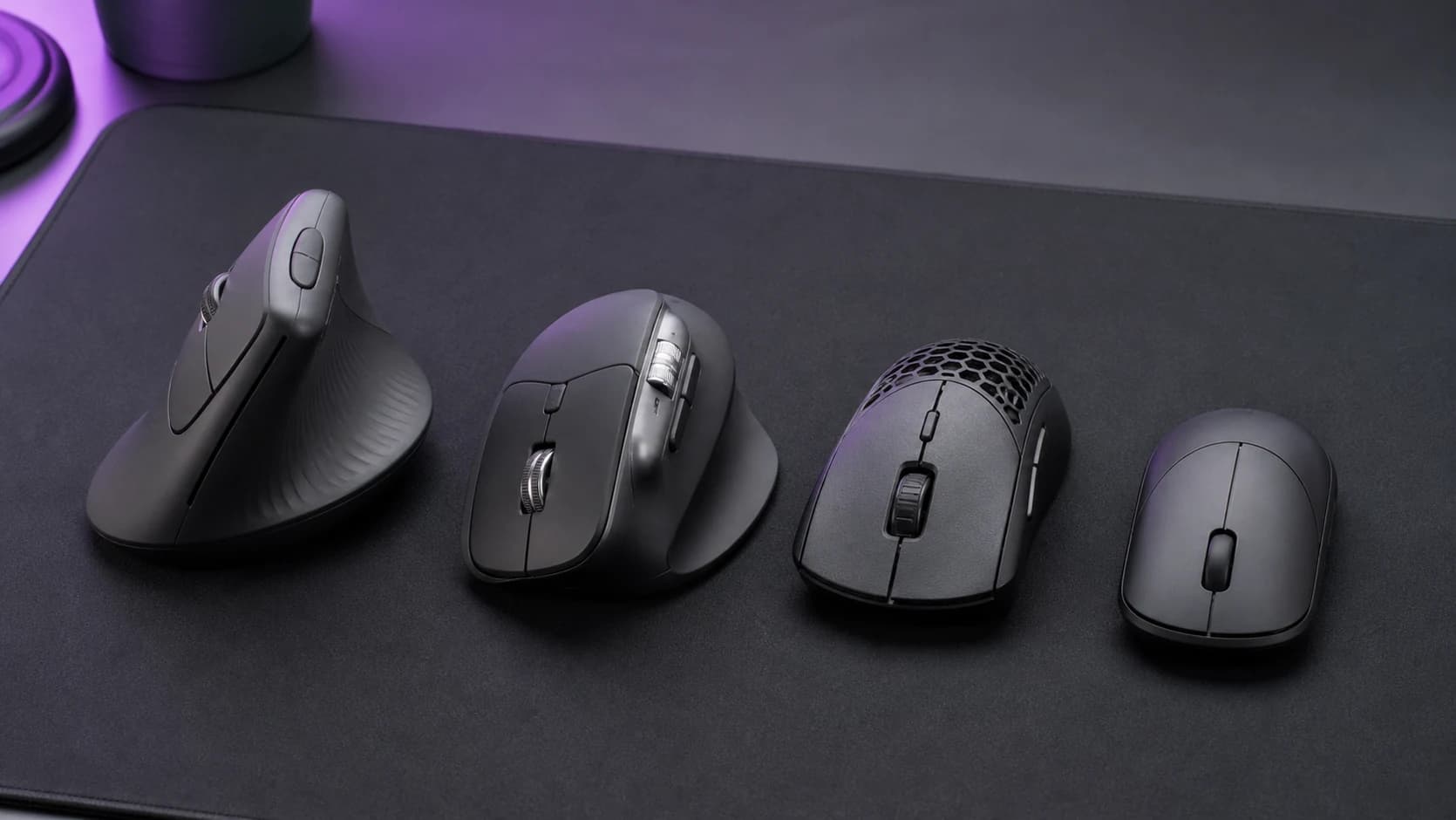
The MX Master series has been the default productivity mouse recommendation for years, and the MX Master 4 doesn't try to reinvent that position. Instead, it refines what was already working. haptic scroll, better ergonomics, quieter clicks. while fixing the few things that actually needed fixing.
This research-based review compares Logitech's current macOS and Windows specifications with established independent coverage. SolderMag has not completed weeks of daily battery, comfort, tracking, or durability testing of the MX Master 4.
SolderMag Take
The MX Master line has earned its reputation through a simple formula: a sculpted shape that fits most medium-to-large hands, a scroll wheel that's genuinely useful (not just a checkbox feature), and multi-device switching that actually works.
The MX Master 4 doesn't break new ground. What it does is tighten the execution. The haptic scroll feedback is more precise, the sensor tracks on glass without a mousepad, and the battery lasts long enough that charging becomes a monthly event rather than a weekly one.
The real question isn't "is this a good mouse?". it is. The real question is whether it's worth $100+ when the MX Master 3S still exists at a lower price. For new buyers, yes, get the 4. For MX Master 3S owners? Only if the haptic scroll or quiet clicks matter to you.
Specs and features deep dive
Sensor: 8000 DPI Darkfield sensor. Tracks on virtually any surface including glass down to 4mm thickness. In practice, this means you can use it without a mousepad on a glass desk, a wooden table, or a couch armrest. The tracking is flawless. no jitter, no acceleration artifacts.
Scroll wheel: MagSpeed electromagnetic scroll with haptic feedback. This is the MX Master's signature feature and it's better in the 4th generation. The haptic detents are crisper, the transition between ratchet and free-spin modes is smoother, and the horizontal thumb wheel remains excellent for timeline scrubbing and spreadsheet navigation.
Ergonomics: Sculpted shape with a 58-degree palm angle. Fits medium-to-large hands in a palm grip comfortably. The thumb rest is generous without forcing a stretch to reach the side buttons. The surface has a matte, lightly textured coating that resists sweat without being rough.
Buttons: Left/right click (quiet), back/forward thumb buttons, gesture button (thumb), scroll wheel click, mode-shift button (toggle ratchet/free-spin). All buttons are customizable through Logi Options+ software.
Connectivity: Bluetooth (connects to 3 devices) plus Logi Bolt USB receiver. Device switching is a button on the bottom. press 1, 2, or 3. Switching takes about 1 second and is reliable. Works across macOS, Windows, iPadOS, and ChromeOS.
Battery: USB-C rechargeable. Logitech claims up to 70 days on a full charge and three hours from a one-minute quick charge. Those are manufacturer figures; lighting, host behavior, connection, and use affect runtime.
Software: Logi Options+ is required for full customization (per-app button mapping, scroll behavior, gesture controls, Flow for cross-computer drag-and-drop). The software is functional but heavier than it needs to be. Core mouse functionality works without it.
Weight: 141g. Not light, not heavy. The weight contributes to a controlled, deliberate feel when moving the cursor.
Daily use impressions
The scroll wheel is the star. After using the MagSpeed wheel daily, going back to a standard notched scroll wheel feels like downgrading from an SSD to a spinning hard drive. Free-spin mode for blasting through long documents, ratchet mode for precise line-by-line navigation. the transition is automatic based on scroll speed and you stop noticing it within a day.
Multi-device switching. Logitech documents pairing with up to three devices and cross-computer Flow features through Logi Options+. Check operating-system support and workplace software policy before relying on Flow.
Quiet clicks matter more than expected. On video calls, the previous generation's click noise was audible through a directional microphone. The MX Master 4's quiet switches eliminate this entirely. If you're in meetings half the day, this is a tangible quality-of-life improvement.
Comfort over long sessions. The sculpted right-handed shape is intended for a palm-style grip, but comfort depends on hand size, grip, desk height, and existing symptoms. Use a return window rather than treating the shape as a health guarantee.
The gesture button is niche but useful. Holding the thumb gesture button while moving the mouse triggers configurable actions. desktop switching, Mission Control on Mac, or custom shortcuts. Most people ignore it. Developers and designers who configure it tend to love it.
MX Master 4 vs MX Master 3S: worth the upgrade?
For existing MX Master 3S owners, this is the key question. Here's the honest answer:
- Haptic scroll: Noticeably improved. If you use the scroll wheel heavily, you'll appreciate the tighter feedback.
- Quiet clicks: The 3S already had quiet clicks. The 4 is marginally quieter.
- Sensor: Both track on glass. The 4's 8000 DPI sensor is technically better, but you won't notice in productivity use.
- Battery: Both last over 60 days. Not a differentiator.
- Shape: Nearly identical. Slightly refined thumb rest on the 4.
Bottom line: If your MX Master 3S works fine, skip the upgrade. If you're buying new, get the 4. the price difference is small and the improvements, while incremental, are real.
Pros and cons
Pros:
- Haptic MagSpeed scroll wheel is the best scroll experience on any mouse
- Darkfield sensor tracks on glass and any surface without a pad
- Multi-device switching between 3 devices is seamless and fast
- 70-day battery life with USB-C charging
- Quiet clicks that don't disrupt calls or shared spaces
- Per-app button customization through Logi Options+
Cons:
- Logi Options+ software is required for advanced features and runs as a background service
- $100+ price is steep for a mouse, even a good one
- Only fits medium-to-large hands comfortably in palm grip
- Not suitable for gaming (high weight, no low-latency wireless mode)
- Bluetooth-only pairing for some devices (Logi Bolt receiver sold separately on some configs)
- Gesture button is underutilized by most people
Who the MX Master 4 is for
Knowledge workers who live in spreadsheets, documents, and browsers. The horizontal scroll wheel alone justifies the price for heavy Excel or Google Sheets users. Per-app button mapping means your mouse does different things in Figma than in Slack.
Multi-device users. If you switch between a laptop and a desktop, or a personal machine and a work machine, the 3-device switching eliminates dongle-swapping and re-pairing. Logitech Flow even lets you drag files between computers.
Video and audio editors. The MagSpeed scroll wheel in free-spin mode is exceptional for scrubbing timelines. The horizontal thumb wheel handles fine adjustments.
Anyone upgrading from a basic wireless mouse. The difference between a $20 wireless mouse and the MX Master 4 is immediately obvious in comfort, precision, and the scroll wheel alone.
Who should skip it
People with small hands. The MX Master 4 is a large mouse. If your hand length is under 17cm, look at the Logitech Lift instead. it's designed for small-to-medium hands.
Anyone with active wrist pain from forearm pronation. The MX Master's shape is ergonomic but not vertical. If you need a handshake-position mouse, a vertical mouse will help more. See our ergonomic mice roundup.
Gamers. The MX Master 4 weighs 141g and has no low-latency polling mode. It's a productivity tool, not a gaming mouse.
People who refuse to install manufacturer software. You can use it as a basic mouse without Logi Options+, but you're paying $100+ for features you won't access. If software bloat is a dealbreaker, consider simpler alternatives.
Logitech MX Master 4
Why it works
- Premium ergonomic shape with dual scroll wheels
- Haptic feedback and glass-tracking sensor
- Multi-device support with 70-day battery life
Main trade-off
- Requires Logi Options+ for full features
- Not for small hands or gaming
Verdict
The Logitech MX Master 4 is an iterative update to an already-dominant product. It doesn't surprise you. it just works better than almost anything else in the category. The scroll wheel, the multi-device switching, and the build quality justify the price for anyone who uses a mouse 8+ hours a day.
It's not for everyone. Small hands, wrist issues, and gaming needs all point elsewhere. But for the productivity-focused majority, it remains the default recommendation.
Rating: 8.5/10. The best productivity mouse you can buy, held back only by its price and software dependency.
How it pairs with your desk setup
The MX Master 4 works best as part of a deliberate workspace. A few pairing notes from daily use:
- Desk surface: The Darkfield sensor tracks on anything, but a quality desk mat still improves comfort and reduces noise. A cloth mousepad with stitched edges is ideal.
- Keyboard pairing: The MX Master 4 with a Keychron Q1 Pro or similar 75% keyboard gives you a compact, efficient input setup with minimal desk footprint.
- Monitor placement: If your monitor is centered and your keyboard is directly in front of you, the MX Master sits naturally to the right at a comfortable elbow angle. Avoid placing it too far to the side. shoulder reach defeats the ergonomic shape.
Decision checklist
- Do you use a mouse 6+ hours daily for productivity work? The comfort and scroll wheel pay for themselves.
- Is your hand medium-to-large (17cm+ from wrist to fingertip)? If smaller, look at the Logitech Lift.
- Do you switch between multiple computers? Multi-device switching is a genuine workflow improvement.
- Are you comfortable with Logi Options+ running in the background? Full features require it.
- Do you have wrist pain from pronation? A vertical mouse may help more than the MX Master's shape.
Logi Options+ software: the necessary evil
The MX Master 4 is one of those products where the hardware is excellent but the software is a mixed bag. Logi Options+ handles per-app button customization, scroll behavior tuning, gesture configuration, and Logitech Flow (cross-computer cursor movement).
The good: per-app profiles are genuinely useful. In Figma, the thumb button zooms. In VS Code, it toggles the sidebar. In Chrome, it navigates tabs. Once configured, these mappings save dozens of micro-interactions daily.
The bad: Logi Options+ runs as a persistent background service, consumes 100-200MB of RAM, and occasionally prompts for updates at inconvenient moments. On macOS, it requires accessibility permissions that feel invasive for a mouse driver. On Windows, it's lighter but still more than you'd expect.
The pragmatic take: install it, configure your profiles, and forget about it. The productivity gains from per-app mapping outweigh the annoyance of the software overhead. But it's fair to wish Logitech would make it leaner.
Sources
- Logitech MX Master 4 technical specifications: https://www.logitech.com/en-us/products/mice/mx-master-4.html
- Logitech Darkfield sensor specifications and established independent surface evaluations
- Logitech Options+ software documentation and feature comparison
- Published battery conditions and established independent runtime evaluations; SolderMag has not reproduced them
For the complete ergonomic mouse roundup including vertical and trackball options, see our best ergonomic mice guide. To pair it with the right keyboard, check our best mechanical keyboards roundup. And for the full workspace picture, our desk setup essentials guide covers monitors, arms, and desk recommendations.