How to Build a Home Server in 2026: Hardware, Software, and Setup
Build a home server for backups, media, and self-hosting. Hardware picks, OS options, and the setup steps most guides skip.
Editorial evidence review
Recommendations are checked against product documentation, availability, comparative evidence, and clearly disclosed hands-on work where it exists.
Quick picks
The short answer, with the trade-off
Best value mini PC
GMKtec NucBox K12

Best NAS
Synology DS224+
Best budget NAS
TerraMaster F2-223
On this page
- Quick decision: mini PC, NAS, or both?
- Evidence snapshot: the home-server checklist that prevents regret
- Step 1: Decide what you actually want to run
- Step 2: Choose your hardware path
- Step 3: Pick an operating system
- Step 4: Set up your network correctly
- Step 5: Install your first services
- Step 6: Set up backups (do not skip this)
- Step 7: Protect your server from power problems
- Common mistakes to avoid
- Where to go from here
A home server replaces cloud subscriptions with hardware you own. Backups, media streaming, photo libraries, password vaults, and ad blocking can all run on a quiet box in your closet for the price of a few years of Google One and Dropbox combined.
The problem with most home server guides is that they skip the practical stuff: what to buy, what order to set things up, and what to do when something does not work. This is the step-by-step version.
Quick decision: mini PC, NAS, or both?
Most beginners should choose one of these three paths:
- NAS only: best for backups, photos, simple file sharing, and low-maintenance storage.
- Mini PC only: best for Docker apps, Plex/Jellyfin transcoding, Home Assistant, and experiments.
- NAS plus mini PC: best long-term setup if you want storage reliability and compute flexibility.
If you are unsure, start with the problem that hurts today. If photos and backups are chaotic, buy the NAS. If you want to learn self-hosting and run services, buy the mini PC. If you want both and have the budget, split storage and compute from day one.
Evidence snapshot: the home-server checklist that prevents regret
The best home server is boring after setup. We evaluate builds against this checklist before recommending a path:
- Can the storage survive a single drive failure or a bad update?
- Is remote access handled by VPN/Tailscale instead of exposed public ports?
- Can the box restart cleanly after a power outage?
- Does the CPU support the media/transcoding workload you expect?
- Is there a monthly update and backup routine the owner will actually follow?
Most failed home-server projects do not fail because the hardware is too slow. They fail because backups, access, power, or updates were treated as later problems.
Step 1: Decide what you actually want to run
Before buying anything, write down the services you want. This determines your hardware requirements.
Low power (any mini PC or NAS handles this):
- Pi-hole or AdGuard Home (network-wide ad blocking)
- Vaultwarden (self-hosted password manager)
- Tailscale / WireGuard (VPN for remote access)
- Home Assistant (smart home control)
Medium power (needs a decent CPU and 8GB+ RAM):
- Nextcloud (file sync and sharing, replaces Dropbox/Google Drive)
- Immich (photo library, replaces Google Photos)
- Jellyfin or Plex (media server, no transcoding)
Higher power (needs a strong CPU with hardware transcoding, 16GB+ RAM):
- Plex or Jellyfin with transcoding for remote streaming
- Multiple Docker containers running simultaneously
- Frigate (NVR for security cameras with object detection)
If your list is mostly "low power" services, a $150 to $200 mini PC or NAS is plenty. If you want transcoding and a dozen containers, budget $300 to $500 for something with real headroom.
For a deeper breakdown of the cost math and service replacement strategy, see our home server guide.
Step 2: Choose your hardware path
You have two main options: a dedicated NAS appliance or a mini PC. Both work. The right choice depends on your priorities.
Option A: NAS appliance (easiest for storage-heavy use)
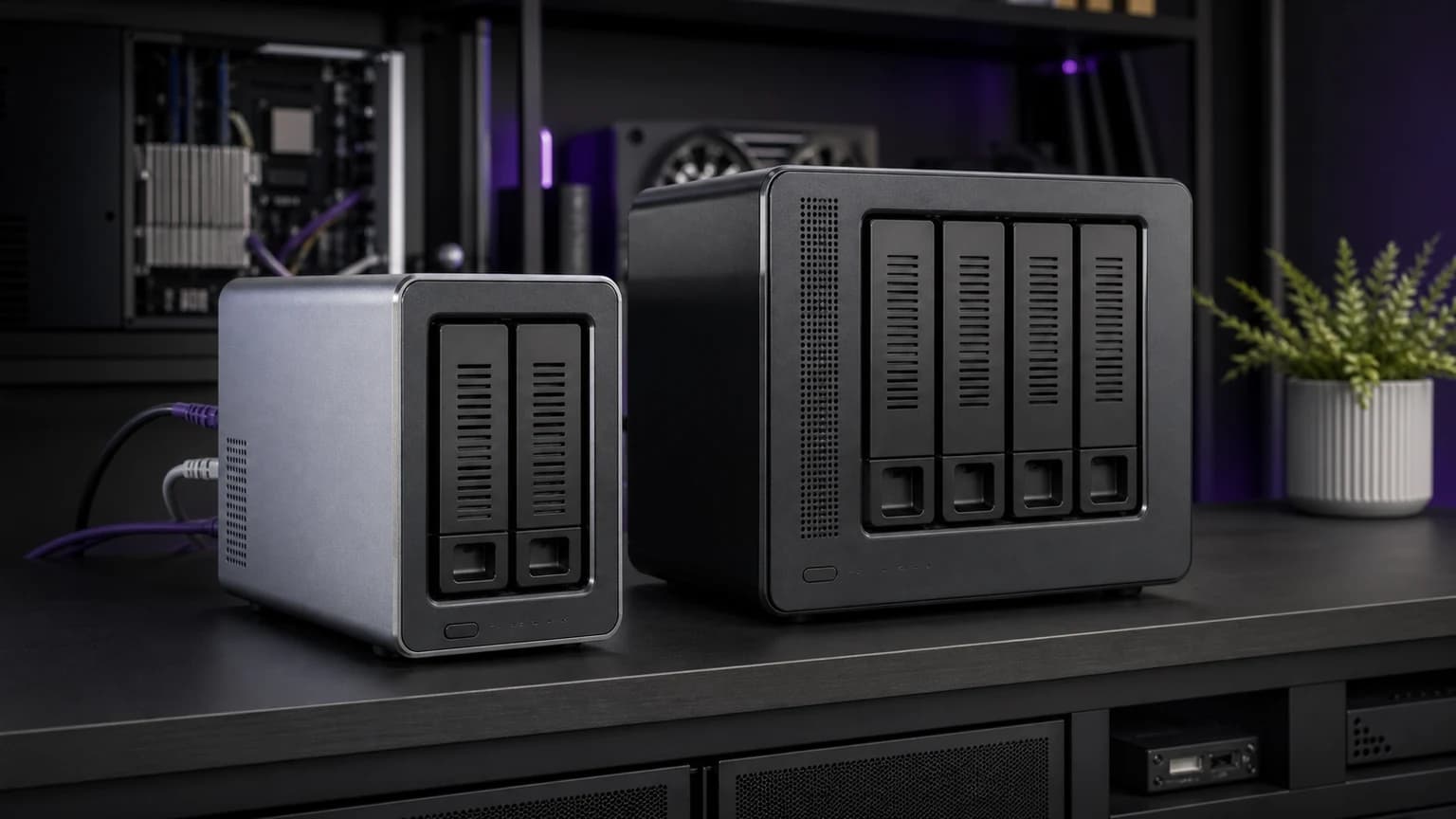
A NAS like the Synology DS224+ or TerraMaster F2-223 is purpose-built for storage. You slot in hard drives, follow a setup wizard, and get file sharing, backups, and basic Docker support through a web interface.
Best for: People who primarily want backups, photo storage, and media serving with minimal configuration. Synology's software (DSM) is genuinely easy to use.
Trade-off: Less flexible for running lots of services. NAS CPUs are optimized for storage tasks, not heavy compute. See our best NAS drives roundup for current picks.
Option B: Mini PC (most flexible)
A mini PC like the GEEKOM A9 Max or GMKtec NucBox K12 gives you a full computer. Install any Linux distribution, run Docker, and use external drives or a NAS for storage.
Best for: People who want to run many services, need hardware transcoding, or want full control over the operating system. Check our best mini PCs roundup for options.
Trade-off: More setup work. You are building the software stack yourself instead of following a NAS wizard.
Hardware checklist (either path)
- At least 8GB RAM (16GB preferred for Docker workloads)
- SSD for the operating system (even a small 128GB NVMe is fine)
- Gigabit Ethernet minimum, 2.5GbE preferred
- Low idle power consumption (15W to 30W is ideal for 24/7 operation)
- Quiet fans or passive cooling
Step 3: Pick an operating system
For NAS appliances
Use the manufacturer's OS. Synology DSM and QNAP QTS handle everything through their web interfaces. Do not try to replace them with a generic Linux install unless you have a specific reason.
For mini PCs (three solid options)
Proxmox VE (recommended for flexibility) A free, open-source hypervisor that lets you run virtual machines and containers from a web interface. It sounds complicated, but the installer is straightforward and the web UI makes managing containers accessible.
Install process: Download the Proxmox ISO, flash it to a USB drive with Balena Etcher, boot from USB, follow the installer. The entire install takes about 10 minutes.
Ubuntu Server (simplest for beginners) If you have used Linux before, Ubuntu Server with Docker is the most straightforward path. Install the OS, install Docker, and start deploying services.
CasaOS / Cosmos (guided self-hosting) Lightweight platforms that sit on top of a Linux install and give you an app-store-like interface for deploying Docker containers. Good if you want the mini PC flexibility without writing Docker Compose files by hand.
Step 4: Set up your network correctly
This step is boring but prevents 90% of the problems people hit later.
Assign a static IP address. Your server needs a consistent address on your network so other devices can always find it. Do this through your router's DHCP reservation feature (preferred) or by setting a static IP on the server itself.
Connect via Ethernet. Do not run a home server on WiFi. Even fast WiFi introduces latency and drops that make file transfers and streaming unreliable. A single Ethernet cable to your router solves this.
Open only what you need. For remote access, use Tailscale or a WireGuard VPN instead of opening ports on your router. Tailscale is free for personal use and takes about five minutes to set up. It creates a private network between your devices without exposing anything to the public internet.
Step 5: Install your first services
Start with one or two services. Get them stable. Then add more. Trying to deploy everything at once is how people burn out and abandon the project.
Suggested first service: Pi-hole Takes five minutes to install via Docker. Blocks ads and trackers at the network level for every device in your house. Immediate, visible benefit that makes the whole project feel worthwhile.
Suggested second service: Nextcloud or Immich Pick one. Nextcloud replaces Dropbox/Google Drive for file sync. Immich replaces Google Photos with a beautiful self-hosted alternative. Both run in Docker and have mobile apps for automatic photo/file backup.
How to deploy with Docker Compose:
- Create a directory for the service (e.g.,
/opt/stacks/pihole/) - Create a
docker-compose.ymlfile with the service configuration (official docs for each project provide copy-paste examples) - Run
docker compose up -d - Access the service through your browser at
http://[server-ip]:[port]
Repeat for each service you want to add.
Step 6: Set up backups (do not skip this)
A home server without backups is just a single point of failure with extra steps.
Minimum backup strategy:
- NAS users: Enable Synology Hyper Backup or equivalent to sync critical data to an external USB drive or a cloud service (Backblaze B2 is $6/TB per month)
- Mini PC users: Use Restic or BorgBackup to create encrypted, deduplicated backups to an external drive or cloud storage
The 3-2-1 rule still applies:
- 3 copies of your data
- 2 different storage types (e.g., NAS drives + external USB)
- 1 copy offsite (cloud or a drive at a friend's house)
Step 7: Protect your server from power problems
A home server that runs 24/7 needs power protection. A sudden outage during a disk write can corrupt data or, worse, kill a drive.
A basic UPS (uninterruptible power supply) gives your server enough time to shut down gracefully. For a home server drawing 30W to 50W, even a $60 UPS provides 15 to 20 minutes of runtime. Our best UPS battery backups guide covers the options.
Connect the UPS to your server via USB. Configure the NUT (Network UPS Tools) package or your NAS's built-in UPS settings to trigger an automatic shutdown when battery drops below a threshold.
Common mistakes to avoid
Overbuilding on day one. You do not need a rack-mount chassis, ECC RAM, and 10GbE for a home server that runs Plex and Pi-hole. Start small, expand when you hit actual limits.
Skipping the UPS. One power outage and a corrupted database will cost you more time than the UPS costs in money.
Running everything on one disk with no redundancy. At minimum, mirror your data across two drives (RAID 1 on a NAS, or rsync to a second drive on a mini PC).
Exposing services directly to the internet. Use Tailscale or a VPN for remote access. Do not port-forward your Nextcloud instance to the public internet unless you are prepared to maintain TLS certificates, firewall rules, and security patches constantly.
Ignoring updates. Docker images and OS packages get security patches. Set a monthly reminder to update your containers and system packages. Watchtower can automate Docker image updates if you prefer.
Where to go from here
Once your basic services are running, common next additions include:
- Home Assistant for smart home automation
- Frigate for security camera NVR with AI object detection
- Uptime Kuma for monitoring your services
- Nginx Proxy Manager for clean local domain names (e.g., photos.home instead of 192.168.1.50:2283)
The beauty of a home server is that it grows with you. Start with what solves an immediate problem and expand from there. If you are leaning toward the mini PC route, our best mini PCs for home servers guide narrows the hardware choices by N100, N305, Ryzen, storage, RAM, and 24/7 power use.