Home Server Guide 2026: What to Buy, What to Run, and What to Skip
Building a home server that's actually useful. without overbuilding, overspending, or turning your closet into a datacenter you'll never maintain.
Editorial evidence review
Recommendations are checked against product documentation, availability, comparative evidence, and clearly disclosed hands-on work where it exists.
On this page
- SolderMag Take: a $300 home server replaces $300-500/year in cloud subscriptions. it pays for itself before the warranty expires
- The subscription replacement math (in detail)
- Hardware: what to actually buy
- RAM and storage: how much you actually need
- Operating system: pick one and stop second-guessing
- Services worth running (and the order to set them up)
- Networking: keep it boring
- Power consumption: it matters more than you think
- Decision checklist (fast)
- Sources
Most home server guides read like a spec sheet for a small business datacenter. Rack-mount chassis, ECC RAM requirements, redundant power supplies. all for a box that's going to run Plex and Pi-hole in your closet.
This guide is for people who want a useful home server, not a hobby that consumes every weekend. We'll cover what hardware to buy, what software to run, and. just as importantly. what to skip.
SolderMag Take: a $300 home server replaces $300-500/year in cloud subscriptions. it pays for itself before the warranty expires
Every home server guide talks about hardware specs. Almost none of them talk about the thing that actually justifies the purchase: you're probably already spending $300-500/year on cloud services that a $300 mini PC can replace.
Add it up. You might not be paying for all of these, but most people are paying for several:
- Google One 2TB or iCloud+ 2TB: $100-120/year (Nextcloud replaces this)
- Dropbox Plus: $120/year (also Nextcloud)
- 1Password or Bitwarden family plan: $48-60/year (Vaultwarden replaces this, free)
- VPN service: $40-80/year (Tailscale + your own exit node covers most of this)
- Google Photos storage (if you're past the free tier): included in Google One, or Immich replaces it
- Plex Pass lifetime vs. ongoing streaming costs: variable, but real
Conservative total for a typical tech-oriented household: $300-480/year in subscriptions that a home server can absorb.
A $300 mini PC with a $30/year power bill pays for itself in 8-12 months. After that, it's running for nearly free while your cloud subscriptions would have kept billing you forever. That's not a hobby expense. that's an investment with a clear payback period.
The people who need actual server hardware. ECC RAM, hot-swap drive bays, IPMI. already know they need it. If you're reading a guide, you probably don't. Start small. You can always add capacity later; you can't un-buy a $1,200 NAS box you barely use.
The subscription replacement math (in detail)
Let's make this concrete. Say you're a household of two, both techy, and you're currently paying for:
| Service | Annual cost | Home server replacement |
|---|---|---|
| Google One 2TB | $100 | Nextcloud (file sync, photos) |
| Dropbox Plus (one person) | $120 | Nextcloud |
| 1Password Family | $60 | Vaultwarden |
| Mullvad VPN | $60 | Tailscale (free) + Pi-hole |
| Extra iCloud storage | $36 | Nextcloud + Immich |
| Total | $376/year | $0/year after hardware |
Your specific numbers will be different. Maybe you don't use Dropbox but you're paying for Backblaze personal backup ($99/year. replaced by local backups + Backblaze B2 at lower cost). Maybe you're paying for a Plex Pass and can consolidate. The point isn't the exact figure. it's that most people are already spending the cost of a mini PC annually on services they could self-host.
One honest caveat: self-hosting isn't zero-effort. Nextcloud needs updates. Vaultwarden needs backups. You're trading subscription money for occasional maintenance time. But "occasional" really does mean occasional. we're talking maybe 2-3 hours per month once everything's set up. For most people reading this guide, that's a trade worth making.
Hardware: what to actually buy
Option 1: Mini PC (recommended for most people)
Best for: first-timers, low power bills, quiet operation, small spaces.
A modern mini PC with an Intel N100/N305 or AMD Ryzen 5000-series chip is absurdly capable for home server duties. These pull 10-25 watts under load and are dead silent.
What to look for:
- CPU: Intel N100 (budget, very efficient) or N305/Ryzen 5625U (more headroom)
- RAM: 16GB minimum, 32GB if you plan to run VMs. DDR4/DDR5 both fine.
- Storage: 500GB-1TB NVMe for OS + containers. Add a USB-attached or NAS drive for bulk storage.
- NICs: at least one gigabit Ethernet. Dual NIC models are great if you want to run a router/firewall.
Cost: $150-350 depending on specs. Refurbished units are excellent value.
Option 2: Old desktop or laptop
Best for: zero budget, already have the hardware.
That old desktop collecting dust? It's a perfectly fine server. The downsides are power draw (60-120W idle for older desktops) and noise. If you don't mind the electric bill bump, this is the cheapest path.
Laptops work too. they have built-in battery backup (UPS for free), are quiet, and sip power. The downside is limited expandability and thermal throttling under sustained load.
Option 3: NUC or equivalent
Best for: people who want mini PC convenience with slightly better expandability.
Intel NUCs (and AMD equivalents like the ASUS PN series) slot between mini PCs and desktops. Dual M.2 slots, socketed RAM, and solid build quality. Slightly more expensive than bare-bones mini PCs, but more future-proof for upgrades.
Option 4: Rack-mount / used enterprise gear
Best for: people who already have a rack, want 10+ drives, or are running serious virtualization workloads.
Used Dell PowerEdge or HP ProLiant servers are dirt cheap on eBay ($100-300). They're also loud, power-hungry, and heavy. This is the "homelab" path. fun if that's your hobby, overkill if you just want services running.
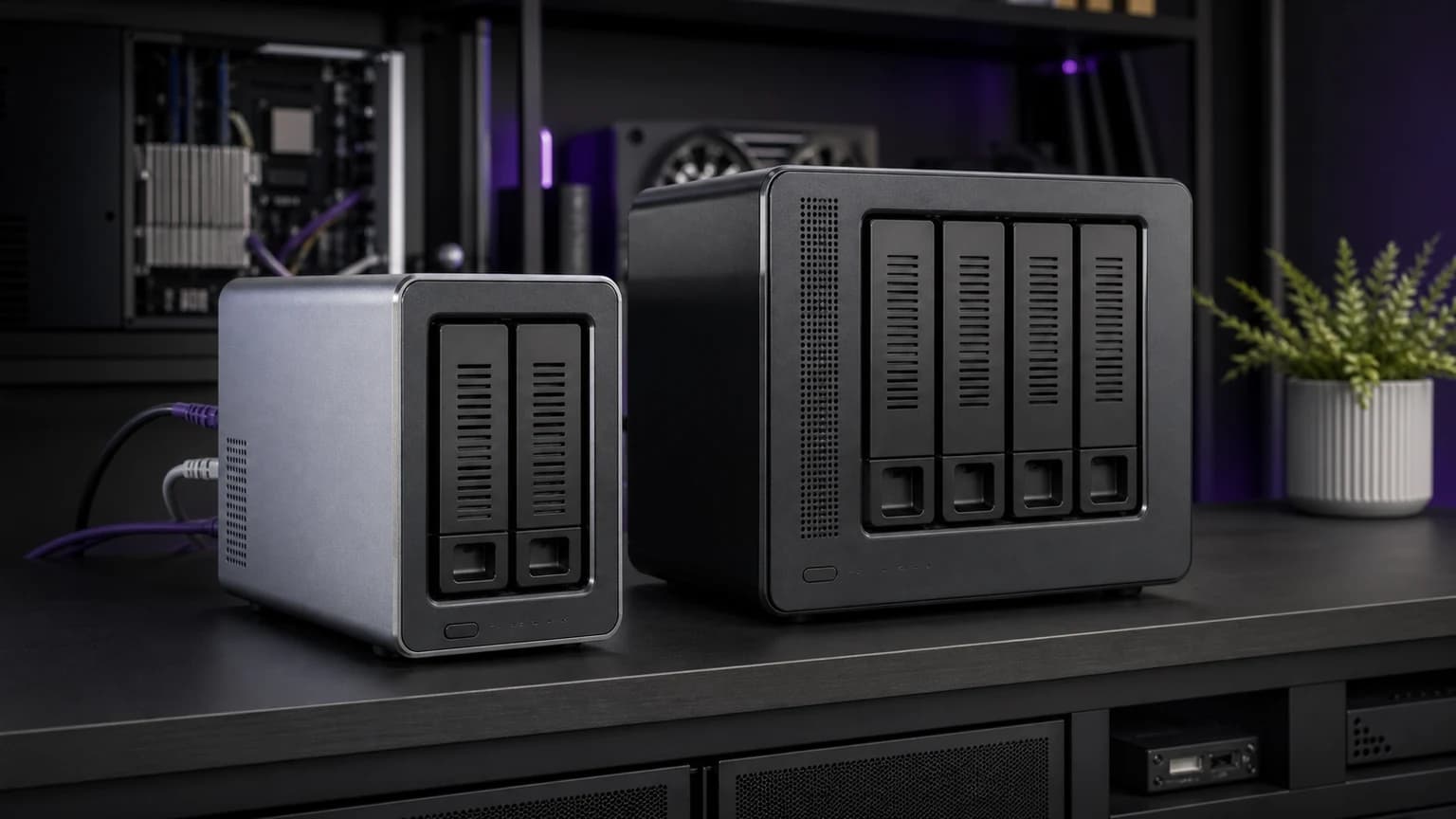
SolderMag recommendation: start with a mini PC. Seriously. You can always rack-mount later if you outgrow it. Most people never do.
RAM and storage: how much you actually need
RAM
- 16GB: runs Docker containers for Plex, Pi-hole, Home Assistant, Nextcloud, and a few extras comfortably.
- 32GB: lets you run Proxmox with multiple VMs, or heavier workloads like databases and build servers.
- 64GB+: only if you're running serious virtualization or ZFS with large ARC cache.
Don't buy 64GB "just in case." RAM is easy to upgrade later.
Storage
- OS + apps: 256GB-1TB NVMe. Fast, reliable, cheap.
- Media and files: separate drive(s). A single 4TB SATA SSD or a USB-attached HDD works fine to start.
- Backups: different physical device from your main storage. An external drive, a second internal drive, or a cloud backup service (Backblaze B2 is $6/TB/month).
On RAID: most home users don't need RAID. A single drive plus a good backup strategy (3-2-1 rule) is simpler and more reliable than a RAID array you never monitor. RAID is not a backup.
Operating system: pick one and stop second-guessing
This is where people spend three weeks reading Reddit threads instead of just installing something. All four options below work. Pick the one closest to your comfort level and move on.
Proxmox VE (virtualization-first)
Best for: people who want to run multiple isolated services in VMs or LXC containers.
Proxmox is a free, Debian-based hypervisor with a web UI. It's the gold standard for home virtualization. The learning curve is moderate. expect a weekend to get comfortable.
TrueNAS Scale (storage-first)
Best for: people whose primary goal is file storage and sharing (NAS use case).
TrueNAS Scale runs on Linux, supports Docker apps natively, and manages ZFS storage pools through a web UI. If your main job is "store and serve files," start here.
Unraid (ease-of-use-first)
Best for: people who want a GUI-driven experience with minimal terminal work.
Unraid costs $59+ for a license but is noticeably easier to set up than Proxmox or TrueNAS for beginners. Its app store (Community Applications) makes installing services dead simple. The tradeoff: it's not free, and power users may feel constrained.
Plain Linux + Docker (simplicity-first)
Best for: people comfortable with the terminal who want minimal overhead.
Ubuntu Server or Debian + Docker Compose. No hypervisor layer, no web UI (unless you add Portainer). This is the leanest option and gives you the most control. If you already know Linux, this is probably the fastest path.
Services worth running (and the order to set them up)
Start with one or two. Add more only when you actually need them.
Tier 1: the essentials
- Pi-hole or AdGuard Home. network-wide ad blocking. Set it as your DNS server and ads disappear from every device. 10 minutes to set up, immediately useful.
- Tailscale. secure remote access to your home network from anywhere. No port forwarding, no VPN server to maintain. Install it on the server and your devices. Done.
Tier 2: media and files
- Plex or Jellyfin. media server for movies/TV/music. Plex has better apps on more devices; Jellyfin is fully free and open-source. Either works.
- Nextcloud. self-hosted file sync, calendar, contacts. Replaces Google Drive/Dropbox for personal use. Setup is medium effort; maintenance is ongoing (updates matter). This is the single biggest subscription killer on the list. it can replace Google One, Dropbox, and iCloud storage in one shot.
Tier 3: smart home and automation
- Home Assistant. the hub for smart home devices. If you have any smart home gear, this is where it all connects. Powerful but deep. budget time for setup.
Tier 4: nice-to-have
- Uptime Kuma. simple uptime monitoring for your services. A clean dashboard that tells you when things break.
- Vaultwarden. self-hosted Bitwarden password manager. Works with all official Bitwarden apps.
- Immich. self-hosted Google Photos alternative. Photo backup with face recognition and search.
Networking: keep it boring
- Use Tailscale for remote access. It's free for personal use, works through NATs and firewalls, and requires zero networking knowledge. Don't open ports to the internet.
- Set a static IP for your server (or a DHCP reservation on your router). Services break when IPs change.
- Use your server as DNS (via Pi-hole/AdGuard). Point your router's DHCP settings to the server's IP.
- Don't buy a managed switch or enterprise router unless you have a specific reason. Consumer gear is fine for home use.
Power consumption: it matters more than you think
People forget this until they see their electricity bill. A server runs 24/7, 365 days a year. That adds up:
- 15W idle (mini PC): ~$20/year at average US electricity rates.
- 60W idle (old desktop): ~$80/year.
- 150W idle (rack server): ~$200/year.
A mini PC pays for itself in power savings within 1-2 years compared to repurposed enterprise hardware. Check idle wattage before you buy.
Decision checklist (fast)
- What services do I actually want to run? Start with two, not ten.
- Do I need VMs or just containers? Containers only → plain Linux + Docker. VMs → Proxmox.
- How much storage do I need today? Buy for now, not for a theoretical future.
- What's my noise and power tolerance? Mini PC wins on both.
- Do I have a backup plan? If not, set up backups before adding more services.
- Am I building this to use or to tinker? Both are valid. but be honest, because the hardware choices are different.
Sources
- Power consumption benchmarks for Intel N100/N305 and AMD Ryzen mini PCs under idle and load
- Proxmox, TrueNAS, and Unraid official documentation for hardware requirements and supported configurations
- Community benchmarking for Plex transcoding on low-power hardware
- Tailscale documentation on NAT traversal and personal use tier limitations
- US Energy Information Administration average residential electricity rates for cost projections
- Current subscription pricing for Google One, iCloud+, Dropbox, 1Password, and Mullvad VPN (verified March 2026)
Protect your server from power blips with a UPS battery backup. a single outage during a write can corrupt your data. If you are tempted to use a larger backup battery instead, check our portable power station vs UPS guide first because runtime and safe shutdown are different problems. And if you're setting up the network side, our best Wi-Fi 7 routers guide covers what to look for in a home network backbone. If self-hosting appeals to you as a way to escape rising cloud costs in 2026, our cost analysis breaks down when the cloud still makes sense and when it doesn't.
The best home server is the one that runs quietly, stays updated, and does three things well. not fifteen things badly. Start boring. Scale when you have a real reason.