Synology DS224+ Review (2026): The Best First NAS for Most People
The Synology DS224+ makes home NAS accessible without dumbing it down. Full review for backups, media, and remote access.
Research-based review
Recommendations are checked against product documentation, availability, comparative evidence, and clearly disclosed hands-on work where it exists.
Quick picks
The short answer, with the trade-off
Reviewed
Synology DS224+
Best-in-class DSM software with Synology Photos
Trade-off: 2GB RAM is limiting
Media-focused alternative
QNAP TS-264
Budget alternative
TerraMaster F2-223
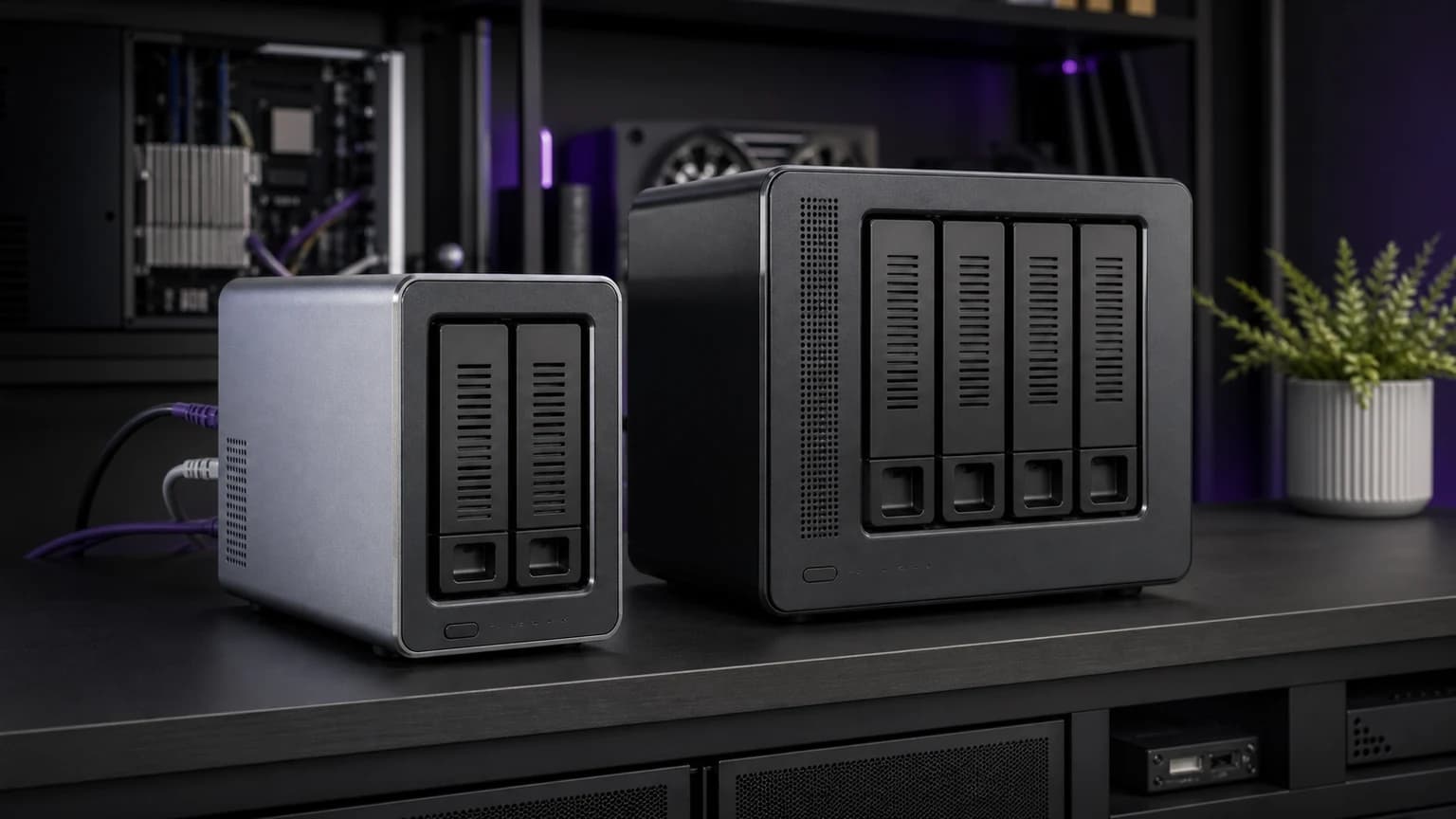
The Synology DS224+ is not the fastest NAS you can buy. It doesn't have the most RAM, the best CPU, or HDMI output. What it has is something harder to spec: software that makes network storage feel approachable to people who have never touched a NAS before.
The DS224+ is positioned for automated backups, Synology Photos, and light media serving. This research-based review uses current Synology documentation and established independent coverage; SolderMag has not completed a months-long reliability or performance test.
SolderMag Take
The NAS market has a trust problem. Every brand claims easy setup, but most NAS software still feels like it was designed by the same people who wrote router firmware in 2008.
Synology's DSM is the exception. It looks and behaves like an actual operating system. a desktop with windows, a package manager, system notifications, and apps that work the way you expect. Synology Photos is a genuine Google Photos replacement. Hyper Backup handles automated versioned backups without a terminal. QuickConnect gives you secure remote access without port forwarding.
The DS224+ hardware is modest relative to some similarly positioned competitors. Its case rests on DSM and Synology's application ecosystem, but buyers should not turn software maturity into an unmeasured reliability guarantee.
Specs and features deep dive
CPU: Intel Celeron J4125, quad-core at 2.0GHz (burst to 2.7GHz). This is a modest processor, but it handles the DS224+'s core workloads comfortably: file serving, backup scheduling, photo indexing, and hardware-accelerated video transcoding for Plex/Jellyfin.
RAM: 2GB DDR4 (expandable to 6GB with one SO-DIMM slot). The 2GB base is the DS224+'s biggest limitation. For basic file sharing and backups, it's sufficient. Running Docker containers, Surveillance Station, or multiple heavy packages simultaneously will push it. Upgrading to 6GB is strongly recommended if you plan to do more than backups and media.
Storage: Two 3.5" SATA bays (also accepts 2.5" drives). Supports RAID 0, RAID 1, SHR (Synology Hybrid RAID), JBOD, and basic configurations. SHR is the recommended default. it mirrors your data across both drives and makes future drive upgrades painless.
Networking: 2x 1GbE Ethernet with Link Aggregation support. No 2.5GbE, which is a legitimate complaint at this price point. Practical throughput tops out around 110-115 MB/s for large sequential file transfers.
Ports: 2x USB 3.2 Gen 1 for external drives or UPS connections. No HDMI output. you can't connect this directly to a TV.
Operating system: Synology DSM 7.2. The star of the show. A browser-based OS with a windowed interface, package center, user management, and granular permissions. Updates are automatic and reliable. Synology has maintained backward compatibility across DSM versions for years.
Key software packages:
- Synology Photos: Face recognition, timeline view, sharing albums, mobile auto-upload. The closest self-hosted equivalent to Google Photos.
- Hyper Backup: Versioned backups to local, USB, remote NAS, or cloud destinations (S3, Backblaze B2, Azure).
- Plex/Jellyfin: Hardware transcoding via the Intel Celeron's Quick Sync. Handles 1-2 simultaneous 4K-to-1080p transcode streams.
- Synology Drive: Dropbox-like file sync across devices with versioning.
- QuickConnect: Remote access without port forwarding or dynamic DNS. Works behind most ISP routers.
Power consumption: Approximately 15W idle with two drives spinning, 9W in HDD hibernation. Quiet enough for a living room shelf.
Setup experience: unboxing to working NAS
The initial setup is where Synology earns its reputation. Here's what the process actually looks like:
- Slot in drives (2 minutes). Pop the drive trays, screw in your HDDs, slide them back. No tools required for 3.5" drives.
- Connect ethernet and power (1 minute). Plug in, turn on, wait for the status LED to go solid.
- Open find.synology.com in a browser (30 seconds). The wizard discovers the NAS on your network automatically.
- Follow the DSM setup wizard (10-15 minutes). Create an admin account, choose SHR (mirrored) RAID, let it format the drives, and set up QuickConnect for remote access.
- Install packages (5-10 minutes). Synology Photos, Hyper Backup, Plex/Jellyfin. one-click installs from the Package Center.
Total time from unboxing to a working backup target: under 30 minutes. No terminal, no SSH, no RAID calculator. It's the kind of setup experience that makes you wonder why other NAS brands make it harder than it needs to be.
Real-world performance
File transfers: Sequential read/write over 1GbE tops out around 112 MB/s, which is the network bottleneck, not the NAS. For most home use. document access, photo browsing, Time Machine backups. this is more than adequate. Large video file transfers (50GB+) are where you feel the 1GbE limitation.
Plex transcoding: The Intel Celeron J4125 handles hardware-accelerated transcoding for 1-2 simultaneous 4K-to-1080p streams via Quick Sync. A household with one person streaming remotely while another watches locally will be fine. Three or more simultaneous transcodes will stutter.
Synology Photos: Face recognition indexing is slow on initial setup (expect 12-24 hours for a large library), but once indexed, browsing and searching is responsive. The mobile app auto-uploads photos in the background reliably on both iOS and Android.
Docker performance: With the RAM upgraded to 6GB, running Pi-hole, a small Node app, and Portainer simultaneously is comfortable. At the stock 2GB, Docker containers compete for memory and performance suffers noticeably.
Noise and heat: Essentially silent at idle. Drive spin-up is audible but brief. Under sustained load (large file copy or transcoding), the fan ramps up to a gentle whir. quieter than a laptop under load. You can place this on a living room shelf without it being intrusive.
Pros and cons
Pros:
- DSM software is the most polished NAS OS available, period
- Synology Photos is a real Google Photos replacement with face recognition and mobile upload
- Hyper Backup makes automated, versioned backups genuinely easy
- Hardware transcoding handles Plex/Jellyfin without a dedicated GPU
- QuickConnect provides secure remote access with zero networking knowledge
- 15W idle power consumption keeps electricity costs under $15/year
- Extensive package ecosystem with years of update support
Cons:
- 2GB base RAM is limiting for Docker and heavy multitasking (upgrade to 6GB recommended)
- 1GbE networking only. no 2.5GbE at this price is disappointing in 2026
- No HDMI output for direct TV playback
- Diskless pricing ($300+) means total cost with drives approaches $500-600
- Intel Celeron J4125 struggles with more than 2 simultaneous transcodes
- Synology drives (sold separately) carry a brand premium over equivalent WD/Seagate NAS drives
Who the DS224+ is for
First-time NAS buyers who want automated backups and a personal cloud without learning Linux. DSM's setup wizard gets you from unboxing to working backups in under 30 minutes.
Families drowning in phone photos. Synology Photos with mobile auto-upload means every photo from every family member's phone lands on your NAS automatically, organized by date and face. No more "I lost all my photos" emergencies.
Cord-cutters and media collectors. A 2-bay NAS with Plex or Jellyfin serves a household's media library. Hardware transcoding means remote streaming works without buffering for 1-2 users.
Small home offices that need a shared file server, Time Machine backup target, and basic collaboration without paying for cloud storage subscriptions.
Anyone leaving Google Photos or iCloud. If you're uncomfortable with cloud storage pricing or privacy, the DS224+ is the most practical self-hosted alternative.
Who should skip it
Power users who want Docker as a primary workload. The 2GB base RAM chokes on multiple containers. If Docker is central to your plans, the Synology DS423+ with 4 bays and more headroom is the better investment.
Media enthusiasts who need HDMI output. If you want to connect a NAS directly to a TV, the QNAP TS-264 has HDMI 2.0 and a stronger CPU for transcoding.
Anyone on a tight budget. At $300+ diskless plus $100-200 for drives, the total investment approaches $500-600. If that's steep, the TerraMaster F2-223 delivers NAS basics at a lower entry point, though with less polished software.
People who need fast local transfers. The 1GbE networking caps throughput at ~110 MB/s. If you're transferring large video files regularly, the lack of 2.5GbE is frustrating.
Synology DS224+
Why it works
- Best-in-class DSM software with Synology Photos
- Easy automated backups with Hyper Backup
- Hardware transcoding for Plex/Jellyfin
Main trade-off
- 2GB RAM is limiting
- 1GbE only, no 2.5GbE
Verdict
The Synology DS224+ wins on software, not hardware. Its specs are mid-range, its networking is a generation behind, and 2GB of RAM in 2026 feels stingy. None of that matters as much as the fact that DSM makes a NAS feel like an appliance instead of a project.
For first-time NAS buyers, families, and anyone who wants self-hosted storage that doesn't require a home server hobby, the DS224+ remains the safest recommendation. Upgrade the RAM, buy NAS-rated drives, and it will quietly serve you for years.
Rating: 8.5/10. The best first NAS you can buy, limited only by conservative hardware choices.
Recommended drive pairings
The DS224+ ships diskless. Here's what to put inside:
- For most people: 2x WD Red Plus 4TB (~$100 each). Plenty of storage for backups, photos, and a modest media library in SHR/RAID 1 (4TB usable, mirrored).
- For media-heavy households: 2x Seagate IronWolf 8TB (~$150 each). Room for a large Plex library plus backups in SHR/RAID 1 (8TB usable).
- For maximum capacity: 2x WD Red Plus 12TB (~$200 each). If you're consolidating years of data, this gives you 12TB usable in mirror.
Avoid desktop drives (WD Blue, Seagate Barracuda). they aren't designed for 24/7 NAS operation and have higher failure rates in always-on environments. The price difference versus NAS-rated drives is small; the reliability difference is not.
Decision checklist
- Is this your first NAS? The DS224+'s software advantage is strongest for newcomers.
- Have you budgeted for drives? Add $100-200 per NAS-rated HDD (WD Red Plus or Seagate IronWolf).
- Will you run Docker containers? Budget for a 4GB RAM upgrade ($20-30) at minimum.
- Do you need HDMI output? If yes, look at the QNAP TS-264 instead.
- Is your network gigabit or faster? The DS224+ will bottleneck at 1GbE regardless of drive speed.
- Do you have an off-site backup plan? RAID is not a backup. Use Hyper Backup to sync to a cloud destination.
Sources
- Synology DS224+ technical specifications: https://www.synology.com/en-us/products/DS224+
- Synology DSM 7.2 documentation and package compatibility lists
- Plex hardware transcoding compatibility: https://support.plex.tv/articles/115002178853/
- Power consumption measurements from NAS community benchmarks
- WD Red Plus and Seagate IronWolf NAS drive compatibility lists
For the complete NAS roundup including media-focused and power user picks, see our best NAS for home guide. To go deeper into self-hosting, our home server guide covers Docker, VPNs, and automation. And if you need drives to fill those bays, check our best 8TB external hard drives roundup for NAS-rated recommendations.