Best NAS for Home (2026): Network Storage That's Worth the Setup
The best home NAS devices of 2026 for backups, media streaming, and photo libraries. Beginner to power user picks.
Research-based buying guide
Recommendations are checked against product documentation, availability, comparative evidence, and clearly disclosed hands-on work where it exists.
Quick picks
The short answer, with the trade-off
Best overall
Synology DS224+
Best-in-class DSM software
Trade-off: 2GB RAM (expandable but soldered)
Best for media
QNAP TS-264
Trade-off: QTS software less polished than Synology
Best for power users
Synology DS423+
Trade-off: Expensive without drives
Best budget
TerraMaster F2-223
Trade-off: TOS software is less polished
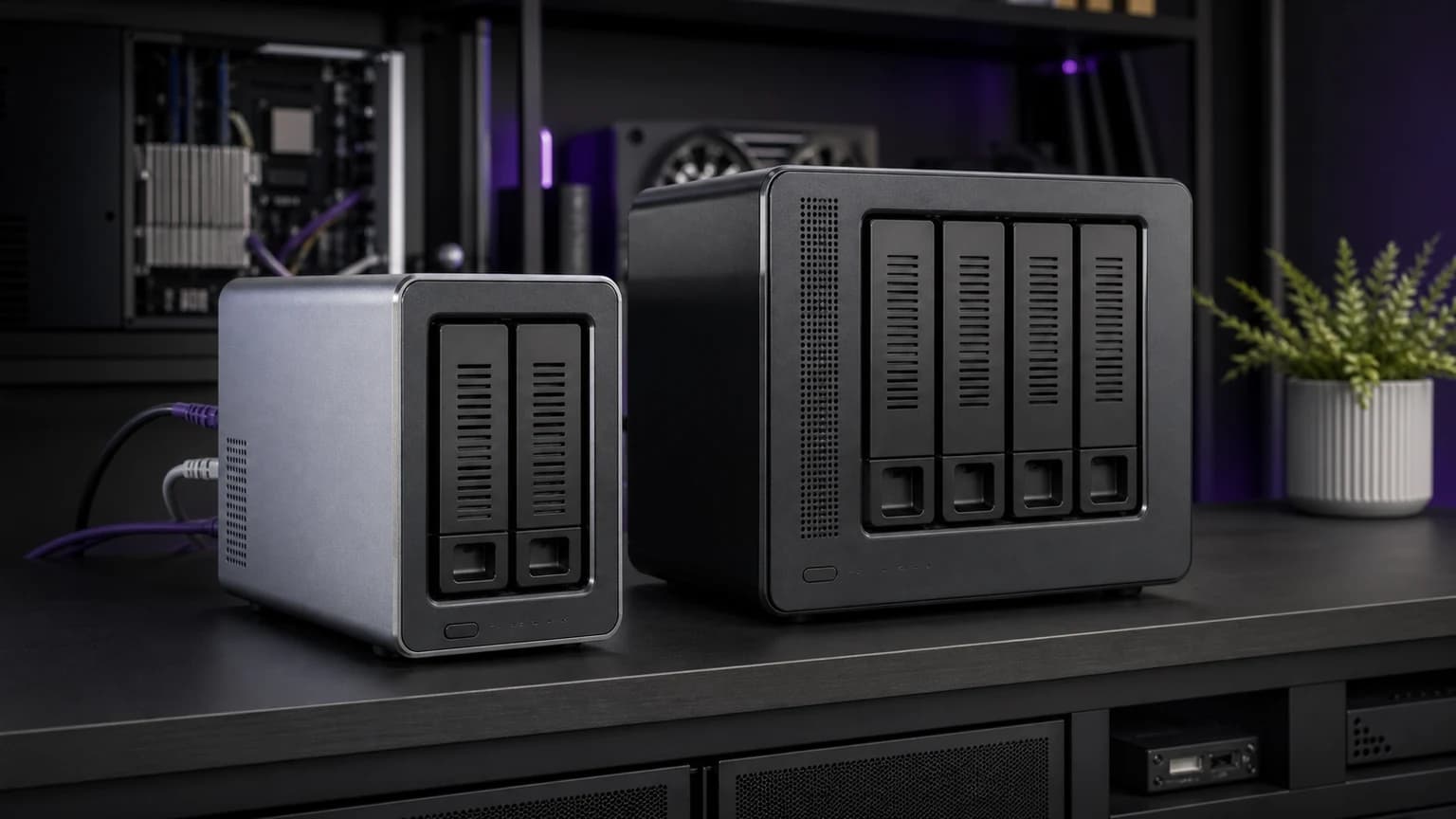
A NAS is one of those purchases that sounds complicated but pays off immediately: automatic backups, a personal media server, photo storage you actually control, and no more monthly cloud fees eating your wallet.
The problem? Most NAS guides bury you in RAID jargon and Docker tutorials before telling you what to buy. Here's the short version: pick the right box, slot in drives, follow a setup wizard, and you're done. The hard part is choosing correctly upfront.
This research-based shortlist compares current 2- and 4-bay NAS specifications, platform documentation, and established independent coverage of setup and media features. SolderMag has not completed matched long-term testing of every NAS.
If you are still deciding between internal SSDs, external drives, and a NAS, start with our complete personal storage guide. This page is specifically for the network-storage step.
SolderMag Take: Synology's software wins, but the hardware gap is closing
Synology's DSM operating system is still the gold standard for home NAS. It's the one platform where a non-technical person can set up backups, photo sync, and a media server without touching a terminal. That software advantage is why we keep recommending them as "best overall" even when competitors offer better hardware specs per dollar.
But here's the nuance: QNAP's hardware is often more generous (HDMI out, faster CPUs, more RAM), and TerraMaster has gotten genuinely competitive at the budget end. If you're comfortable with a slightly rougher software experience, you can get more raw capability for less money.
The right call depends on how much hand-holding you want.
Our top NAS picks for 2026
Best overall: Synology DS224+
This is the NAS we recommend to most people. Two drive bays handle backups and media for a household of 2-4 people without breaking a sweat. Synology's software does the heavy lifting: Synology Photos replaces Google Photos, Hyper Backup handles automated backups, and the mobile apps are polished.
Why it wins:
- DSM software is genuinely easy to use
- Synology Photos is a real Google Photos alternative
- Hardware transcoding for Plex/Jellyfin (Intel Celeron J4125)
- Mature ecosystem with years of updates
Synology DS224+
Why it works
- Best-in-class DSM software
- Easy photo/backup setup
- Hardware transcoding for media
Main trade-off
- 2GB RAM (expandable but soldered)
- No HDMI out
Best for media: QNAP TS-264
If your primary use case is Plex, Jellyfin, or direct media playback, the TS-264 has a real edge. The HDMI 2.0 output lets you connect it directly to a TV for local playback, the Intel N5095 CPU handles 4K transcoding comfortably, and you get 8GB of RAM out of the box. QNAP's software (QTS) is more cluttered than Synology's, but the hardware punches harder.
Why it wins:
- HDMI 2.0 output for direct TV playback
- Stronger CPU (Intel N5095) for 4K transcoding
- 8GB RAM standard. no upgrade needed
- Two M.2 NVMe slots for SSD caching
QNAP TS-264
Why it works
- HDMI out for direct TV playback
- 8GB RAM and strong CPU
- NVMe SSD cache slots
Main trade-off
- QTS software less polished than Synology
- Fan noise under load
Best for power users: Synology DS423+
Four bays, an AMD Ryzen R1600 CPU, and ECC memory support. This is for the person who wants RAID redundancy across multiple drives, runs Docker containers, and needs headroom for years of data growth. It's overkill for basic backups. and perfect for anyone running a home server that actually does work.
Why it wins:
- 4 drive bays for flexible RAID configurations
- AMD Ryzen embedded CPU with ECC memory support
- 10GbE-ready (with expansion card)
- Runs Docker, VMs, and surveillance station without choking
Synology DS423+
Why it works
- 4-bay RAID flexibility
- ECC memory support
- 10GbE expansion capable
Main trade-off
- Expensive without drives
- Overkill for basic use
Best budget: TerraMaster F2-223
TerraMaster has quietly become the best budget NAS option. The F2-223 packs an Intel N4505 CPU, 4GB RAM, and 2.5GbE networking into a $200 box. The software (TOS) isn't as refined as Synology's DSM, but it covers the basics: file sharing, backups, Docker, and media serving. If your budget is tight and you're comfortable with a bit more DIY, this is the smart money.
Why it wins:
- Under $200 for capable 2-bay NAS hardware
- 2.5GbE networking (most competitors at this price are 1GbE)
- Intel N4505 handles light transcoding
- Docker support for self-hosted apps
TerraMaster F2-223
Why it works
- Sub-$200 price point
- 2.5GbE networking
- Docker support
Main trade-off
- TOS software is less polished
- Smaller app ecosystem
How to choose the right home NAS in 2026
Step 1: How many bays do you need?
- 2-bay: most households. Mirrored drives give you redundancy + 1 drive's worth of usable space.
- 4-bay: power users, large media libraries, or anyone who wants RAID 5/6 flexibility.
- 1-bay: only if you're backing up to another destination too. Single drive = single point of failure.
Step 2: What's your primary use case?
- Backups only: any 2-bay NAS with automated backup software. Synology makes this easiest.
- Media server (Plex/Jellyfin): prioritize CPU (hardware transcoding) and RAM.
- Photo library: Synology Photos is the best self-hosted option right now.
- Docker/self-hosting: get 4GB+ RAM and check Docker compatibility.
Step 3: Buy drives separately
NAS units ship diskless. Buy NAS-rated drives (WD Red Plus, Seagate IronWolf) separately. For drive recommendations, check our best external hard drives guide. the internal drives from the same families apply.
Network matters
A NAS is only as fast as your network. If you're on gigabit ethernet, you'll max out around 110 MB/s regardless of drive speed. For faster transfers, look for a NAS with 2.5GbE or 10GbE and pair it with a compatible router.
If your NAS and main desktop both support 2.5GbE, add a 2.5GbE switch for NAS transfers before you assume the storage box is the slow part.
Use our 2.5GbE vs 10GbE home-network guide to match the link speed to HDD arrays, SSD caching, all-flash storage, and multi-client workloads.
NAS traps to avoid
- Buying desktop drives instead of NAS drives: Desktop drives (WD Blue, Seagate Barracuda) aren't designed for 24/7 operation. NAS-rated drives (WD Red Plus, Seagate IronWolf) have vibration tolerance and longer warranty. The price difference is small; the reliability difference is not.
- Skipping redundancy: A single-drive NAS with no backup is just a hard drive with extra steps. Mirror your data (RAID 1) or back up to a second location.
- Assuming RAID is a backup: RAID protects against drive failure, not accidental deletion, ransomware, or fire. You still need an off-site backup strategy (even a simple cloud sync counts).
- Overbuying bays: A 4-bay NAS half-populated is wasted money. Buy the bay count you'll fill within 2 years.
- Ignoring power consumption: A NAS runs 24/7. The difference between 15W idle and 40W idle is roughly $20/year in electricity. Check idle wattage before buying.
NAS buying checklist
Before you buy, confirm:
- You've picked the right bay count for your storage needs
- The CPU supports hardware transcoding (if you're serving media)
- RAM is sufficient (2GB minimum, 4GB+ for Docker/VMs)
- You've budgeted for drives separately (NAS-rated, not desktop drives)
- Your network can handle the throughput (gigabit minimum, 2.5GbE preferred)
- The software supports your use case (backups, photos, media, Docker)
Sources and methodology
- NAS operating system comparisons and feature testing: https://nascompares.com/
- Drive reliability data and NAS-rated drive recommendations: https://www.backblaze.com/blog/backblaze-drive-stats-for-2024/
- Synology DSM and QNAP QTS documentation and release notes
- Plex and Jellyfin hardware transcoding compatibility lists
- Power consumption measurements and idle wattage comparisons from NAS community benchmarks
NAS prices shown are for the enclosure only (diskless). Budget an additional $100-200 per drive for NAS-rated HDDs.
For a deeper dive into self-hosting, see our home server guide and our guide on how to build a home server from scratch. For media libraries, read the focused best NAS for Plex guide. For a direct comparison of two top 2-bay models, read our Synology DS224+ vs QNAP TS-264 head-to-head. If you need large-capacity drives to fill those bays, our best 8TB external hard drives roundup covers the best NAS-rated options. And make sure your network can keep up. check our best Wi-Fi 7 routers guide.