How to Set Up a NAS for Beginners (Step by Step)
Set up your first NAS for backups, photo storage, and media streaming. Drive selection, network setup, and first-run configuration.
Editorial evidence review
Recommendations are checked against product documentation, availability, comparative evidence, and clearly disclosed hands-on work where it exists.
Quick picks
The short answer, with the trade-off
Best for media
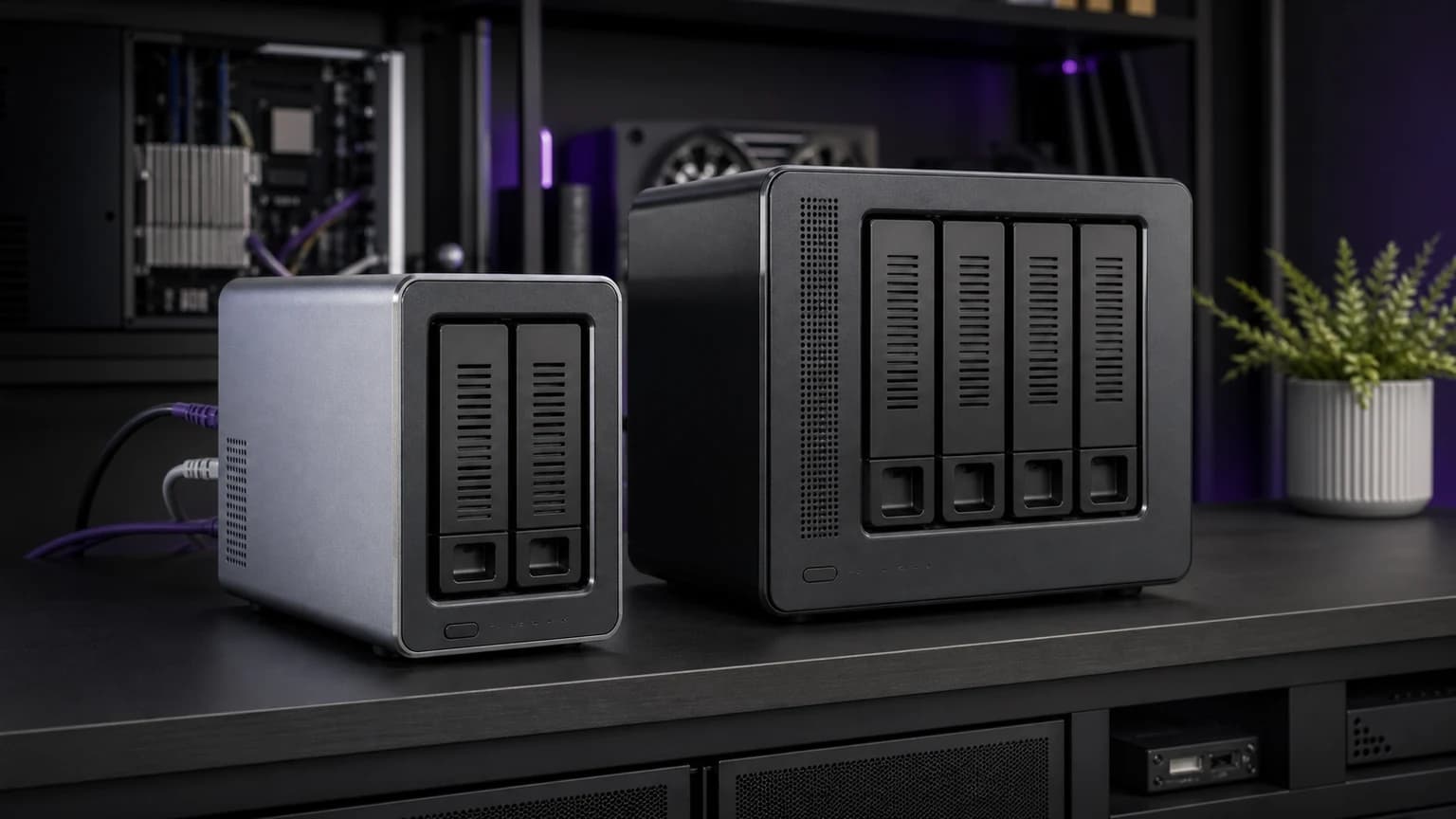
QNAP TS-264
On this page
- What you need before starting
- Step 1: Install the drives
- Step 2: Find your NAS on the network
- Step 3: Run the setup wizard
- Step 4: Set up your first shared folder and backup
- Step 5: Set up media streaming (optional)
- Common beginner mistakes to avoid
- How much does a NAS actually cost?
- Frequently asked questions
- What to do next
- Sources and methodology
A NAS (network-attached storage) sounds intimidating until you realize what it actually is: a small box with hard drives that plugs into your router. Every device on your network can access its storage. That is it.
What makes a NAS useful is what you do with that shared storage: automated backups of every computer in your house, a photo library you control instead of paying Google or Apple monthly, a media server that streams your movies and music to any device, and file access from anywhere without uploading everything to the cloud.
This guide walks through the full setup from unboxing to first backup. No assumptions about prior experience. If you can plug in a router, you can set up a NAS.
What you need before starting
The NAS unit
For beginners, we recommend the Synology DS224+. Synology's software (DSM) is the easiest NAS operating system to use, and the DS224+ has the hardware to handle backups, photos, and media streaming without breaking a sweat. Our full review of this unit covers the details: Synology DS224+ review.
If media streaming is your primary goal and you want HDMI output for direct TV playback, the QNAP TS-264 is the better hardware choice (read our comparison).
Hard drives (sold separately)
NAS units ship without drives. You need to buy them separately. This is actually a feature, not a gotcha. It lets you pick the right capacity for your needs.
What to buy:
- NAS-rated drives: WD Red Plus or Seagate IronWolf. These are designed for 24/7 operation and vibration tolerance. Desktop drives (WD Blue, Seagate Barracuda) work but have shorter lifespans in a NAS.
- Capacity: 4TB per drive is a good starting point. For a 2-bay NAS in mirror mode (RAID 1), two 4TB drives give you 4TB of usable space with full redundancy. If one drive fails, your data is safe on the other.
- How many: for a 2-bay NAS, buy two identical drives.
For specific drive recommendations, see our best NAS drives roundup.
Network connection
Your NAS connects to your router via an Ethernet cable (included with most NAS units). WiFi is not an option for the NAS itself. It needs a wired connection for reliable speed and stability.
Make sure your router has an available Ethernet port. If all ports are full, a simple network switch ($15 to $20) adds more ports.
A computer or phone on the same network
You will access the NAS setup wizard from a web browser on any device connected to the same network.
Step 1: Install the drives
This is the most physically involved step, and it takes about 5 minutes.
- Open the drive bays. On the Synology DS224+, the drive trays slide out from the front. No screwdriver needed for 3.5-inch drives.
- Seat the drives. Place each hard drive into a tray and snap the side clips into place. The drive connectors align with the backplane automatically.
- Slide the trays back in. Push until they click. You should feel them connect firmly.
- Connect power and Ethernet. Plug the power adapter into the NAS and into a power outlet. Run an Ethernet cable from the NAS to your router.
- Press the power button. The NAS will boot up. The first boot takes a minute or two while it detects the drives.
Step 2: Find your NAS on the network
Once the NAS is powered on and connected to your router:
- Open a web browser on any computer or phone connected to the same network.
- Go to find.synology.com (for Synology) or qfinder.qnap.com (for QNAP).
- The tool will scan your network and find your NAS automatically.
- Click on your NAS to open the setup wizard.
If the web finder does not detect your NAS, try typing the NAS IP address directly. Check your router's admin page for a list of connected devices to find the NAS IP.
Step 3: Run the setup wizard
The Synology setup wizard handles the heavy lifting:
- Install DSM. The wizard will download and install Synology's operating system (DSM) onto the NAS. This takes 5 to 10 minutes depending on your internet speed.
- Create an admin account. Pick a strong username and password. This is the master account for your NAS. Do not use "admin" as the username.
- Configure storage. The wizard will ask how you want to use your drives:
- SHR (Synology Hybrid RAID): recommended for beginners. With two drives, it mirrors your data automatically. One drive can fail without losing anything.
- JBOD or single volume: uses all drive space with no redundancy. Only choose this if you have a separate backup strategy.
- Set up QuickConnect. This gives you remote access to your NAS from outside your home network without port forwarding. Create a QuickConnect ID and you can access your files from anywhere via a web browser.
- Enable automatic updates. Let DSM update itself for security patches. You can schedule updates for off-hours.
The full wizard takes about 15 to 20 minutes, including the DSM download.
Step 4: Set up your first shared folder and backup
Now that DSM is running, you have a working NAS. The next steps turn it into something useful.
Create a shared folder
- Open Control Panel in DSM.
- Go to Shared Folder and click Create.
- Name it something clear: "Backups," "Photos," "Media."
- Set permissions for who can access it.
Set up automated backups
For Mac users: open Time Machine in System Settings. Your Synology NAS will appear as a backup destination. Select it and Time Machine handles everything automatically.
For Windows users: install Synology Drive Client on your PC. It works like Dropbox but backs up to your NAS instead of the cloud. Select the folders you want backed up, and it syncs them continuously.
For phone photos: install Synology Photos from your app store. Enable photo backup, and every photo you take automatically uploads to your NAS. This is a genuine Google Photos replacement that you own and control.
Step 5: Set up media streaming (optional)
If you want to stream movies, TV shows, or music from your NAS to your devices:
- Open Package Center in DSM (it is like an app store for your NAS).
- Install Plex Media Server or Jellyfin (Jellyfin is free and open source; Plex has a free tier with optional paid features).
- Point the media server at your shared folder containing media files.
- Install the Plex or Jellyfin app on your TV, phone, or streaming device.
- Your media library is now available on every device in your house.
The Synology DS224+ has hardware transcoding support, which means it can convert video formats on the fly for devices that cannot play the original format. This works for 1 to 2 simultaneous streams without issues.
Common beginner mistakes to avoid
- Using desktop drives instead of NAS drives. Desktop drives are not built for 24/7 operation. NAS-rated drives cost a little more but last significantly longer. The price difference is small; the headache difference is large.
- Skipping RAID / mirroring. A NAS with one drive and no backup is just a hard drive with extra steps. Always mirror your data or have a second backup location.
- Thinking RAID is a backup. Mirroring protects against drive failure. It does not protect against accidental deletion, ransomware, or a power surge that fries both drives. Set up an off-site backup too, even a simple cloud sync to Backblaze B2 or a USB drive stored at a friend's house.
- Putting the NAS on WiFi via a bridge. WiFi bridges add latency and instability. Use a wired Ethernet connection. If your NAS is far from your router, run a long Ethernet cable or use powerline adapters as a last resort.
- Ignoring firmware updates. NAS devices are internet-connected appliances. Keep the firmware updated for security patches.
How much does a NAS actually cost?
People see the price of the NAS box and forget that drives are sold separately. Here is a realistic budget breakdown for a beginner setup:
| Component | Cost estimate |
|---|---|
| Synology DS224+ (diskless) | $290 to $320 |
| 2x WD Red Plus 4TB NAS drives | $180 to $220 total |
| Ethernet cable (if not included) | $5 to $10 |
| Total | $475 to $550 |
That sounds like a lot upfront. But compare it to what you are probably paying now: Google One 2TB ($100/year), iCloud 2TB ($130/year), Dropbox Plus ($120/year). A NAS pays for itself in 3 to 4 years with no ongoing subscription costs. And your data stays in your house, not on someone else's server.
If the full cost is too steep at once, start with a single drive and add the second later. You lose RAID redundancy in the meantime, so make sure you have another backup method until both bays are filled.
Frequently asked questions
Can I access my NAS from outside my home? Yes. Synology's QuickConnect and QNAP's myQNAPcloud both provide remote access without port forwarding. You can browse files, view photos, and stream media from your phone or browser anywhere with internet.
How loud is a NAS? Modern 2-bay NAS units are quiet. The Synology DS224+ fan is barely audible from a few feet away. The drives themselves make a faint hum during reads and writes. You can place a NAS in a living room or office without it being distracting. Avoid putting it in a bedroom if you are a light sleeper.
Do I need to leave it on 24/7? You do not have to, but that is how most people use a NAS. Modern NAS units idle at 15 to 20 watts, which costs roughly $15 to $25 per year in electricity. The drives spin down when not in use, and the system can hibernate on a schedule if you only need it during certain hours.
Can I use my NAS as a Plex/Jellyfin server? Yes. Both the DS224+ and TS-264 support Plex and Jellyfin. The DS224+ handles 1 to 2 simultaneous transcoded streams. The TS-264 handles more thanks to its stronger CPU. For direct play (no transcoding needed), both handle many more streams.
What to do next
Once your NAS is running and your first backup is configured:
- Set up Synology Photos to replace cloud photo storage
- Configure remote access via QuickConnect for file access on the go
- Install a download manager if you want to download files directly to the NAS
- Explore Docker (on supported models) for self-hosted apps like password managers, ad blockers, or recipe organizers
- Set up a second backup to an external USB drive or cloud service for true disaster protection
Sources and methodology
- Setup procedures verified on Synology DSM 7.2 and QNAP QTS 5.2
- Drive compatibility and NAS-rated drive recommendations from manufacturer compatibility lists
- RAID configuration guidance from Synology and QNAP official documentation
- Media streaming performance tested with Plex and Jellyfin on DS224+ hardware
For help choosing the right NAS unit, read our best NAS drives roundup and our Synology DS224+ review. If you want to go deeper into self-hosting, our guide on how to build a home server covers more advanced setups. And for the drives to fill those bays, check our best 8TB external hard drives guide.