Best UPS Battery Backups (2026): Keep Your Gear Alive (and Your Files Uncorrupted)
A UPS is a controlled shutdown button you hopefully never press. How to pick the right capacity and topology for your PC, NAS, or router in 2026.
Editorial evidence review
Recommendations are checked against product documentation, availability, comparative evidence, and clearly disclosed hands-on work where it exists.
Quick picks
The short answer, with the trade-off
Best overall
CyberPower LE1000DG
Exceptional battery life up to 3 hours for modem/router
Trade-off: Modified sine-wave output

Best for power users
APC UPS 1500VA Sine Wave BR1500MS2
Trade-off: Premium price

Best value
CyberPower CP1500PFCLCD PFC Sinewave UPS System
Trade-off: Somewhat heavy

Best budget
Amazon Basics 600VA Standby UPS
Trade-off: Standby rather than line-interactive
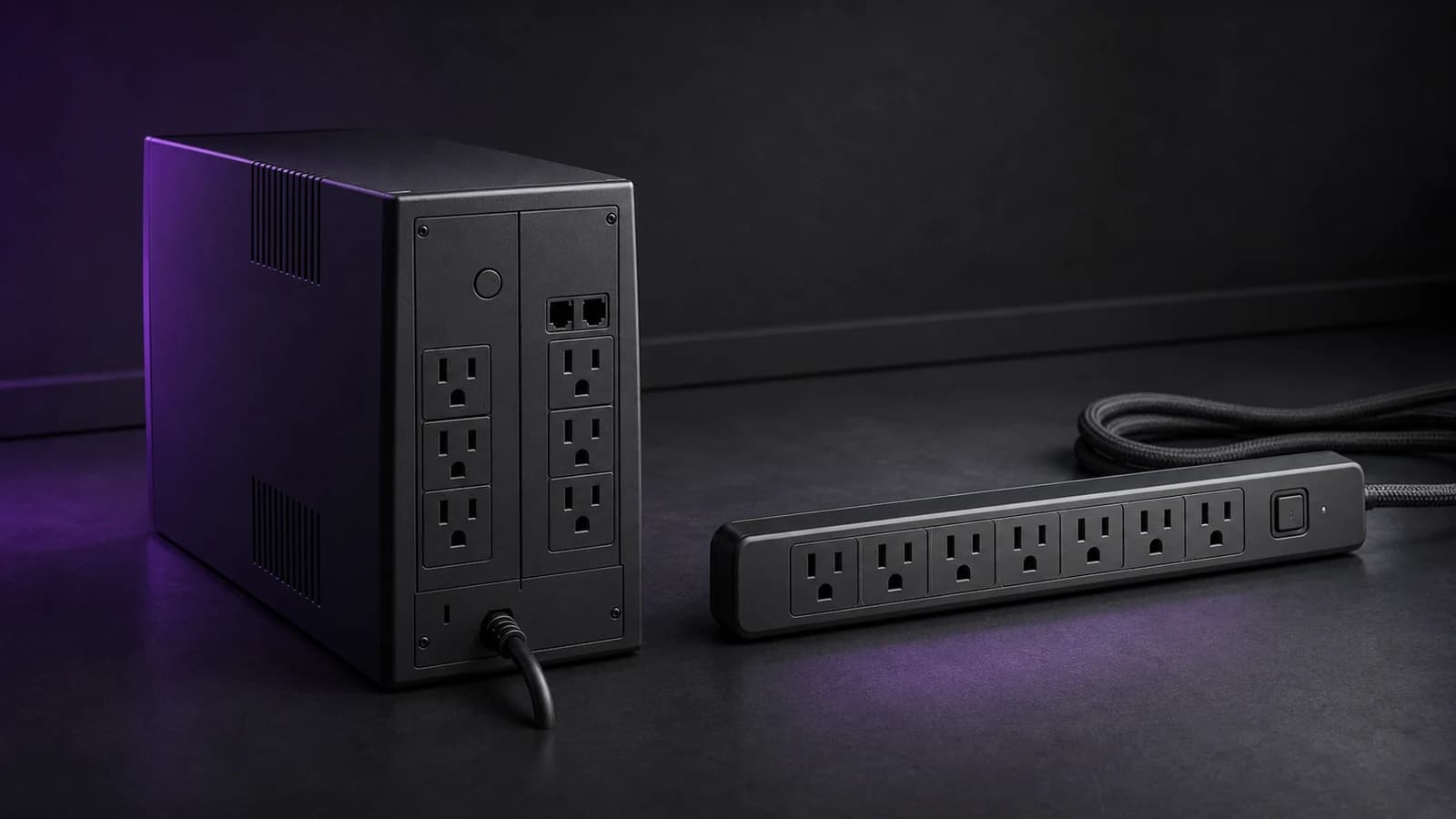
A power outage has two modes:
- mildly annoying (the lights go out)
- expensive (your desktop/NAS dies mid-write and you spend the weekend doing digital archaeology)
A UPS (uninterruptible power supply) is how you turn “random outage” into “two minutes of grace + an orderly shutdown.”
SolderMag Take: buy runtime for shutdown, not for “hours of work”
Most people over-index on the dream: “I want to keep working for 2 hours.” That’s portable-power-station territory, not UPS territory. If you are trying to decide between the two categories, read our portable power station vs UPS guide.
A UPS shines when it:
- rides through short blips and brownouts
- keeps your network alive long enough for the modem/router to reboot cleanly
- gives your computer/NAS time to save state + shut down safely
If you size it for 5-15 minutes at your real load, you’ll usually spend less, get a physically smaller unit, and still cover the failure modes that actually corrupt data.
Who this guide is for
Get a UPS if you have any of these:
- a desktop PC you care about (editing, dev work, gaming rigs with expensive components)
- a NAS / home server (Unraid/TrueNAS/Synology/QNAP)
- a home office where a dropped call costs you money
- a router/modem setup that takes 3-8 minutes to fully recover after a hard cut
You can skip (or delay) a UPS if:
- you only use a laptop (its battery is already a UPS)
- you don’t store anything locally and you’re fine with surprise reboots
- you’re in a building with very stable power and you don’t care about uptime
The 8 things that actually matter (and what they mean)
1) Watts vs VA: the spec that confuses everyone
UPS units are typically rated in VA (volt-amps) and W (watts).
- Watts is the real power your gear uses.
- VA is the “apparent power” the UPS inverter has to handle.
Rule of thumb: size using watts first, then ensure the VA rating clears it.
Practical move:
- check your PSU label / power meter / smart plug for real usage at your typical load
- ignore “my PSU is 850W” unless you’re actually pulling that
2) Battery runtime at your load (not the marketing load)
Runtime charts are often based on specific loads.
You want:
- 5-10 minutes for a desktop + monitor so you can save and shut down
- 10-20 minutes for a NAS/server so it can flush writes and stop cleanly
- 15-30 minutes for modem/router + Wi‑Fi (they draw little power but benefit from time)
If you need “keep the whole office up for an hour,” consider:
- a bigger UPS with external battery packs (expensive)
- a small generator / home battery system (different category)
3) Topology: standby vs line-interactive vs online (double conversion)
This is the “how it behaves when power gets weird” decision.
Standby / offline
- cheapest
- switches to battery when power fails
- fine for basic home gear, but less graceful with frequent dips
Line-interactive (the sweet spot for most people)
- has AVR (automatic voltage regulation) to correct sags without burning battery
- faster, cleaner behavior during brownouts
- usually the best cost/performance for home office + NAS
Online / double conversion
- always regenerates AC from DC (most consistent output)
- best for sensitive equipment and truly dirty power
- louder, hotter, more expensive (and often overkill for home)
If you’re not sure: choose line-interactive.
4) Output waveform: “pure sine” vs “simulated sine”
This matters most for modern PC power supplies (active PFC).
- Pure sine wave UPS units are friendlier to active PFC PSUs and can reduce buzzing/odd behavior.
- Simulated sine is often fine, but it’s the riskier choice with picky PSUs.
If you’re protecting a gaming PC, workstation, or NAS: prefer pure sine.
5) AVR (automatic voltage regulation)
AVR is an underrated feature because it saves your battery.
If your power does frequent small dips/surges, AVR helps the UPS correct it without switching to battery constantly. which extends battery life and reduces “why is my UPS beeping again?” events.
6) Battery replacement: can you service it easily?
UPS batteries are consumables. Plan for that.
Look for:
- user-replaceable battery cartridges
- common battery types (easy to source)
- clear replacement instructions
If the battery is “sealed forever” or replacement costs half the unit, it’s basically disposable.
7) Ports & shutdown support (USB / network)
A UPS is way more valuable when your devices can shut down cleanly.
- For a single PC: USB signaling to trigger shutdown is great.
- For NAS/home server: check compatibility (e.g., NUT on Linux, vendor support on Synology/QNAP).
- For multiple devices: a network management card is nice, but not required for most homes.
If you haven’t already, make sure the rest of your power chain is solid too. see our surge protector guide for the basics.
8) Outlets: battery-backed vs surge-only (don’t waste your battery)
Many UPS units split outlets into:
- battery + surge (kept alive during outage)
- surge-only (protected, but shuts off)
Put only the essentials on battery:
- PC + monitor (maybe)
- NAS/server
- modem/router/switch
Do not put space heaters, laser printers, or big speakers on battery-backed outlets.
Common setups (quick sizing sanity checks)
Home office desktop + monitor + modem/router
- Typical load: 150-450W (depends wildly)
- Target runtime: 5-10 minutes
- Topology: line-interactive
- Waveform: pure sine preferred
NAS + modem/router (the “protect the data” bundle)
- Typical load: 30-180W
- Target runtime: 10-20 minutes
- Topology: line-interactive
- Waveform: pure sine nice-to-have
Living room internet kit (modem/router + mesh node)
- Typical load: 10-40W
- Target runtime: 20-60 minutes
- Consider: sometimes a small DC UPS is cleaner than an AC UPS for this job
Common traps (and how to avoid them)
- Buying by VA only: always check the W rating.
- Assuming “1500VA” means “1500W”: it doesn’t.
- Overloading battery outlets with non-essentials: your runtime collapses.
- Ignoring waveform with active PFC PSUs: simulated sine can be fine… until it isn’t.
- No shutdown automation: the UPS saved you from a hard cut, but your NAS still crashed.
- Placing it in a sealed cabinet: UPS units need airflow; heat kills batteries.
Buying checklist (fast)
- Measure your real load (W) at typical use
- Choose topology (usually line-interactive)
- Prefer pure sine if protecting modern PCs/NAS
- Pick a runtime target (5-15 min is the practical zone)
- Confirm battery replacement is easy and affordable
- Ensure enough battery-backed outlets for essentials
- Check USB/NUT/NAS compatibility for clean shutdown
- Plan placement (airflow + audible alarm + not underfoot)
Our top picks
CyberPower LE1000DG
Why it works
- Exceptional battery life up to 3 hours for modem/router
- AVR and 12 outlets
- Strong surge protection
Main trade-off
- Modified sine-wave output

APC UPS 1500VA Sine Wave BR1500MS2
Why it works
- Pure sine wave output
- High 1500VA/900W capacity
- LCD display and AVR
Main trade-off
- Premium price

CyberPower CP1500PFCLCD PFC Sinewave UPS System
Why it works
- Pure sine wave for PFC PSUs
- 1500VA/1000W with AVR
- Informative LCD and 12 outlets
Main trade-off
- Somewhat heavy

Amazon Basics 600VA Standby UPS
Why it works
- 600VA/360W standby capacity
- Four battery-backed plus four surge-only outlets
- Compact option for basic network gear
Main trade-off
- Standby rather than line-interactive
- Limited 360W ceiling
Sources
- APC by Schneider Electric. UPS selector & sizing guidance (VA/W concepts + runtime planning): https://www.apc.com/us/en/tools/ups_selector/
- Eaton. UPS topology basics (standby vs line-interactive vs online): https://www.eaton.com/us/en-us/products/backup-power-ups-surge-it-power-distribution/backup-power-ups/choosing-the-optimal-ups-topology-.html
- CyberPower. PFC sinewave UPS overview (waveform implications with modern PSUs): https://www.cyberpowersystems.com/products/ups/pfc-sinewave/
- Network UPS Tools (NUT). compatibility and monitoring/shutdown ecosystem for Linux/NAS setups: https://networkupstools.org/
- Amazon exact-product specifications for the Amazon Basics 600VA/360W eight-outlet standby UPS, US ASIN
B073Q48YGF.
As an Amazon Associate I earn from qualifying purchases.