Best Home Office Setup (2026): The Complete Guide to a Productive Desk
Build the perfect home office in 2026. Monitor, desk, chair, keyboard, webcam, and accessories that actually improve your work day.
Editorial evidence review
Recommendations are checked against product documentation, availability, comparative evidence, and clearly disclosed hands-on work where it exists.
Quick picks
The short answer, with the trade-off
Best monitor
Dell UltraSharp U2725QE
Built-in USB hub and KVM switch
Trade-off: Stand wobbles slightly

Best chair
Herman Miller Aeron (Remastered, Size B)
Trade-off: Not cheap new, buy used for best value

Best keyboard
Keychron Q1 Pro
Trade-off: Heavier than plastic boards

Best webcam
Logitech MX Brio
Trade-off: Premium price for a webcam
On this page
- SolderMag Take: build your home office in priority order, not budget order
- The chair: where most home offices fail
- The desk: sit-stand is worth it, but only if you actually stand
- The monitor: your eyes spend more time here than anywhere
- The keyboard: your hands deserve better than a $15 membrane
- Lighting: the most underrated home office upgrade
- The webcam: you probably look worse than you think on calls
- Audio: do not rely on laptop speakers for calls
- The mouse: your other hand matters too
- Internet and connectivity
- Cable management and desk organization
- Common home office mistakes to avoid
- The complete home office shopping list
If you work from home, your office is not a perk. It is your workplace. And most home offices are assembled reactively: a laptop on a kitchen table, then a monitor, then a chair that seemed fine at the store, then a webcam because someone complained you looked like a shadow on Zoom.
The result is a workspace that sort of works but quietly makes everything harder. Bad posture from a cheap chair. Eye strain from a dim monitor at the wrong height. Tinny audio on every call. A desk covered in cables and adapters.
This guide is the version where you do it right from the start, or fix what you already have, one piece at a time.
SolderMag Take: build your home office in priority order, not budget order
Most people start with the fun stuff (monitors, keyboards, speakers) and leave the important stuff for later (chair, desk height, lighting). That is backwards.
The priority order that actually matters:
- Chair. You sit in it 8 hours a day. Nothing else touches your body that much.
- Monitor at the right height. Eye strain and neck pain come from here.
- Keyboard and mouse. Your hands touch these all day. Ergonomics matter.
- Lighting. Bad lighting causes eye fatigue and makes you look terrible on calls.
- Webcam and audio. Professional presence on video calls.
- Everything else. Cable management, speakers, plants, whatever makes you happy.
If you have $500 to spend, put $350 into a used Herman Miller Aeron and split the rest between a monitor arm and a decent light. You will feel the difference more than any amount of RGB accessories.
The chair: where most home offices fail
A good chair is not a luxury. It is the single highest-ROI purchase in any home office. We covered this extensively in the real cost of a cheap office chair, but the short version: a used Herman Miller Aeron costs $350 to $450, lasts over a decade, has replaceable parts, and holds resale value. Two cheap Amazon chairs over the same period cost more and hurt your back.

Herman Miller Aeron (Remastered, Size B)
Why it works
- 12-year warranty transfers to second owner
- Mesh keeps you cool
- Deep used market keeps prices reasonable
Main trade-off
- Not cheap new, buy used for best value
The Steelcase Leap V2 and Haworth Fern are equally good alternatives. But the Aeron has the deepest used market and most available replacement parts. Buy used, buy Size B (fits most people), and your back will thank you for years.
The desk: sit-stand is worth it, but only if you actually stand
A standing desk is only useful if you use it. If you have tried standing desks before and found yourself permanently in sitting mode, save the money and get a solid fixed-height desk instead.
If you do want to stand, the key specs that matter are stability (no wobble at standing height), speed (slow motors mean you will not bother switching), and a wide enough surface for your setup. Our best standing desks roundup covers the top options.
The monitor: your eyes spend more time here than anywhere
For most home office workers, a 27-inch 4K IPS monitor is the sweet spot. Sharp text for documents and code, enough screen space for side-by-side windows, and small enough to fit most desks.
Dell UltraSharp U2725QE
Why it works
- Built-in USB hub and KVM switch
- Thunderbolt 4 with 140W power delivery
- Accurate colors out of the box
Main trade-off
- Stand wobbles slightly
The Dell U2725QE doubles as a docking station with its Thunderbolt 4 port and built-in USB hub. One cable from your laptop gives you video, charging, and hub access. That alone can clean up half the cables on your desk.
If you are still on a small screen, read your monitor is too small. The productivity difference is real. For our full monitor recommendations, see best 27-inch 4K monitors.
Mount it properly. The bundled stand is usually fine but takes up desk space. A monitor arm frees up your desk surface and lets you dial in the exact height and distance. Your eyes should hit the top third of the screen when sitting upright.
The keyboard: your hands deserve better than a $15 membrane
If you type for a living, a mechanical keyboard is not an indulgence. It is a tool upgrade. The difference in typing feel, accuracy, and long-term comfort is noticeable within the first week.
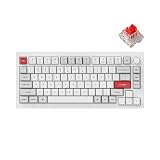
Keychron Q1 Pro
Why it works
- Aluminum build, gasket mount, hot-swap
- Triple-mode wireless (Bluetooth, 2.4GHz, wired)
- QMK/VIA support for full remapping
Main trade-off
- Heavier than plastic boards
The Q1 Pro hits the sweet spot: aluminum construction, gasket mount for a nice typing feel, wireless that actually works, and full programmability through QMK/VIA. It is the keyboard we recommend to anyone who wants quality without joining enthusiast Discord servers. For more options across budgets, see best mechanical keyboards.
Pair the keyboard with a proper ergonomic mouse. Your wrist will notice.
Lighting: the most underrated home office upgrade
Two changes that cost under $50 and transform your workspace:
- A desk lamp or monitor light bar. The BenQ ScreenBar clips to the top of your monitor and lights your desk without screen glare. It also dramatically improves how you look on webcam.
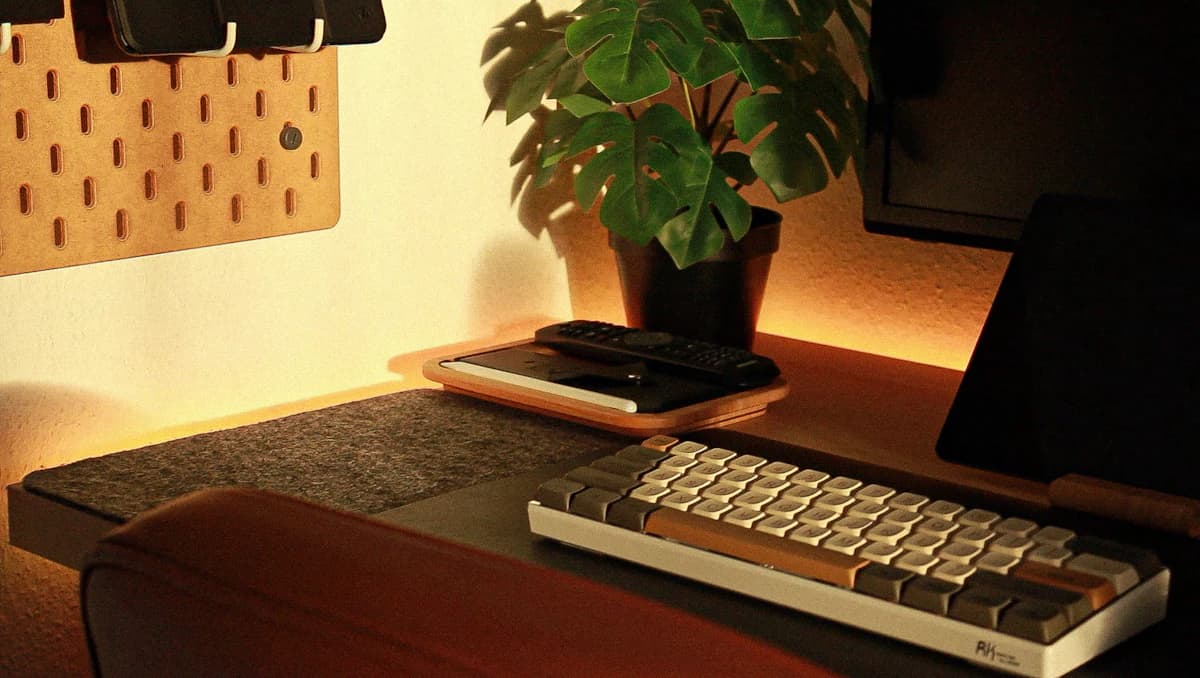
- Bias lighting behind your monitor. An LED strip on the back of your screen reduces the contrast between the bright panel and the dark wall behind it. This is the main cause of eye fatigue during long sessions.
If your room has a window, position your desk so the window is to your side, not behind you (blinds your webcam) or directly in front of you (screen glare).
The webcam: you probably look worse than you think on calls
Most built-in laptop webcams are positioned below your face, angled up, and struggle in anything but perfect lighting. An external webcam mounted at eye level (on your monitor) fixes the angle problem instantly.

Logitech MX Brio
Why it works
- 4K with excellent auto-exposure
- Great low-light performance
- Built-in privacy shutter
Main trade-off
- Premium price for a webcam
The MX Brio handles changing light conditions better than most webcams at any price. If your room goes from sunny morning to dim evening, the Brio adjusts without turning you into a silhouette. For more options, see our best webcams for video calls roundup.
Pro tip: the single biggest improvement to webcam quality is not the camera. It is the light. A $20 desk lamp pointed at your face does more than a $200 webcam upgrade.
Audio: do not rely on laptop speakers for calls
For calls, a good pair of headphones with a decent microphone beats any laptop speaker/mic combo. If you already own noise-cancelling headphones, you are probably set. If not, see our best noise-cancelling headphones picks.
For music while working, a proper stereo pair gives you a more stable desk soundstage than a portable speaker. Compare the Audioengine A2+ Next Gen and Kanto ORA if you want a compact powered pair. For a larger wired desk, the Edifier MR4 vs R1280DBs comparison separates creator inputs from Bluetooth and TV convenience. Use our best Bluetooth speakers guide when portability matters more.
The mouse: your other hand matters too
If you use a mouse for hours a day, a standard flat mouse forces your wrist into an unnatural position. Over time, this causes strain. An ergonomic mouse (vertical or trackball) keeps your forearm in a neutral position and reduces the tension that builds during long work sessions.
You do not need to spend much. The Logitech MX Vertical and Logitech Lift are both solid options under $70. Even at the budget end, a vertical mouse from a decent brand beats the flat mouse that came with your old desktop. See our best ergonomic mice roundup for the full range.
Internet and connectivity
If your home office relies on Wi-Fi and you are more than one room from the router, your connection is probably worse than you think. Video calls are the first thing to suffer: choppy audio, frozen video, and the dreaded "you cut out for a second" on every meeting.
Two fixes that actually work:
- Ethernet. A wired connection to your desk eliminates Wi-Fi instability entirely. If running a cable is impractical, a powerline adapter or MoCA adapter over coax can get you close.
- A Wi-Fi 6E or Wi-Fi 7 mesh system. If wireless is your only option, a mesh system with a node near your office dramatically improves reliability compared to a single router three rooms away.
Most docking stations include an ethernet port. Use it.
Cable management and desk organization
This is less exciting but genuinely changes how your workspace feels:
- A single dock or hub eliminates most cable chaos. See our desk setup essentials guide for the full breakdown.
- Cable trays under the desk hide power strips and excess cable length.
- Velcro ties, not zip ties. You will rearrange things. Velcro lets you do that without scissors.
- Route cables along desk legs to keep the floor clear.
Common home office mistakes to avoid
Buying a second cheap monitor instead of one good one. Two mediocre 1080p panels create more visual fatigue than a single sharp 4K display. If budget is tight, start with one quality monitor and add a second later.
Ignoring room temperature and airflow. A home office that gets too warm in summer or too cold in winter is an office you dread sitting in. A small fan, a space heater on a smart plug, or even just opening a window can make a bigger difference than any desk accessory.
Skipping a proper internet connection. Spotty Wi-Fi undermines everything else. If your router is two rooms away, either run ethernet or invest in a mesh system. Every dropped Zoom call costs more in frustration than a cable costs in money.
Trying to buy everything at once. The best home office is built over months, not in one Amazon cart. Start with the pieces that affect your body (chair, monitor height), then add comfort and productivity upgrades over time.
The complete home office shopping list
Here is the full priority order, with links to our detailed guides for each category:
- Chair: The real cost of a cheap office chair / Desk setup essentials
- Monitor: Best 27-inch 4K monitors / Your monitor is too small
- Monitor arm: Best monitor arms
- Desk: Best standing desks
- Keyboard: Best mechanical keyboards
- Mouse: Best ergonomic mice
- Webcam: Best webcams for video calls
- Laptop: Best laptops for working from home
You do not need to buy everything at once. Start with the chair and monitor, then add pieces as budget allows. Each upgrade compounds. A good chair plus a good monitor plus a good keyboard creates a workspace that makes you measurably more productive and significantly more comfortable.
This guide is updated regularly as we test new gear. For the foundational philosophy behind a productive desk, start with our desk setup essentials guide. And if you want to keep the budget tight, our best tech under $50 roundup covers accessories that punch above their price.