Best Drawing Tablets (2026): Pen Displays and Screenless Tablets Worth Buying
The best drawing tablets of 2026 for digital art, photo editing, and creative work, with clear picks for pen displays, screenless tablets, and budget setups.
Editorial evidence review
Recommendations are checked against product documentation, availability, comparative evidence, and clearly disclosed hands-on work where it exists.
Quick picks
The short answer, with the trade-offBest pen display
Wacom Cintiq 16
Direct drawing experience on a 15.6-inch display
Trade-off: Costs more than comparable Huion and XP-Pen displays
Best value screenless
XP-Pen Deco Pro Gen 2 Medium
Trade-off: Drivers are less polished than Wacom's

Best premium screenless
Wacom Intuos Pro M
Trade-off: Expensive for a tablet with no screen

Best budget pen display
Huion Kamvas 13 Gen 3
Trade-off: 13.3-inch workspace can feel tight
On this page
- SolderMag Take: buy the tablet that fits your posture, not the one with the biggest pressure number
- Quick decision table
- Best pen display: Wacom Cintiq 16
- Best value screenless: XP-Pen Deco Pro Gen 2 Medium
- Best premium screenless: Wacom Intuos Pro M
- Best budget pen display: Huion Kamvas 13 Gen 3
- Pen display vs screenless: which one should you buy?
- Specs that matter
- Common buying mistakes
- How we chose
- Sources
- Related reading
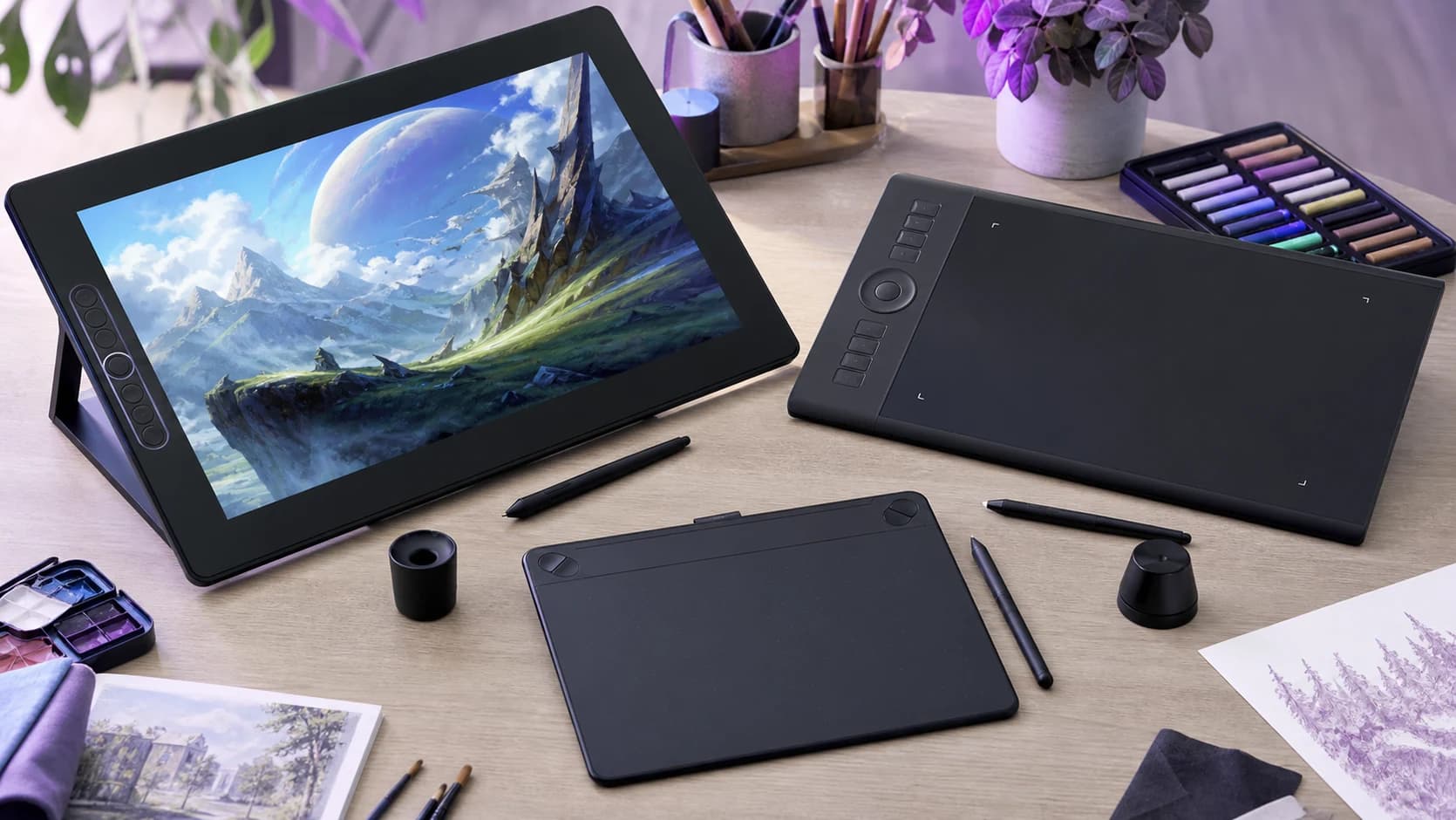
The first drawing-tablet decision is not Wacom versus XP-Pen versus Huion. It is whether you should buy a screen at all.
Pen displays are easier to learn because you draw directly on the image. They cost more, take more desk space, and can encourage a hunched posture during long sessions.
Screenless tablets feel strange for a few days because your hand moves on the tablet while your eyes stay on the monitor. Once that clicks, they are cheaper, cleaner on a desk, and often better for long photo-editing or illustration sessions.
Our short answer: buy a pen display if direct hand-eye coordination matters more than price. Buy a screenless tablet if you already have a good monitor and want better value.
SolderMag Take: buy the tablet that fits your posture, not the one with the biggest pressure number
Drawing-tablet marketing overweights pressure levels. Above 8,192 levels, the bigger number is rarely the thing that changes your work.
The daily experience comes down to four less glamorous details:
- Pen feel: activation force, tilt behavior, nib texture, and whether the pen needs charging.
- Driver reliability: whether settings survive sleep, OS updates, and app switching.
- Working posture: whether the setup keeps your head up and shoulders relaxed.
- Shortcut workflow: whether you can change brush size, undo, zoom, and rotate without hunting for the keyboard.
Wacom still has the strongest driver and pen ecosystem. XP-Pen and Huion are now good enough that the value case is real, especially for students and hobbyists. The right answer is mostly about how much you draw, how much desk space you have, and whether you need a screen.
Quick decision table
| Buyer | Best fit | Why |
|---|---|---|
| Beginner who wants to draw directly on-screen | Huion Kamvas 13 Gen 3 | Lower entry cost, laminated 13.3-inch display, modern pen tech |
| Professional illustrator who wants fewer driver surprises | Wacom Cintiq 16 | Strong pen ecosystem and a more mature display-tablet workflow |
| Photo editor or designer with a good monitor | Wacom Intuos Pro M | Screenless posture, Pro Pen 3, customizable controls |
| Student or hobbyist on a tighter budget | XP-Pen Deco Pro Gen 2 Medium | Big active area and 16K pressure support for much less money |
| Mobile-first artist already happy on iPad | iPad plus Apple Pencil | Better portable sketching, weaker desktop-app integration |
Best pen display: Wacom Cintiq 16
Buy this if: you want a serious pen display and would rather pay more for Wacom's pen and driver ecosystem than gamble on a cheaper screen.
The current Cintiq 16 is the clean default for buyers who know they want to draw directly on a display. Wacom's current listing pairs a 15.6-inch 2.5K panel with Pro Pen 3, 8,192 pressure levels, tilt support, anti-glare etched glass, and 99% DCI-P3 color coverage. That is a meaningful upgrade over older 1080p Cintiq 16 listings that are still easy to find in retail search.
That last point matters: check the exact listing before buying. If the page says 1080p or Pro Pen 2, you are looking at the older Cintiq 16. It can still be useful at the right price, but it is not the current spec.
The Cintiq 16 makes the most sense for illustrators, animators, and retouchers who want the direct feel of drawing on the image. It is not the value pick. It is the reduced-friction pick.
Wacom Cintiq 16
Why it works
- Direct drawing experience on a 15.6-inch display
- Current model uses Pro Pen 3 with 8,192 pressure levels
- Anti-glare etched glass and strong color coverage
Main trade-off
- Costs more than comparable Huion and XP-Pen displays
- Retail listings can mix older and current Cintiq 16 models
Best value screenless: XP-Pen Deco Pro Gen 2 Medium
Buy this if: you want a serious screenless tablet without paying Wacom money.
The Deco Pro Gen 2 Medium is the value pick because it gives you a generous active area, USB-C and wireless use, shortcut controls, tilt support, and XP-Pen's X3 Pro stylus with 16,384 pressure levels. The pressure number is not the whole story, but the tablet is no longer a bargain-bin compromise.
The catch is software polish. XP-Pen's drivers are much better than they used to be, but Wacom still has the edge for people who switch between creative apps all day or who cannot afford driver friction during paid work.
For students, hobbyists, and digital artists moving up from a tiny starter tablet, this is the pick that makes the most sense.
XP-Pen Deco Pro Gen 2 Medium
Why it works
- Large active area for the money
- 16,384 pressure levels and tilt support
- USB-C plus wireless workflow
Main trade-off
- Drivers are less polished than Wacom's
- Screenless workflow has a learning curve
Best premium screenless: Wacom Intuos Pro M
Buy this if: you draw, retouch, or design for hours at a time and already have a good monitor.
The Wacom Intuos Pro M is the screenless pick for people who want the least drama. Wacom redesigned the Intuos Pro line with Pro Pen 3, top-mounted ExpressKeys, mechanical dials, USB-C, Bluetooth, and a more compact body than older Intuos Pro models.
The screenless format is the point. Your eyes stay on your calibrated monitor, your neck stays more upright, and the tablet can sit where your arm naturally falls. For long photo-editing sessions, that can be more comfortable than leaning into a pen display.
Do not buy it just because it is the expensive one. If you only draw occasionally, the XP-Pen gives better value. Buy the Intuos Pro when your time, app profiles, and driver reliability matter more than the purchase price.

Wacom Intuos Pro M
Why it works
- Pro Pen 3 with customizable grip and button setup
- Screenless posture pairs well with calibrated monitors
- Top-mounted ExpressKeys and mechanical dials
Main trade-off
- Expensive for a tablet with no screen
- Overkill for occasional sketching or note-taking
Best budget pen display: Huion Kamvas 13 Gen 3
Buy this if: you want a screen tablet for learning, sketching, or light creative work and do not want to pay Cintiq money.
The Kamvas 13 Gen 3 is the budget pen-display pick because it gets the important beginner details right: a fully laminated 13.3-inch screen, PenTech 4.0, 16,384 pressure levels, tilt support, programmable controls, and 99% sRGB coverage on Huion's spec sheet.
The size is the trade-off. A 13.3-inch pen display is portable and affordable, but it can feel cramped once Photoshop panels, reference images, and brush controls are open. It is best for learning, sketching, note-taking, and occasional retouching. For professional illustration all day, size up.

Huion Kamvas 13 Gen 3
Why it works
- Lower-cost on-screen drawing
- Fully laminated 13.3-inch display
- PenTech 4.0 with 16,384 pressure levels
Main trade-off
- 13.3-inch workspace can feel tight
- Not the safest choice for color-critical professional work
Pen display vs screenless: which one should you buy?
Choose a pen display if:
- You are primarily drawing, painting, animating, or retouching by hand.
- You hate the disconnect of looking at a monitor while drawing on a separate surface.
- You have desk space for a display, stand, cable, and keyboard.
- You accept that a good pen display costs more than a good screenless tablet.
Choose a screenless tablet if:
- You already own a good monitor.
- You spend long sessions editing photos, masking, retouching, or drawing.
- You want better value per dollar.
- You care more about posture and clean desk setup than direct on-screen drawing.
The cheap mistake is buying a pen display because it looks more "professional" when your actual workflow is Lightroom, Photoshop masks, and occasional sketches. A screenless tablet is often better for that.
Specs that matter
Pressure levels: 8,192 is enough
Modern tablets love advertising 16K pressure. It is not useless, but it is not a reason to buy a worse tablet. Above 8,192 levels, pressure curve, activation force, and driver tuning matter more.
Parallax: only relevant on pen displays
Parallax is the gap between the pen tip and the cursor. Laminated displays reduce that gap and feel more direct. On cheaper non-laminated displays, the offset can be annoying near the edges.
Active area: medium is the safe default
- Small: fine for notes and travel, cramped for illustration.
- Medium: the best default for most artists and photo editors.
- Large: good for broad arm movement, but it needs more desk space.
Color accuracy: do not trust the headline number alone
For pen displays, look for sRGB or DCI-P3 coverage and calibration options. If color accuracy is critical, keep a calibrated external monitor in the workflow and use the pen display as an input surface, not the final color reference.
Driver support: boring until it ruins your day
Check Windows/macOS support before buying, especially if you run a new OS version. If you work in multiple apps, make sure the driver supports app-specific shortcuts.
Common buying mistakes
- Buying the biggest tablet that fits the budget. Large active areas can cause shoulder movement you may not want.
- Paying for a screen when a screenless tablet would be better. Photo editors often make this mistake.
- Ignoring the stand. A pen display without a stable angle is uncomfortable fast.
- Assuming every "Cintiq 16" listing is the same. Current and older models may appear together in search results.
- Buying a no-name tablet for a critical workflow. Driver support and replacement pens matter.
How we chose
This guide is based on manufacturer specifications, current retail availability, driver ecosystem history, independent reviewer measurements where available, and long-running buyer feedback from digital artists and photo editors.
We did not run fresh lab tests for this update, and we are not claiming measured latency, color accuracy, or pressure-curve results from our own bench. Where a spec matters, we prefer current manufacturer documentation and conservative buying advice over inflated claims.
Sources
- Wacom Cintiq 16 current listing
- Wacom Intuos Pro product page
- XP-Pen Deco Pro Gen 2 product page
- Huion Kamvas 13 Gen 3 specifications
Related reading
- Best 27-Inch 4K Monitors (2026): the monitor matters more if you choose a screenless tablet.
- Desk Setup Essentials: tablet posture, lighting, and monitor position all compound.
- Best Action Cameras (2026): useful if your creative work includes capture plus editing.
- Best External SSDs 2TB (2026): portable project storage for photo and video libraries.
As an Amazon Associate I earn from qualifying purchases. Product availability, exact specs, and pricing can change; check the retailer listing before buying.