Best USB4 NVMe Enclosures (2026): Fast Storage Without the Flakiness
Turn a spare M.2 drive into a fast portable SSD if you pick the right enclosure. Compare USB4 support, cooling, drive fit, and host limits.
Editorial evidence review
Recommendations are checked against product documentation, availability, comparative evidence, and clearly disclosed hands-on work where it exists.
Quick picks
The short answer, with the trade-off
Best overall
VCOM CU876N Thunderbolt 5 / USB4 NVMe SSD Enclosure
Outstanding thermals with active cooling
Trade-off: Requires TB5 host for max speed
Fan-cooled option
Sabrent EC-U4TN USB4 NVMe SSD Enclosure
Trade-off: M.2 SATA drives are not supported

Best cross-platform
OWC Express 1M2 USB4
Trade-off: Poor thermal performance

Best value
ACASIS 40Gbps M.2 NVMe Enclosure
Trade-off: Thermal throttling on long tasks
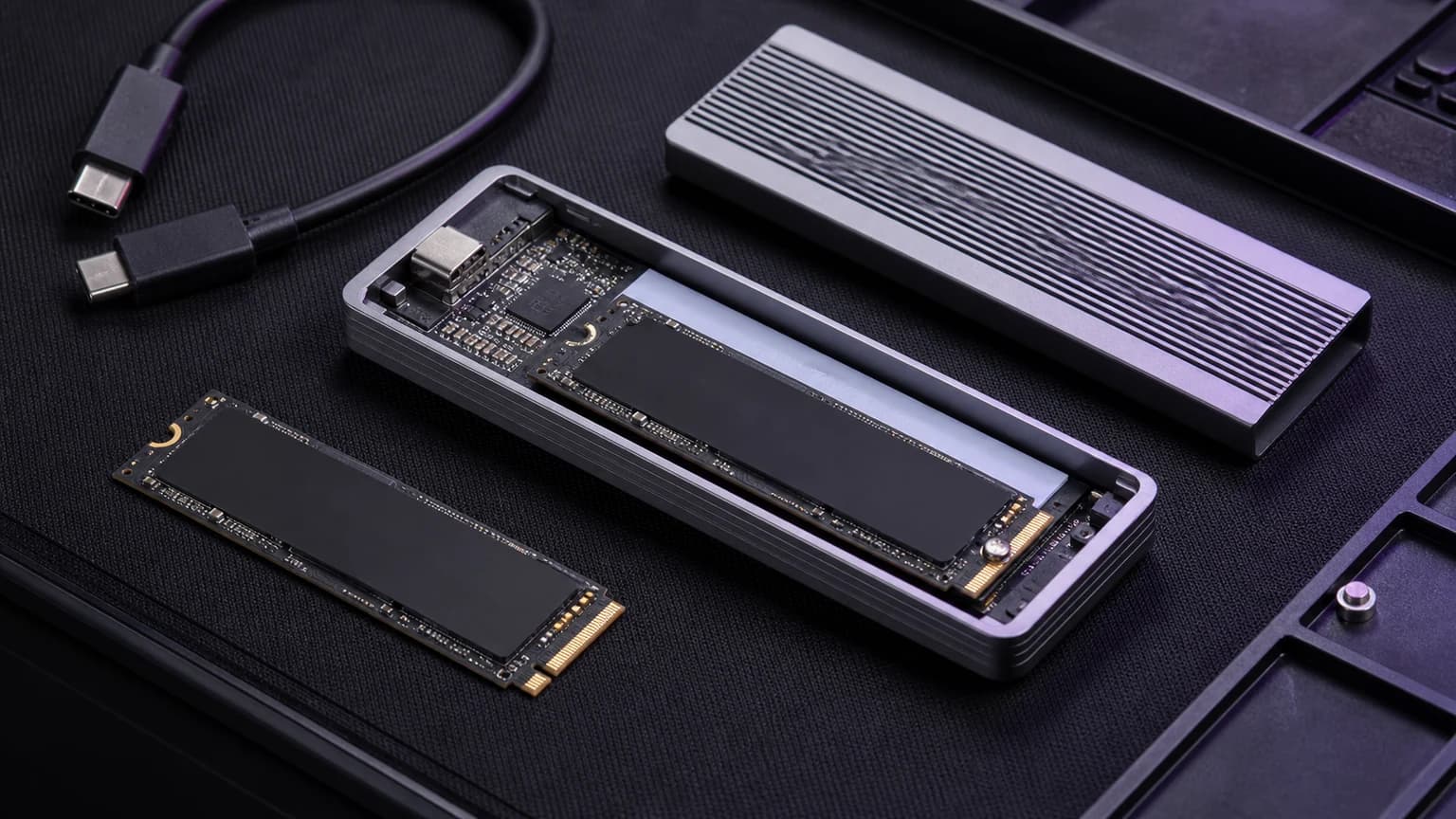
USB4 NVMe enclosures are one of the best upgrades-per-dollar in the entire gear universe: they let you repurpose an M.2 NVMe SSD into a portable, very fast drive.
They’re also a trap product.
The listings all look the same, the chipsets have weird behaviour, and the real difference is almost never “supports 40Gbps”. it’s thermals + firmware + cable honesty.
This is a mixed editorial + buying guide: I’ll give you the shopping criteria and the stuff vendors don’t like to say out loud.
SolderMag Take: an NVMe enclosure is a tiny laptop heatsink with opinions
At USB4 speeds, your enclosure isn’t a passive box. It’s a system:
- a USB4/TB-to-PCIe bridge controller
- an NVMe SSD (which can pull serious watts)
- a thermal path (or lack of one)
- a cable that may or may not be telling the truth
If the thermal design is mediocre, the enclosure will still benchmark well for 20-60 seconds… and then you’ll get the “why is my copy suddenly 700MB/s → 80MB/s” experience.
Buying bias: choose an enclosure that is boring at minute 10, not impressive at second 10.
USB4 vs Thunderbolt for NVMe enclosures (the useful part)
“USB4 40Gbps” is the goal. but you also want PCIe tunneling done right
A fast NVMe enclosure relies on a bridge that tunnels PCIe over USB4/TB.
Practical shopping implications:
- USB 3.2 Gen 2 (10Gbps) enclosures are fine for cheap bulk storage, but they cap out far below NVMe’s potential.
- USB4 40Gbps enclosures can get into “this feels internal” territory.
- Some laptops/ports/cables will silently fall back to slower modes.
If you want predictable results, you need all three aligned:
- A USB4 40Gbps enclosure
- A host port that actually supports USB4/TB at full speed
- A cable that is actually rated for the speed and length you’re using
What matters when buying (the stuff you’ll feel)
1) Sustained performance: thermals are the whole story
The NVMe drive is the heater.
Most consumer NVMe SSDs will throttle when they get hot. Some enclosures also throttle.
So you can end up with:
- SSD throttling (good, protective)
- bridge/controller throttling (sometimes ugly)
- both at once (peak chaos)
Rule of thumb: if you regularly write tens or hundreds of GB (4K/8K footage, game libraries, scratch), prioritize an enclosure with:
- solid metal construction
- the manufacturer-specified thermal pad for the installed drive and enclosure
- a correctly seated drive and cover, assembled without forcing or bending the board
Check single-sided and double-sided SSD fit before buying an enclosure. A 2280 label does not establish underside clearance or the correct thermal-pad arrangement.
2) Real-world speed: “40Gbps” is not a promise of 4GB/s
40Gbps is a link rate, not your file copy rate.
You’ll lose headroom to protocol overhead, controller limits, SSD behavior, filesystem, and small-file reality.
What you should expect if everything is healthy:
- Sequential reads/writes that feel dramatically faster than 10Gbps enclosures
- Small-file workloads that are limited by the SSD + filesystem more than the link
If a listing implies “40Gbps means 4000MB/s always,” it’s marketing math.
3) Compatibility and stability: sleep/wake and disconnects are the deal-breakers
The most common “returns” problems aren’t speed. They’re:
- random disconnects during heavy transfers
- weird behavior after sleep/wake
- flaky bus power, especially on hubs/docks
Editorial reality: the best enclosure is the one you stop thinking about.
4) TRIM support (especially on macOS): nice when it works, not always guaranteed
TRIM helps SSDs maintain performance over time, but external TRIM behavior varies by OS + bridge + drive.
Don’t buy an enclosure solely for “TRIM supported!” unless it’s documented clearly and verified by users.
If you’re using the drive as:
- a scratch disk that gets rewritten constantly → TRIM and sustained performance matter more
- a mostly-read media library → it matters less
5) Power and cables: the most boring parts cause the most failures
Many enclosure bundles include a short cable. That’s good. if it’s real.
A “USB-C cable” is not a spec.
You want:
- a certified USB4 / Thunderbolt cable (especially above ~0.8m)
- short lengths for maximum stability
If you run through a dock/hub, don’t be surprised if your “40Gbps” enclosure behaves like a 10Gbps device.
The buying decision checklist
Answer these quickly; they push you toward the right enclosure type.
-
What’s your workload?
- Mostly reads / light writes → almost any decent USB4 enclosure works
- Long sustained writes (100GB+) → prioritize thermal mass + pad pressure
-
What host are you plugging into?
- Mac with Thunderbolt/USB4 → usually straightforward, still verify cable and port
- Windows laptop with USB-C → check if the port is USB4/TB (many are just USB 3.x)
-
Do you need maximum speed or maximum reliability?
- Speed (benchmarks) → any top-tier chipset, short cable
- Reliability (day-to-day) → proven stable enclosure + conservative setup (direct port, short certified cable)
-
Do you care about size?
- Pocketable → smaller thermal mass; expect earlier throttling
- Slightly bigger → often meaningfully better sustained performance
-
Are you reusing a high-power SSD (PCIe 4.0/5.0)?
- Yes → thermals matter more than the enclosure marketing copy
Red flags (skip these)
- No mention of USB4 speed (20Gbps vs 40Gbps not stated)
- Listing says “Thunderbolt compatible” but not “USB4 40Gbps” (could just mean it plugs in)
- Plastic body with no thermal pad detail (hot SSDs need a path to the outside world)
- Tool-less design that doesn’t clamp firmly (bad contact = hot controller = throttle city)
- “Includes USB-C cable” with no spec (could be 10Gbps or worse)
- Reviews mentioning disconnects under load (that’s the one failure mode you can’t “fix later”)
- Mystery brand with constantly changing model names (hard to know what controller you’re actually buying)
Setup checks before transferring files
If an enclosure powers on but the drive is missing, follow our Windows SSD detection checks. Check the cable, direct connection and Disk Management before replacing the enclosure; do not initialize or format an SSD that already contains files.
- Use a short, certified USB4/TB cable (start with the included one if it’s reputable).
- Plug the enclosure directly into the laptop for initial testing (no hubs/docks).
- If you see throttling:
- verify the thermal pad is correctly placed and contacting the SSD controller
- consider a slightly lower-power SSD for sustained workloads
- For macOS workflows, format appropriately for your use case (don’t accidentally sabotage yourself with a weird filesystem choice).
- If you’re doing mission-critical transfers: do one big copy test end-to-end, then stop thinking about it.
Our top picks
VCOM CU876N Thunderbolt 5 / USB4 NVMe SSD Enclosure
Why it works
- Outstanding thermals with active cooling
- Sustained high speeds up to 80Gbps on TB5
- Premium aluminum build
Main trade-off
- Requires TB5 host for max speed
Sabrent's EC-U4TN is a USB4 NVMe enclosure with a built-in fan and tool-free installation. The manufacturer specifies USB4 and Thunderbolt host compatibility, with different maximum transfer ratings for those connections. Choose it if you want active cooling and accept a larger enclosure; we have not measured its fan noise or sustained-write performance. Sabrent EC-U4TN specifications.
Sabrent EC-U4TN USB4 NVMe SSD Enclosure
Why it works
- Built-in cooling fan
- Tool-free NVMe installation
- Supports M.2 2230, 2242, 2260 and 2280 drives
Main trade-off
- M.2 SATA drives are not supported
- Fan noise and sustained performance have not been measured by SolderMag

OWC Express 1M2 USB4
Why it works
- Premium feel
- Good macOS/Windows support
- Up to 3500MB/s speeds
Main trade-off
- Poor thermal performance

ACASIS 40Gbps M.2 NVMe Enclosure
Why it works
- Solid initial performance
- Active cooling option
- Popular for creators
Main trade-off
- Thermal throttling on long tasks
Sources
- USB Implementers Forum (USB-IF): USB4 overview and terminology
- Intel: Thunderbolt technology documentation and cable certification basics
- Apple Support: Thunderbolt / USB4 port behavior + external storage guidance (macOS)
- SSD vendor documentation on thermal throttling and power behavior (NVMe drives are not all equal)
If you’re trying to build a “single cable desk” setup, see: Best Thunderbolt 4 / USB4 Docks (2026). docks often decide whether your enclosure is fast and stable.
Need a drive to put inside? Our best 2TB NVMe SSDs guide covers which drives stay cool and fast in enclosures.